Go Live on TikTok using Switchboard
This support article will go over the detailed steps on how to Go Live to TikTok from your Switchboard account.
Last updated 12 months ago
Please Note
TikTok has its own requirements for live streaming. You'll need to have 1,000 followers on their platform to access the special features. Please reach out to the team at TikTok to find out the specific live streaming requirements.
Also, keep in mind how your video is formatted on the encoder that you're using. TikTok is typically viewed on mobile devices, meaning that you should set up your video to display in the portrait (vertical) format, 9:16 ratio.

Let's Get Started!
Set up TikTok
Log into your TikTok. Turn OFF the volume.
Tap the create icon (+).
Swipe until you see the Live option. Tap Live at the bottom.
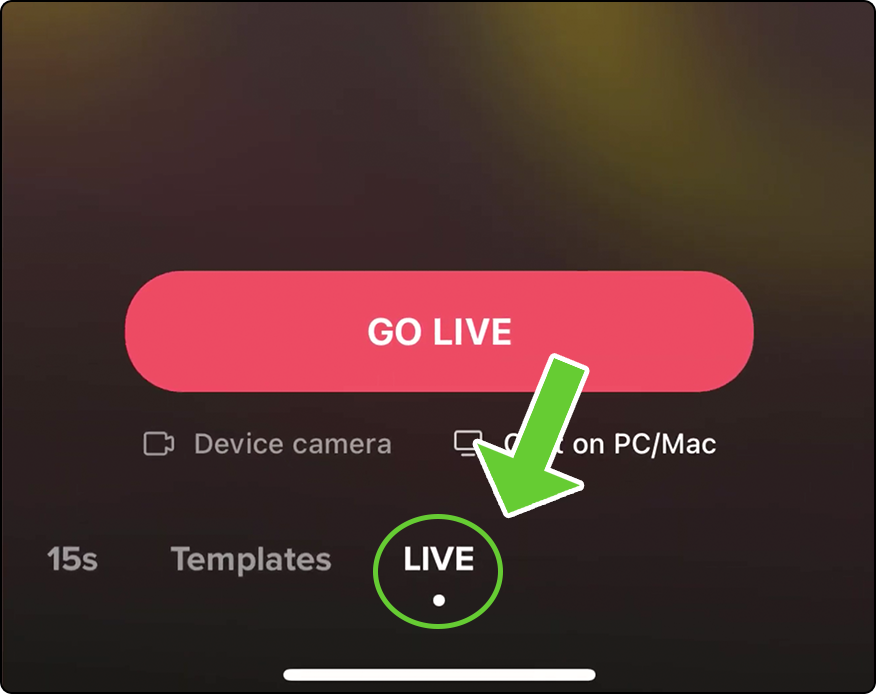
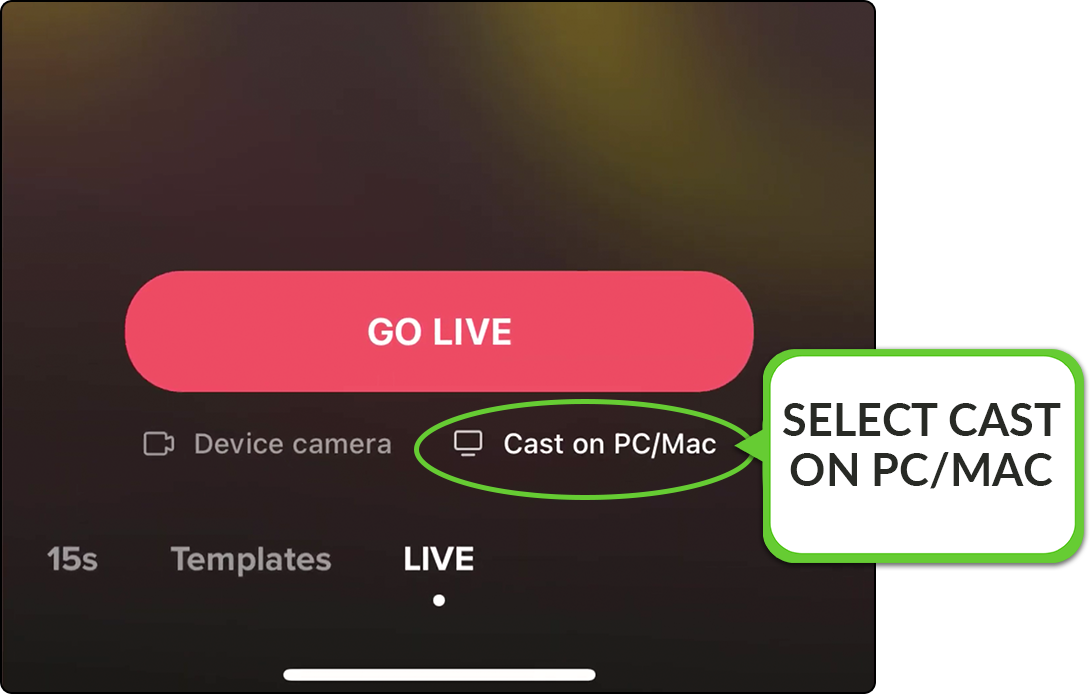
Select "CAST ON PC /MAC"
You may need to have 1000 followers to see this option.
If you don't see these options, contact TikTok because they decide which accounts are able to use this extra option.
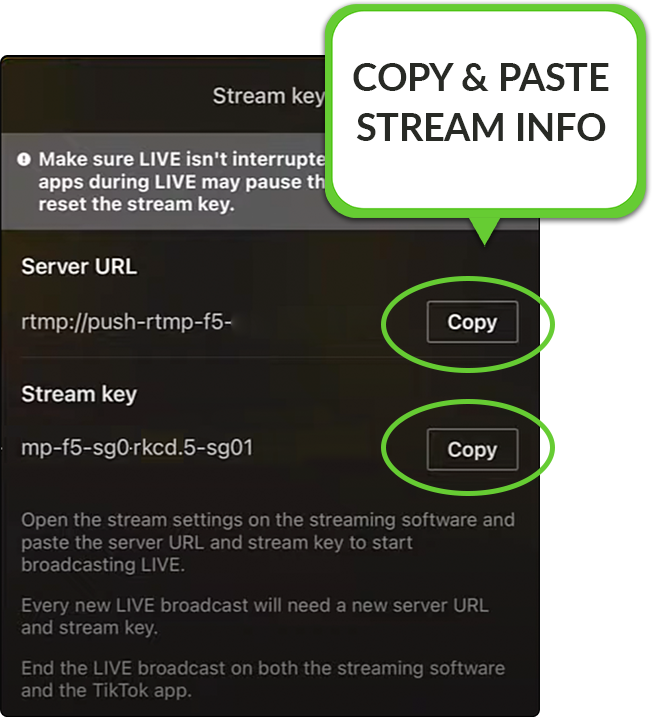
The page will show your TikTok Server URL and Stream Key.
This is the information that you'll copy and paste into your Switchboard account.
Add TikTok as a Custom RTMP Destination
In the next steps, you'll go back and forth as you copy and paste the streaming information from TikTok into your Switchboard Account.
Log into your Switchboard account.
Navigate to the appropriate workflow.
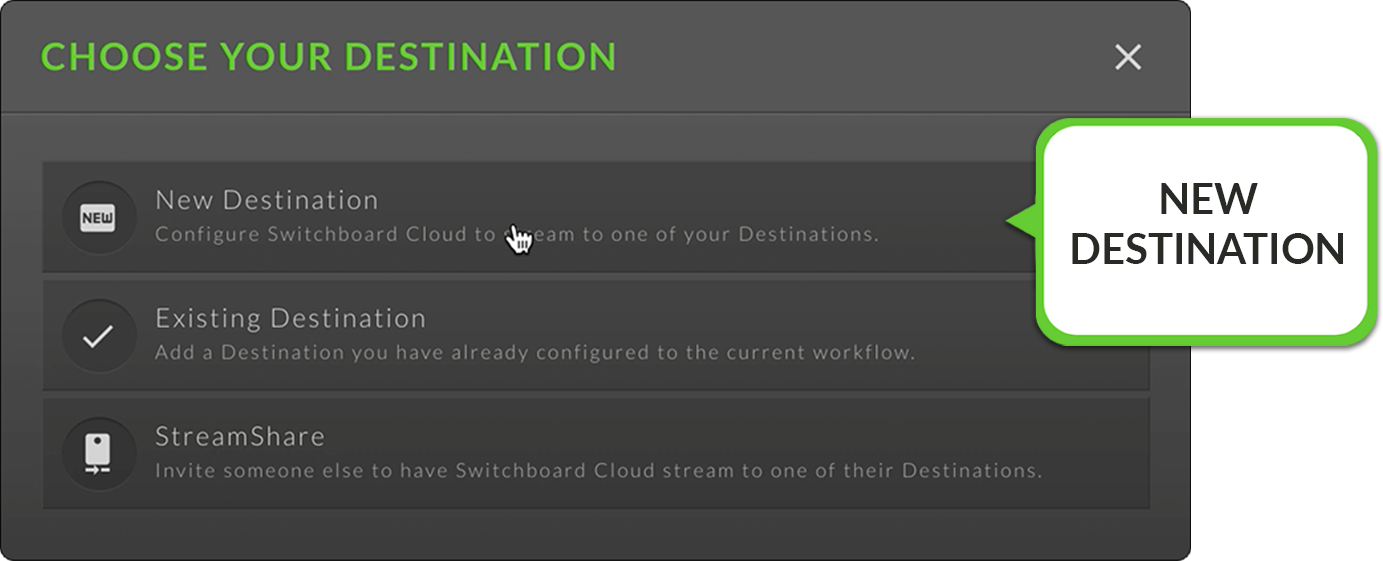
Press the "Add destination" button. Choose New Destination from the list.
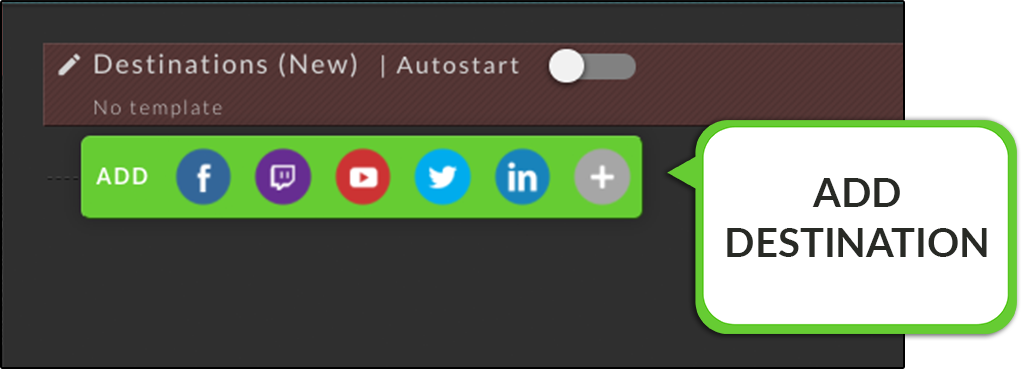
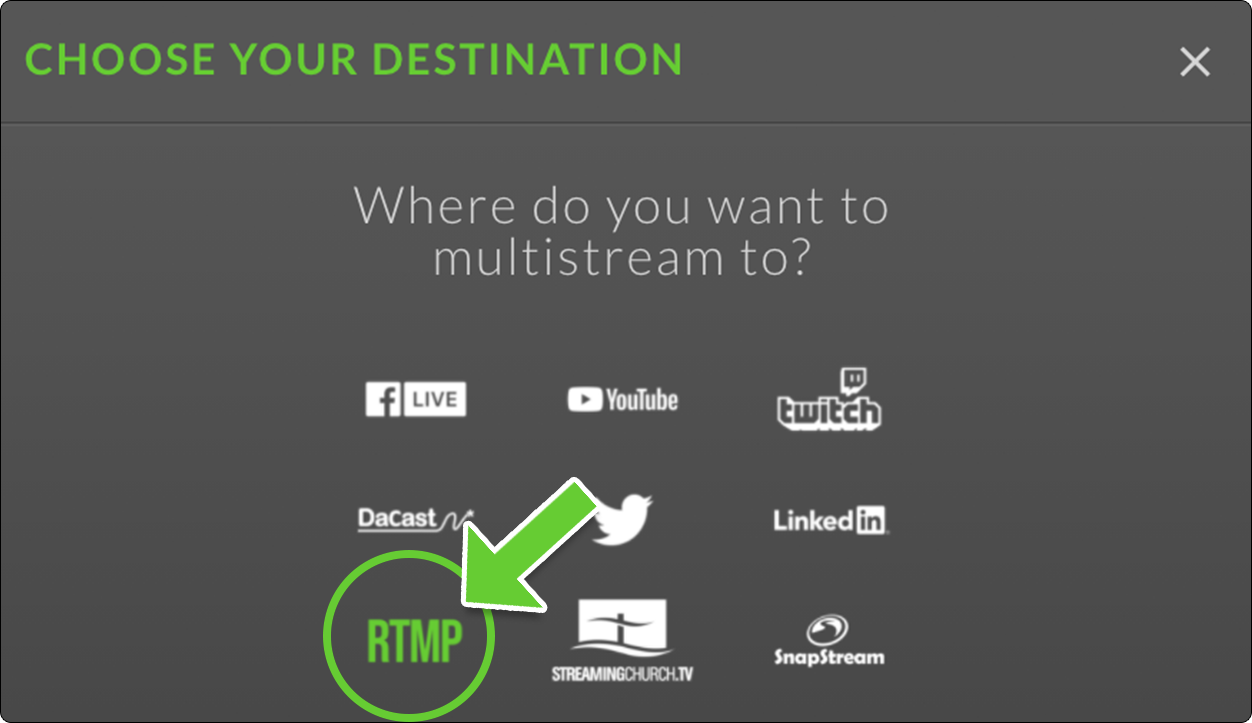
Select RTMP from the destination list.
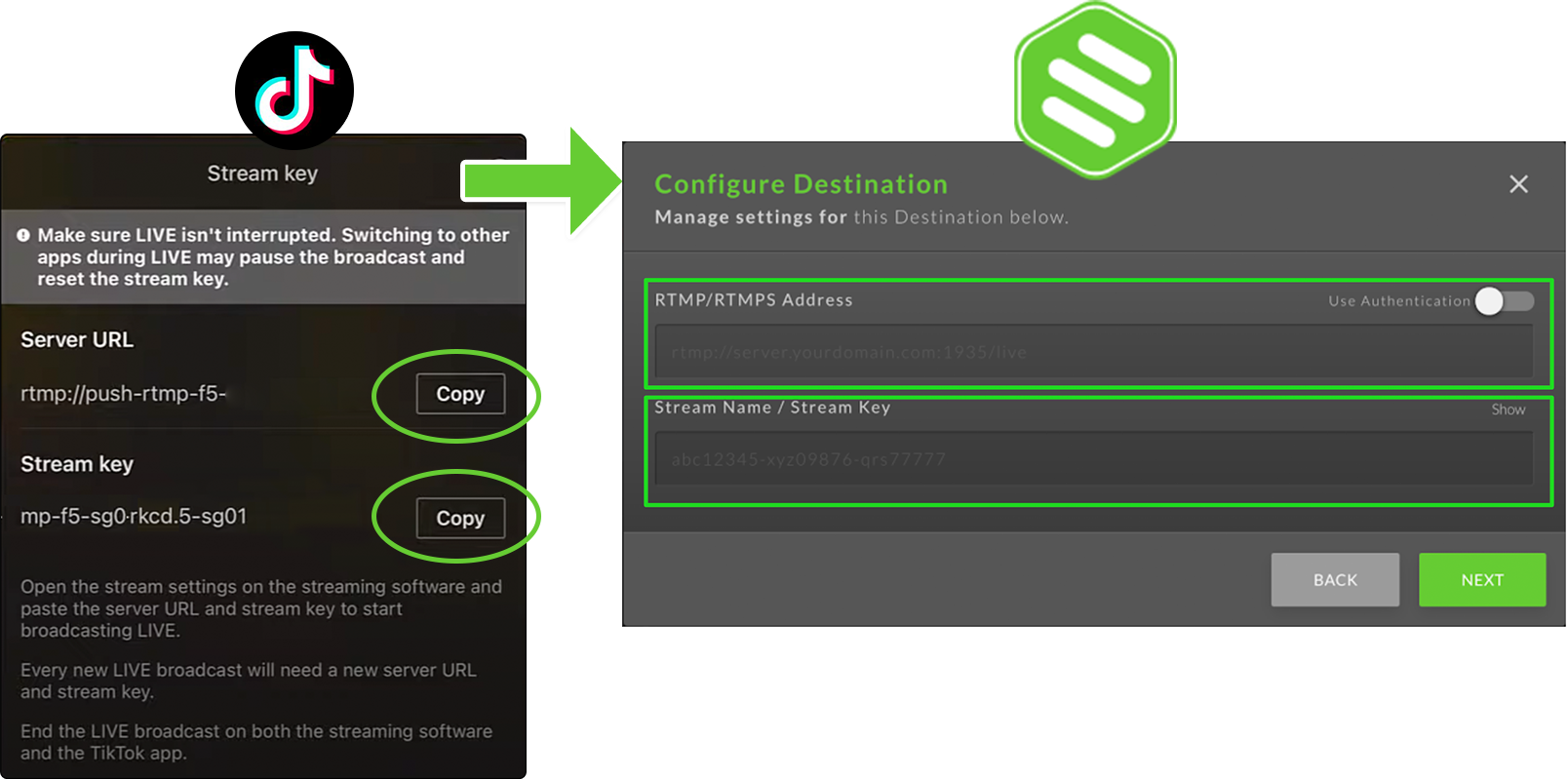
Copy and paste the Server URL and Stream Key from TikTok into the appropriate fields.
Great Job!
You've added TikTok as a Custom RTMP destination into your Switchboard Account.
Next, rename the Custom RTMP destination so that you can identify it as TikTok in the destination group.
Press the blue "INFO" button and type the new name in the field.
Ready to Go Live!
STEP 1
Turn on your encoder and send video into Switchboard. When the video is present on the confidence monitor, press the green GO Live button next to the TikTok Custom RTMP destination that you've created.
Switchboard PRO TIP: You can save time and eliminate the need to press Go Live in Switchboard by enabling the autostart feature, explained here: Enable the autostart feature.
STEP 2
Press GO Live to start posting the live video to TikTok.