Connect Google with your Switchboard Account for an easier login
Want to access your Switchboard account without having to type in a password every time? By connecting your Google account, you can log in securely with a single click. This guide will show you exactly how to set it up in under a minute.
Last updated 12 months ago
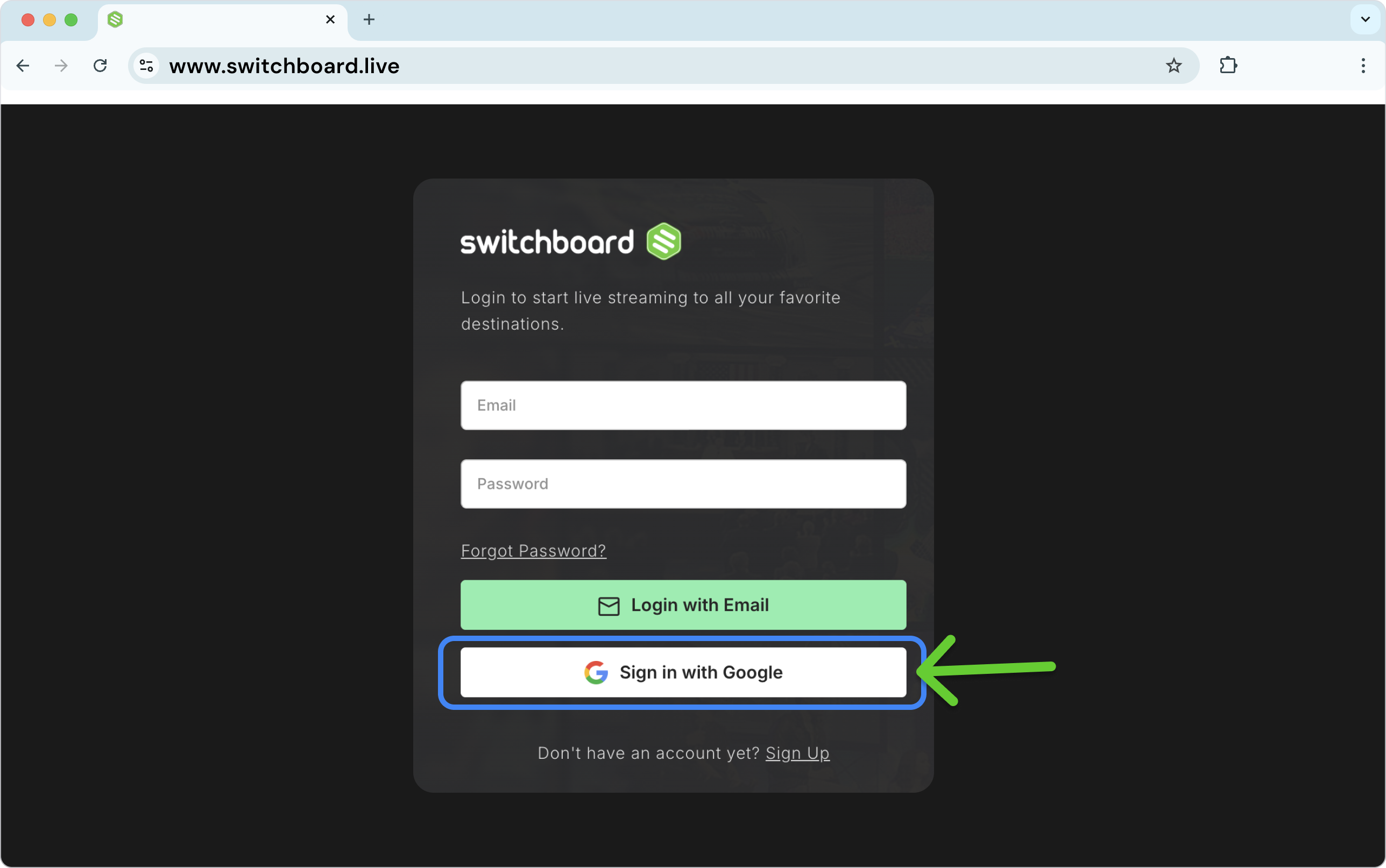
At the Log in Page
Click the Sign in with Google
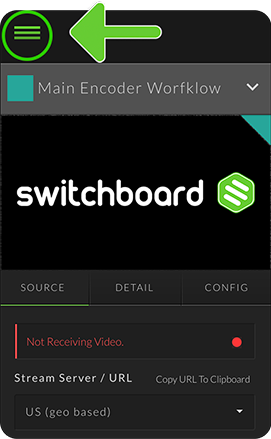
While Logged in to your Switchboard Account
STEP 1: Click the Main Menu top left.
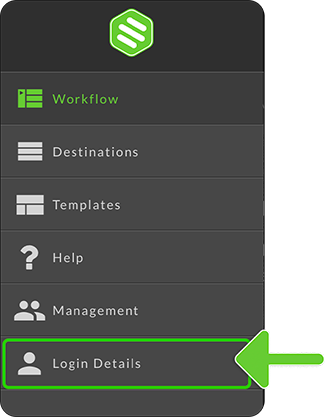
STEP 2: Select Login Details.
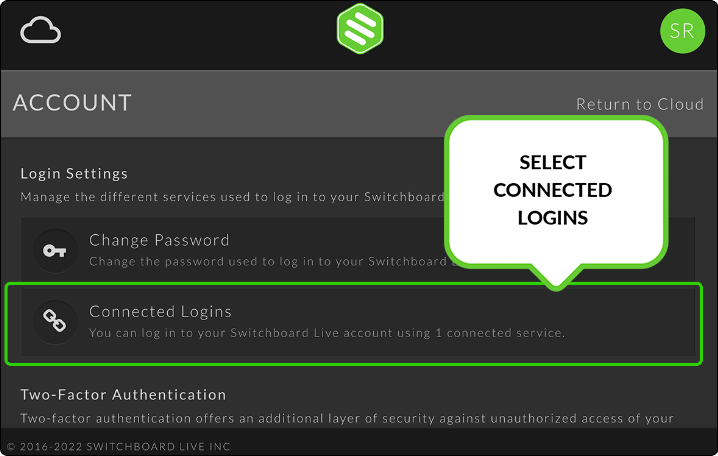
STEP 3: Choose Connected Logins.
STEP 4: Click on the Plus icon.
A new window will open, prompting you to log in or select your Gmail account.
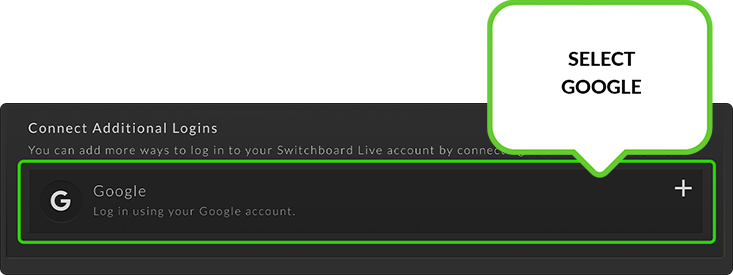
STEP 5: The Gmail window will close after authorization.
The Switchboard Login page will now show that you have successfully connected your Google account.
How to Remove Google as a connected login
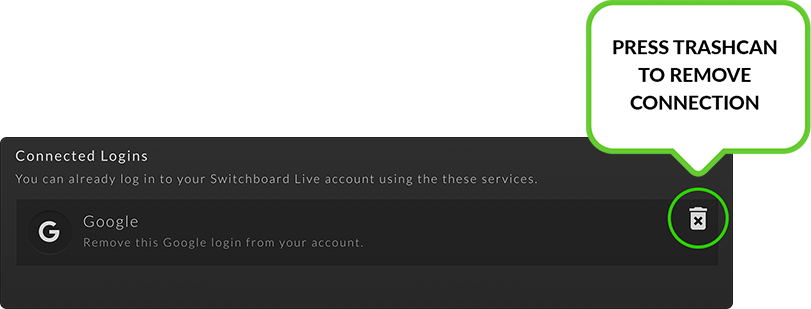
STEP 1: Navigate to the Account Login settings page.
STEP 2: Press the trashcan icon to remove Google as a connected Login.
FAQ
Q: Is it safe to connect my Google account to Switchboard?
A: Yes. We use Google's secure OAuth protocol, which means we never see or store your Google password. We only request basic profile information to verify your identity.
Q: Can I disconnect my Google account later?
A: Absolutely. You can disconnect your account at any time from the same "Profile Settings" page.
Q: I accidentally connected the wrong Google account. How do I fix it?
A: Absolutely. You can disconnect your account at any time from the same "Profile Settings" page.