Connect StreamYard with Switchboard Live
Read the steps below to learn how to connect StreamYard with your Switchboard Account.
Last updated Over 1 year ago
Step 1:
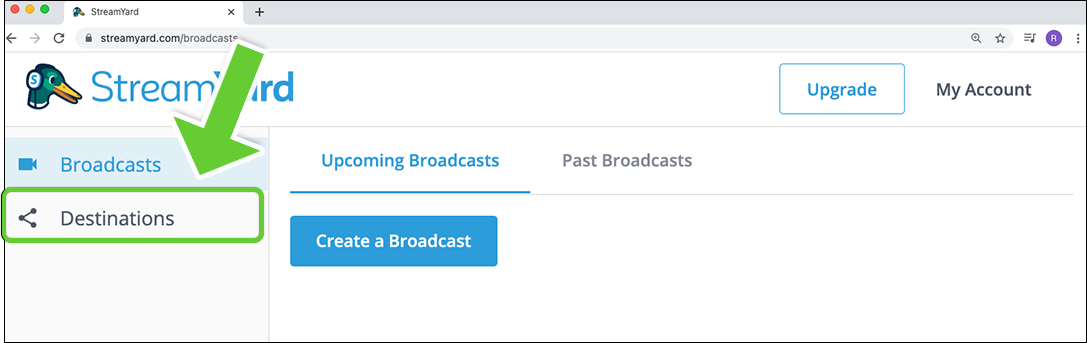
Log into your StreamYard account.
Choose Destinations from the left-hand menu.
Step 2:
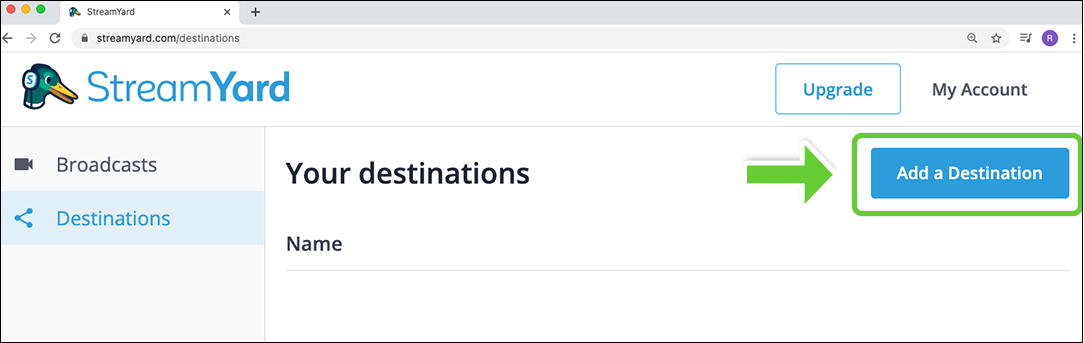
Press Add a Destination.
Step 3:
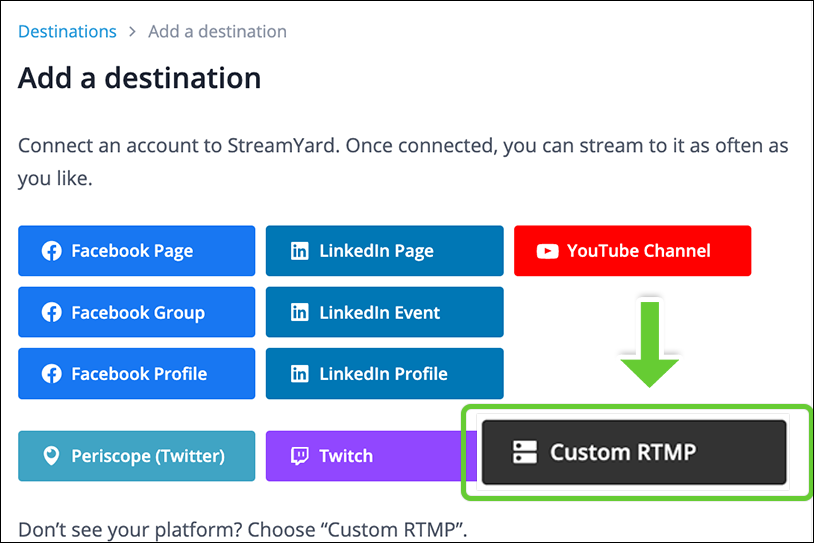
Select Custom RTMP as a destination.
In the next steps, you will go back and forth between Switchboard and StreamYard.
Step 4:
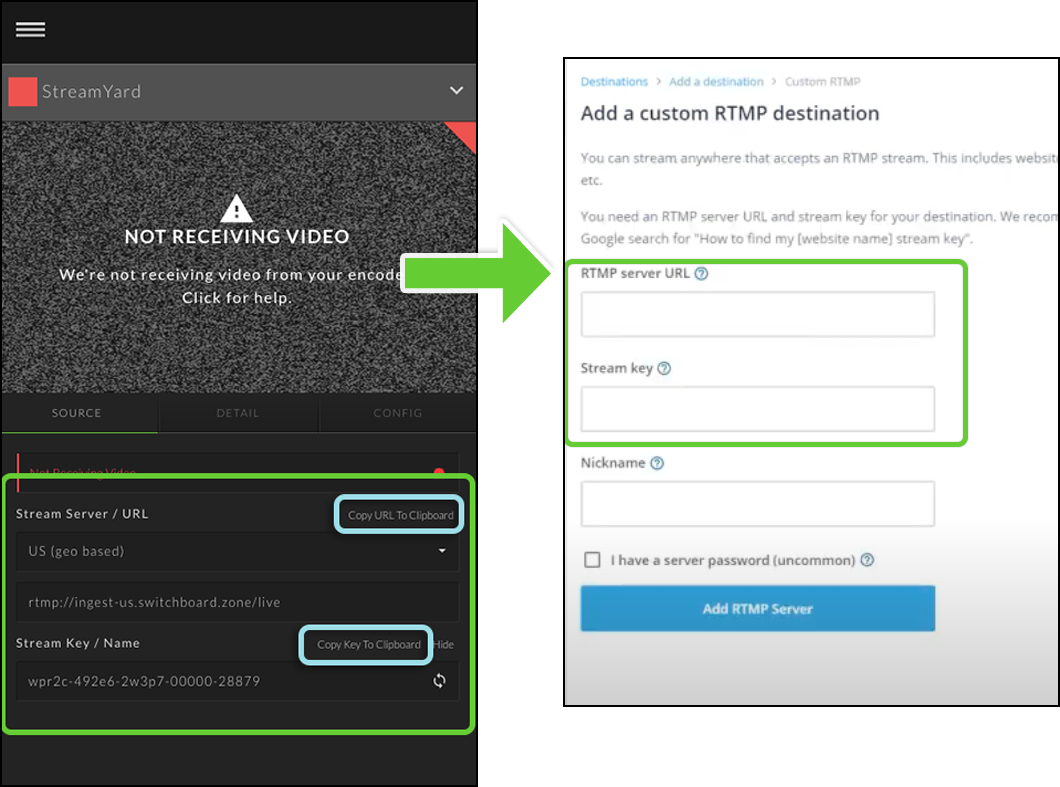
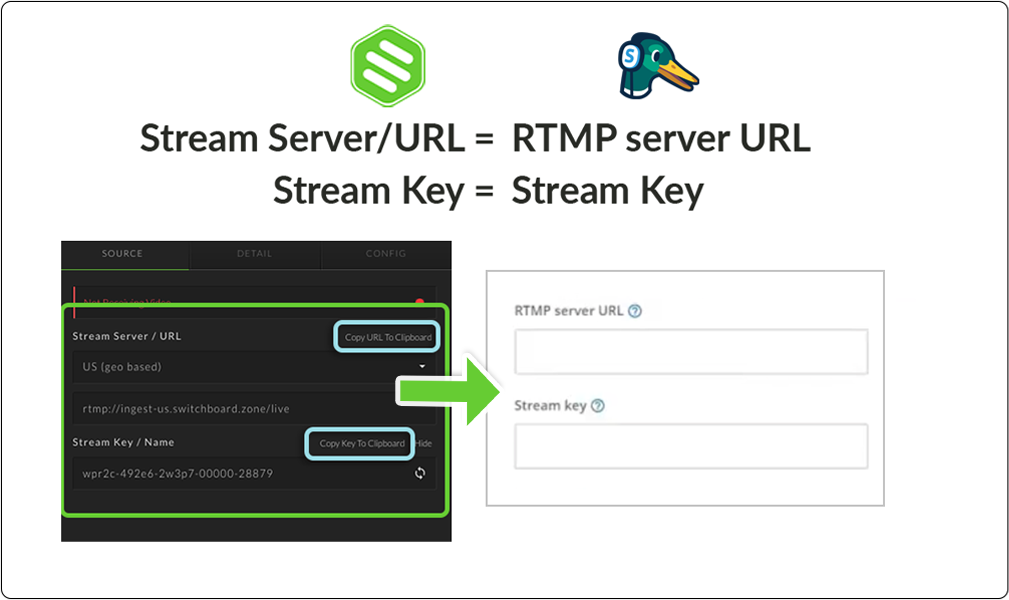
Copy the Stream Server/URL and Stream Key inside of Switchboard (Located below the confidence monitor).
Step 5
Paste the Stream Server/URL and Stream Key from Switchboard and paste into the respective fields inside of StreamYard.
Step 6:
Give the destination a nickname and press the Add RTMP Server button.

Step 7:
Now it’s time to test your connection between Switchboard and StreamYard.
Press the Go Live button in StreamYard. The video should begin to display in the Switchboard confidence monitor.

Congrats! You have successfully connected StreamYard and Switchboard.
You are now ready for the fun part: MULTISTREAMING!
1) Start sending video from StreamYard into Switchboard Live.
2) Verify that the video is displaying in the Switchboard confidence monitor.
3) Select the destinations individually or bulk select and Go Live!
Other Resources:
Add destinations to your Switchboard Account.
Customize your live stream with a stream title, description, and hashtags.
Expand your reach and share your live stream video on other social channels.
Happy #multistreaming!