How to Add a Stream Title and Description to Your Live Videos
This article will explain adding stream titles and descriptions to your live videos. The Biggest Takeaway will be how to customize the stream title for specific destinations in a stream group.
Last updated About 1 year ago
When you first set up a Stream Group in your Switchboard Account, default Stream Details, such as the Stream Title and Date Feature, will be applied.
What's Covered:
Main Title
Edit the Main Title
Customize Option 1: Stream Group Editor
Customize Option 2: Destination Information
Key Concepts
Stream Title Limits
Main Title
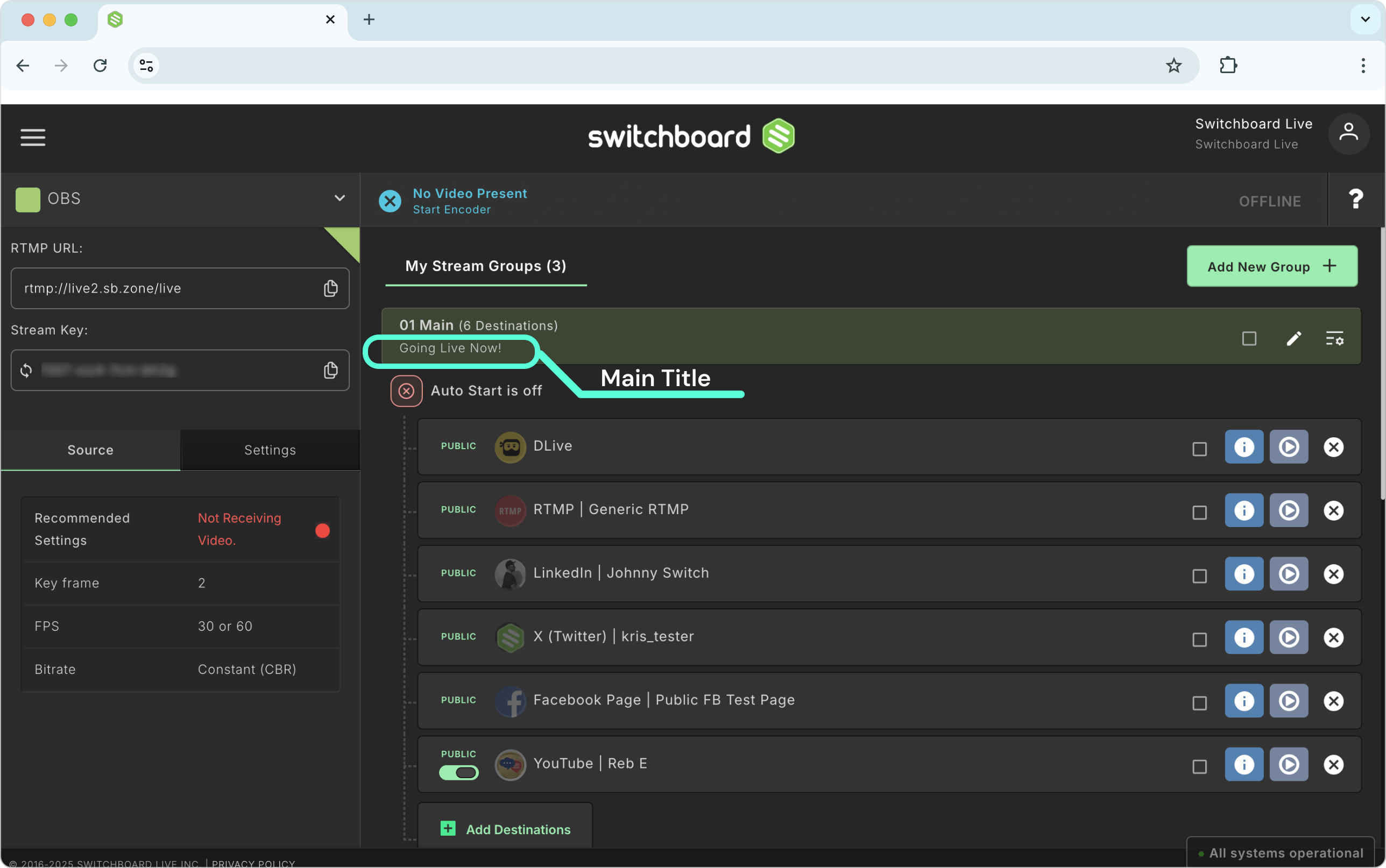
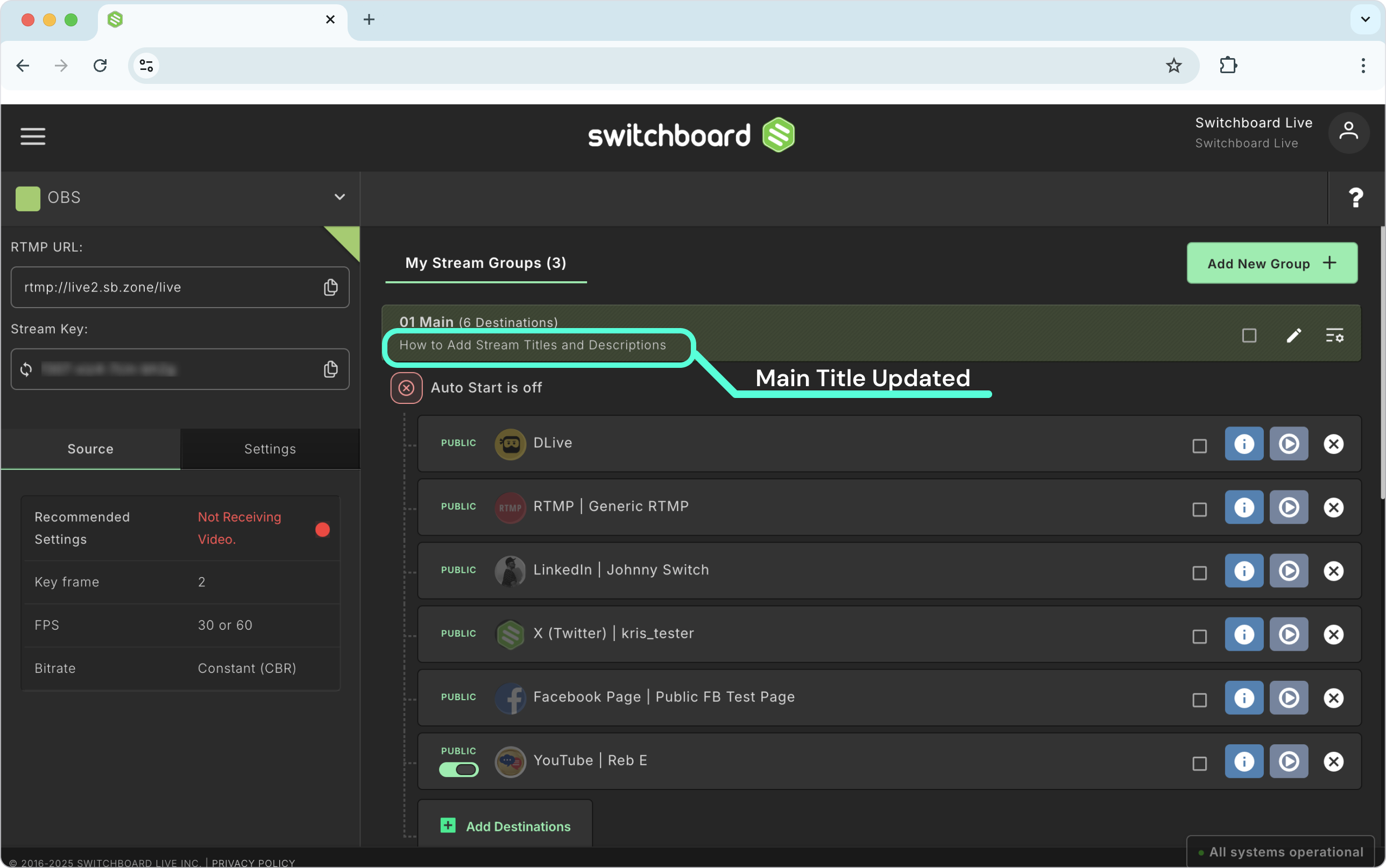
The Main Title is displayed in the Stream Group header.
Any destinations in this group will publish the same stream title and other metadata when we go live.
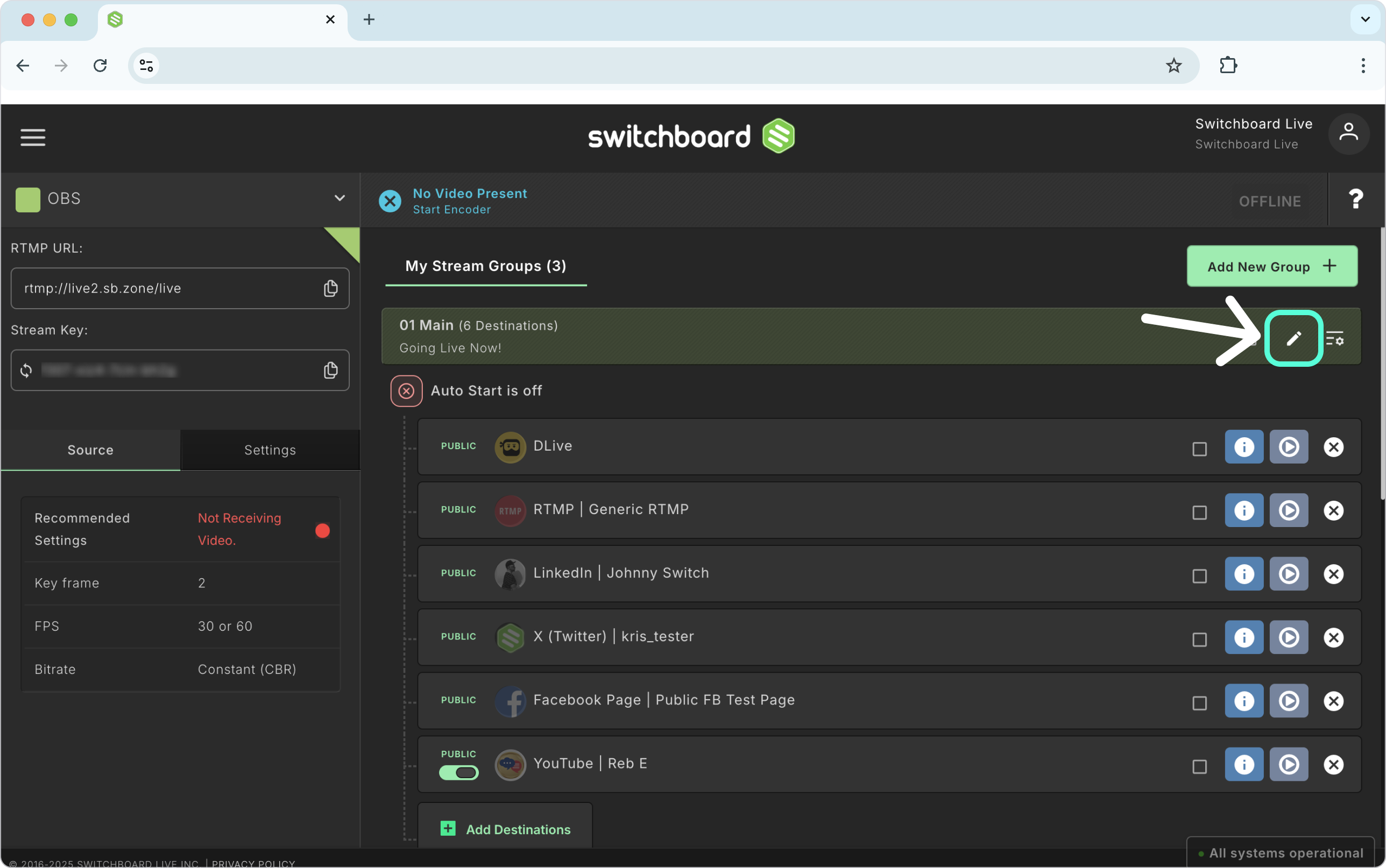
We’ll open the edit group window to change the stream title, description, and other settings.
Edit the Main Title
The streaming content we provide will be published in conjunction with the live video. If we want the duplicate streaming content to be published to all the destinations we've added to this group, we'll apply the changes here.
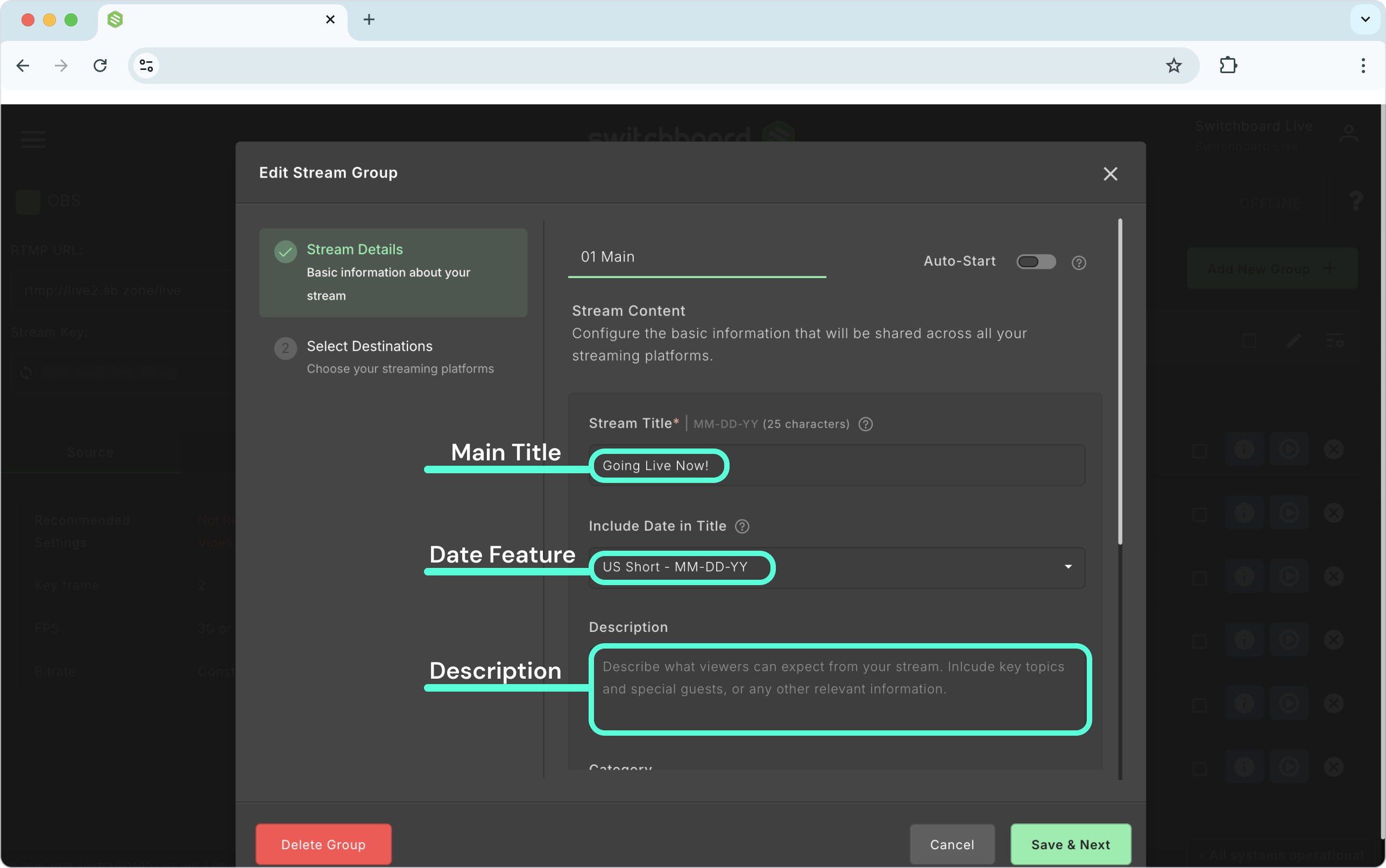
Edit the Stream Details.
Click Save & Next.
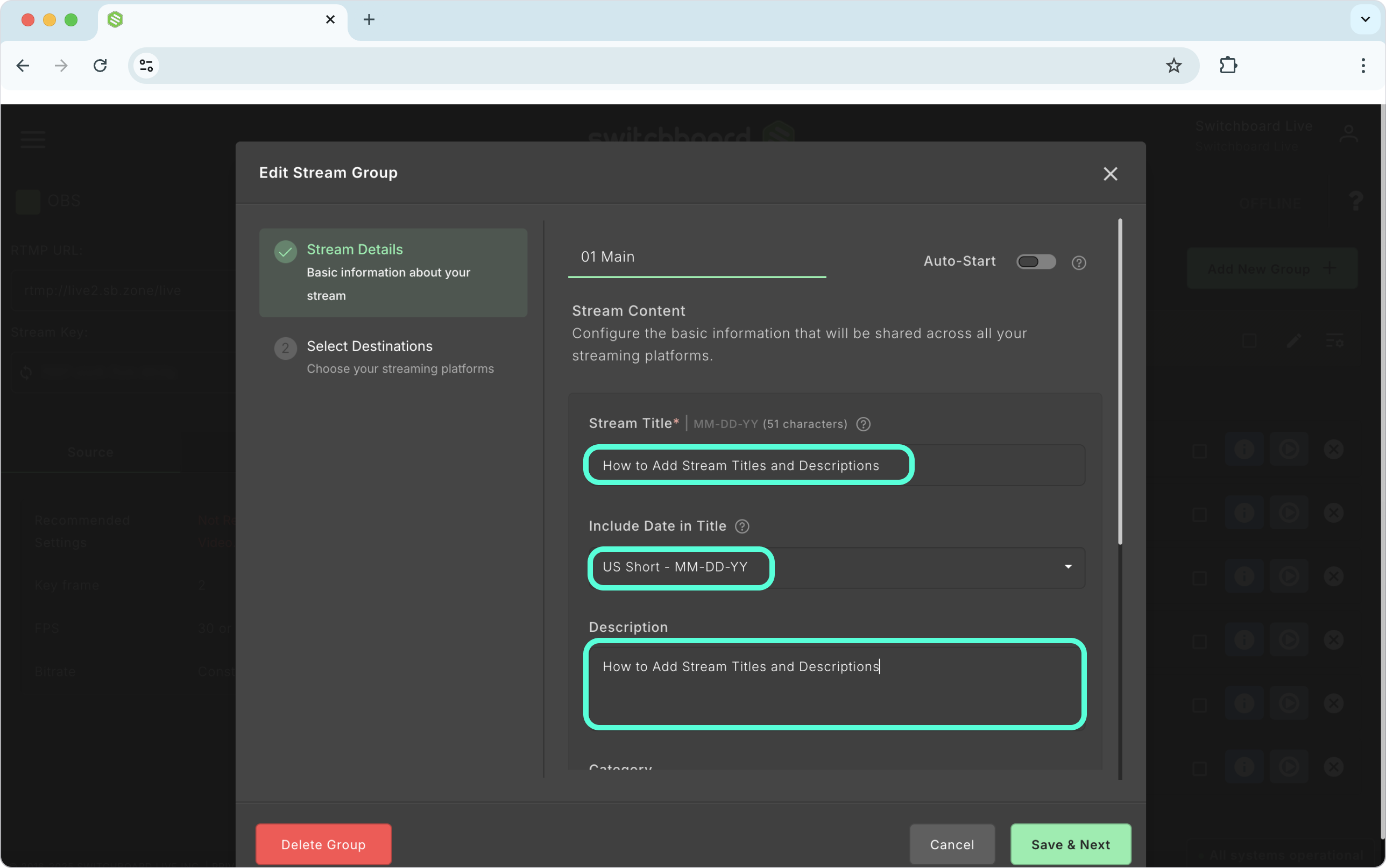
Successfully Updated the Stream Title!
Customization
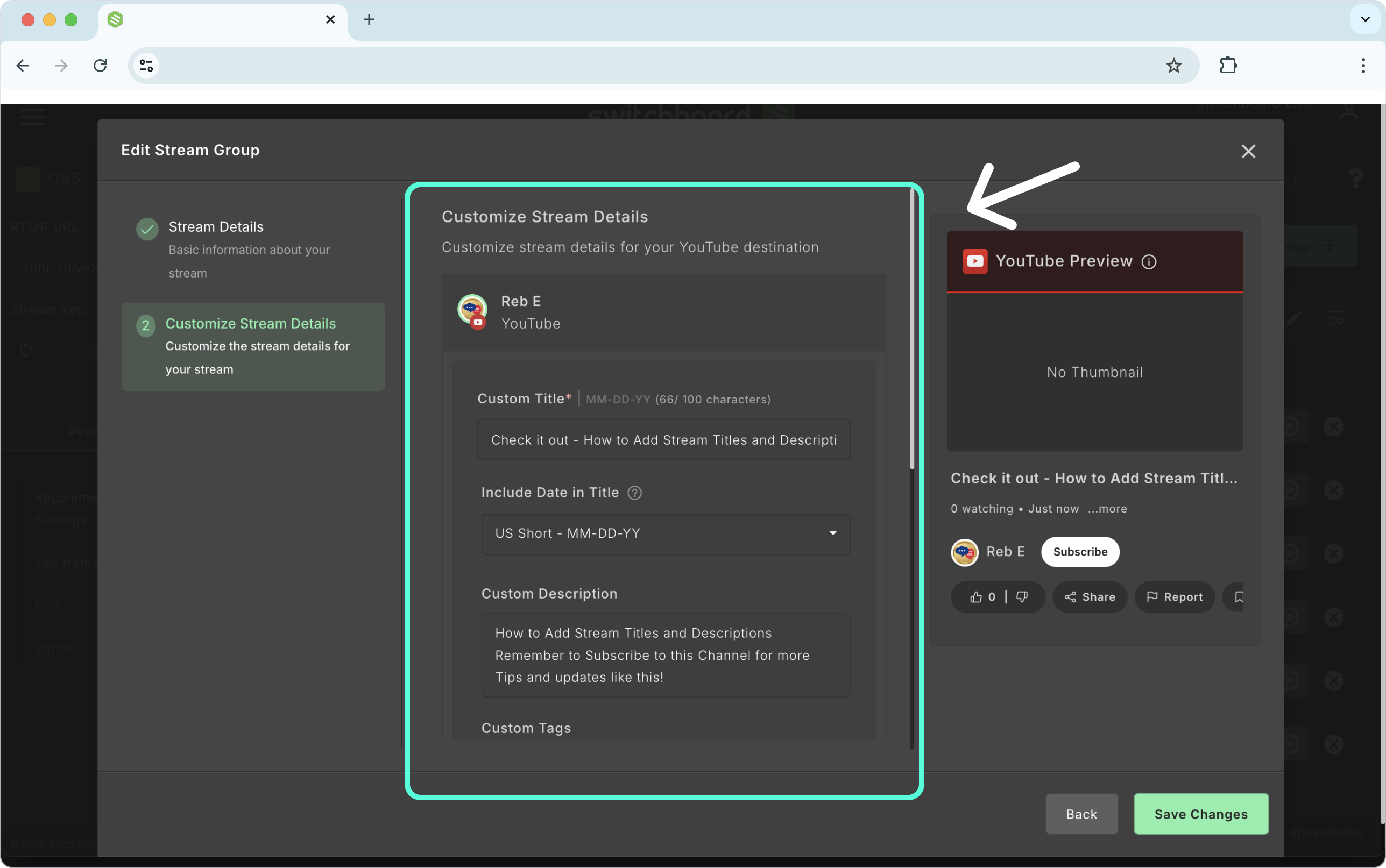
Let’s say we want to customize the stream details for the specific destination in the Stream Group. You can achieve this via the Stream Group Editor or the Destination Information button.
Benefits of Customization:
Customizing the stream titles for specific destinations will enable you to create clear, targeted messages tailored to your audience and take advantage of the unique character limits for each platform type.
Now that we’ve customized the streaming content on the destinations when we go live, the Main Title and metadata will be published on the social channels in this group that have not been customized.
Customized Stream Details Depend on the Platform Type
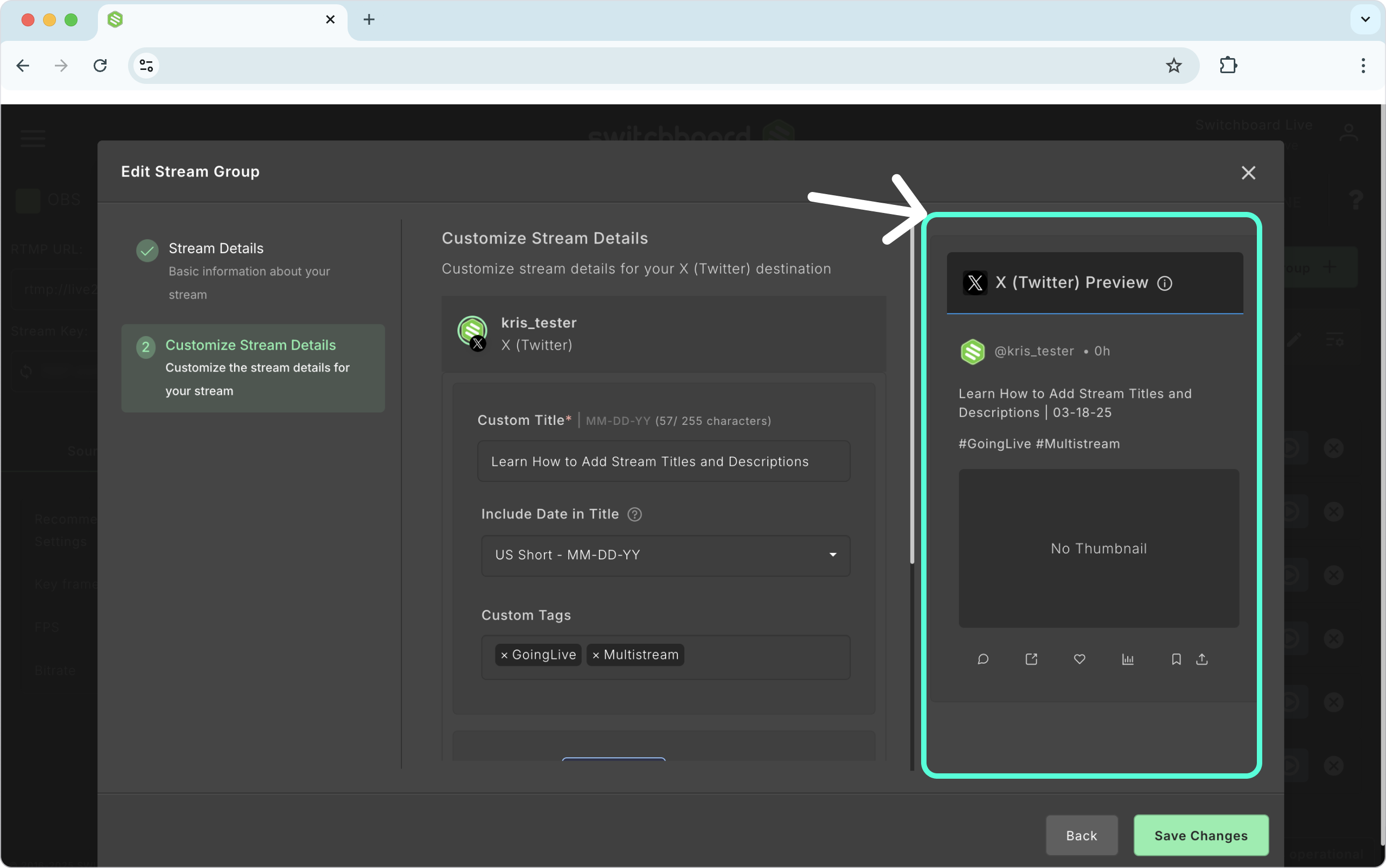
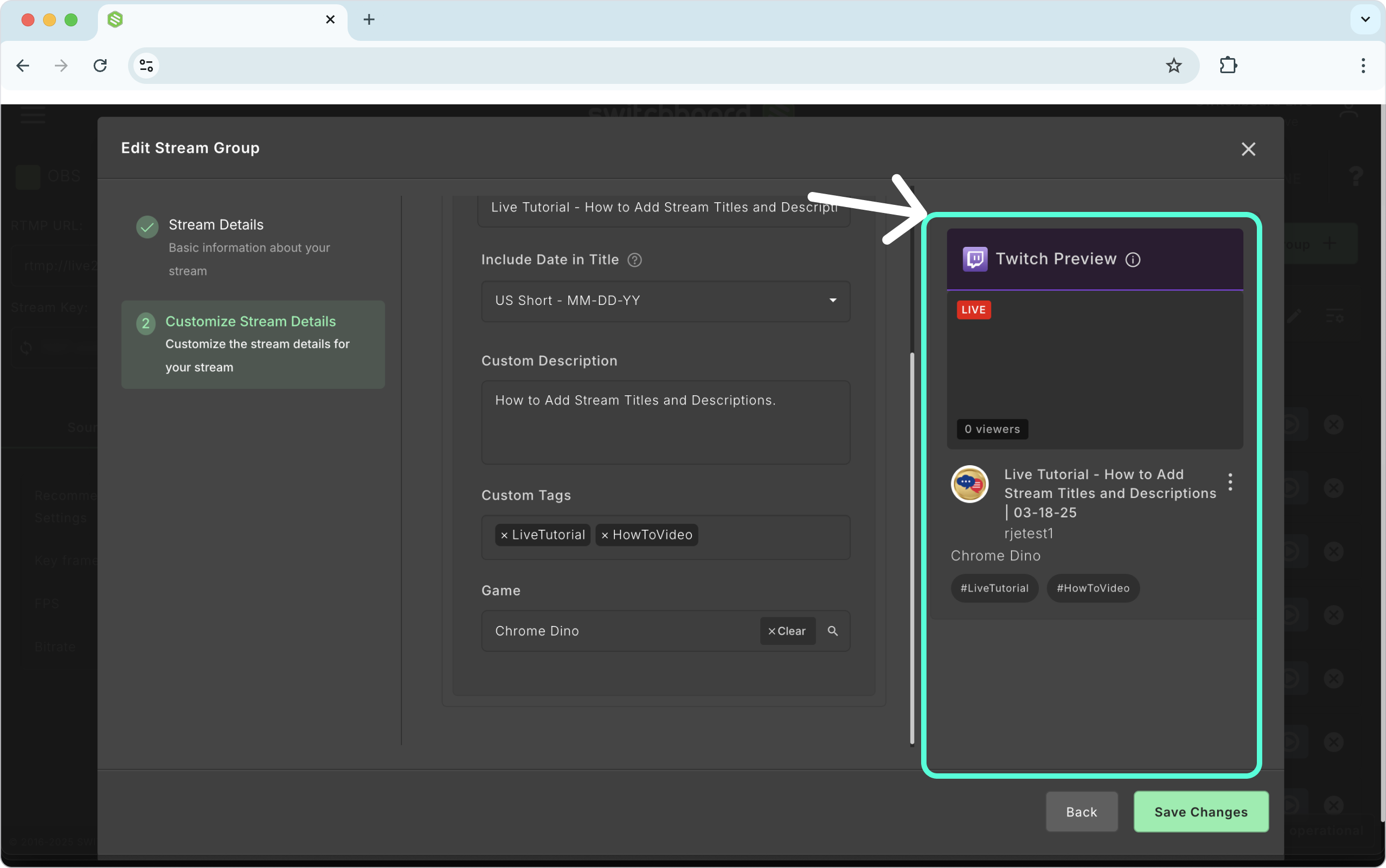
Depending on the platform type, customization options will adjust accordingly. Take a look at the examples below.
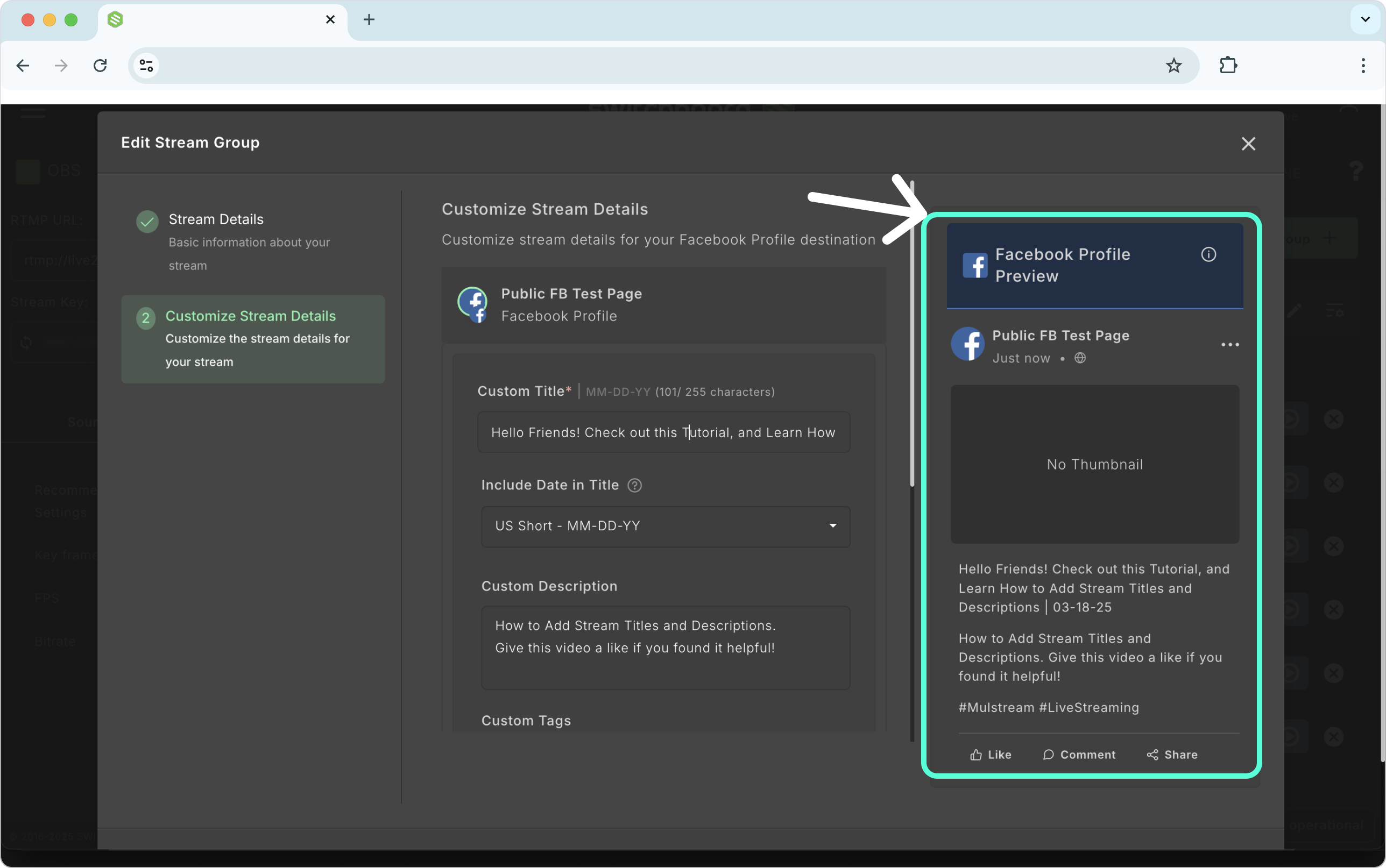
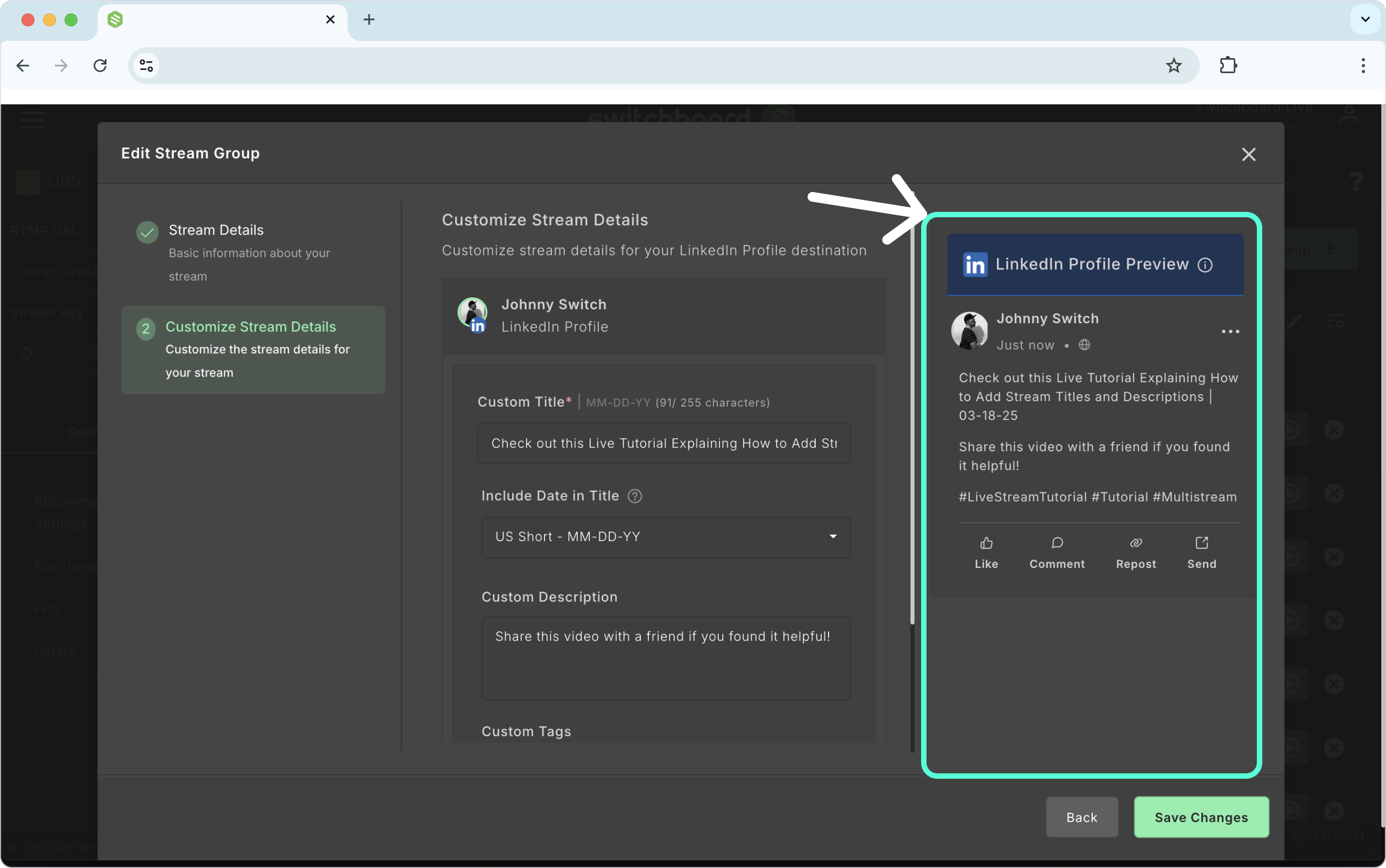
X (Twitter)
Twitch
Customization Option 1: Stream Group Editor
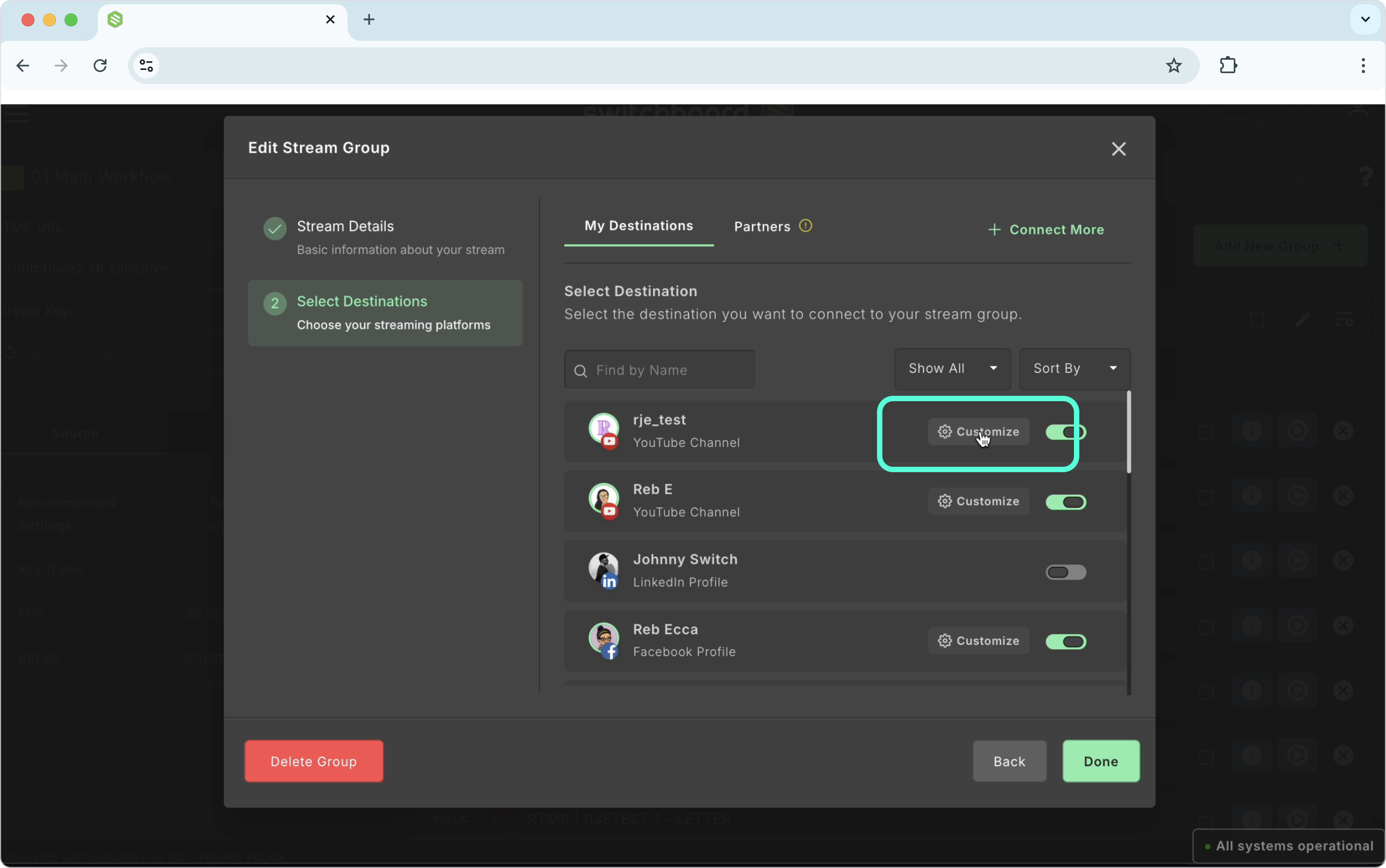
We'll open the Stream Group Editor by clicking the pencil icon in the Stream Group Header.
Click the "Customize" button next to the destination you wish to update.
Note: The Customize button will only be displayed if the following conditions are met: the destination is added to a specific group and is not an RTMP destination.
A new window will open, and we can begin changing the stream information for this destination.
Customization Option 2: Destination Information Button
A Quick way to customize a destination is by clicking the blue info button next to the destination.
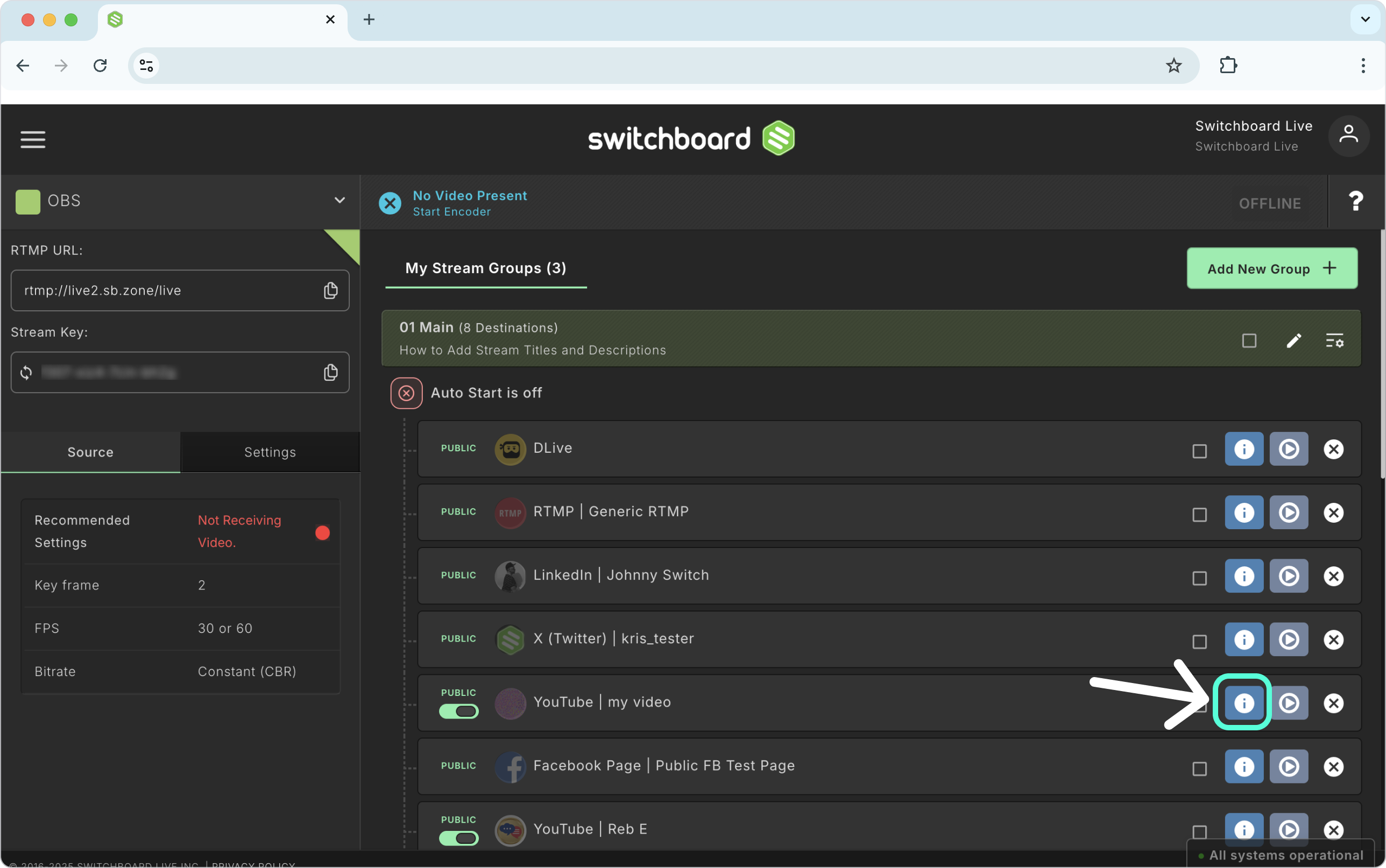
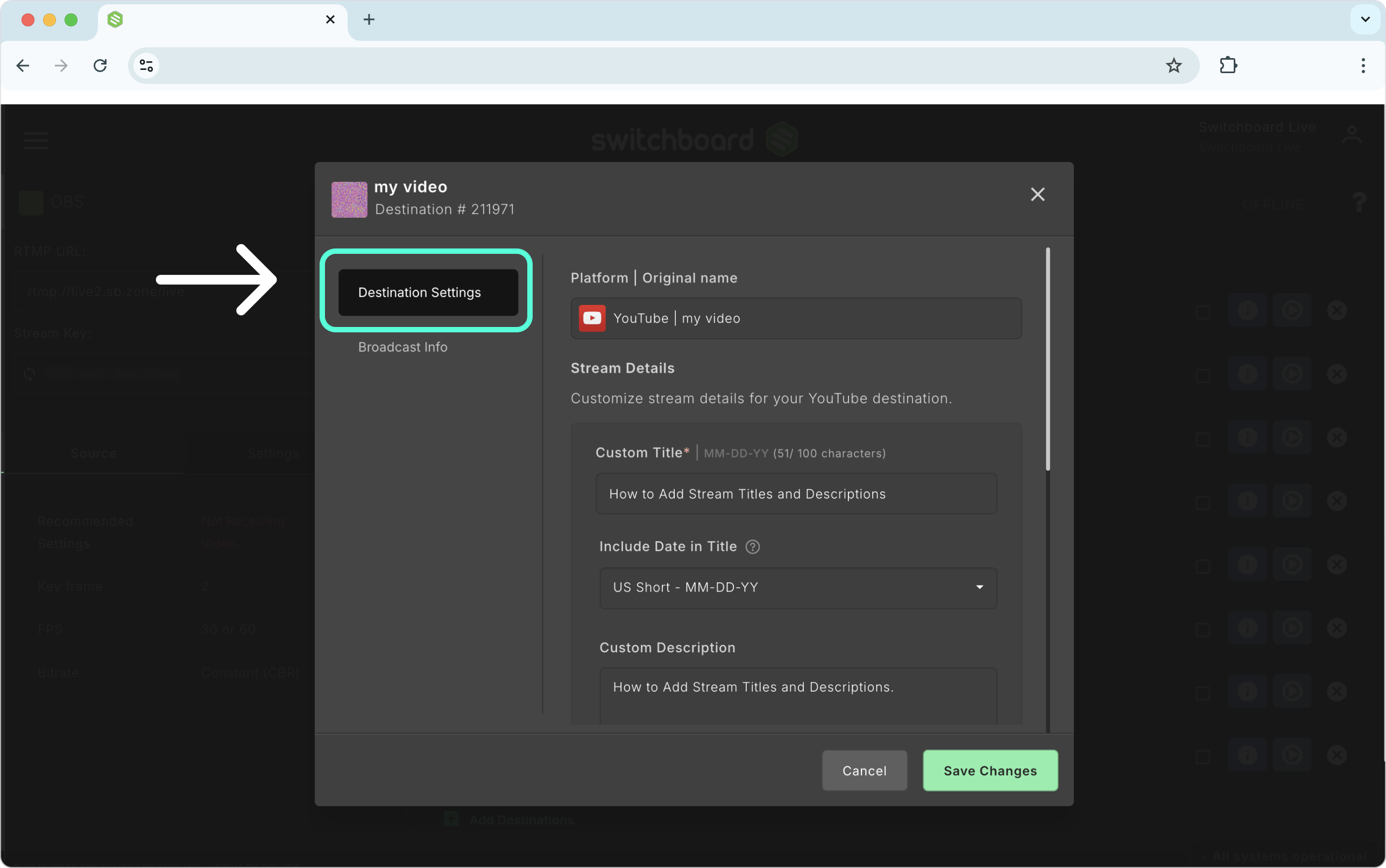
A new window will open. This window provides information about the destination.
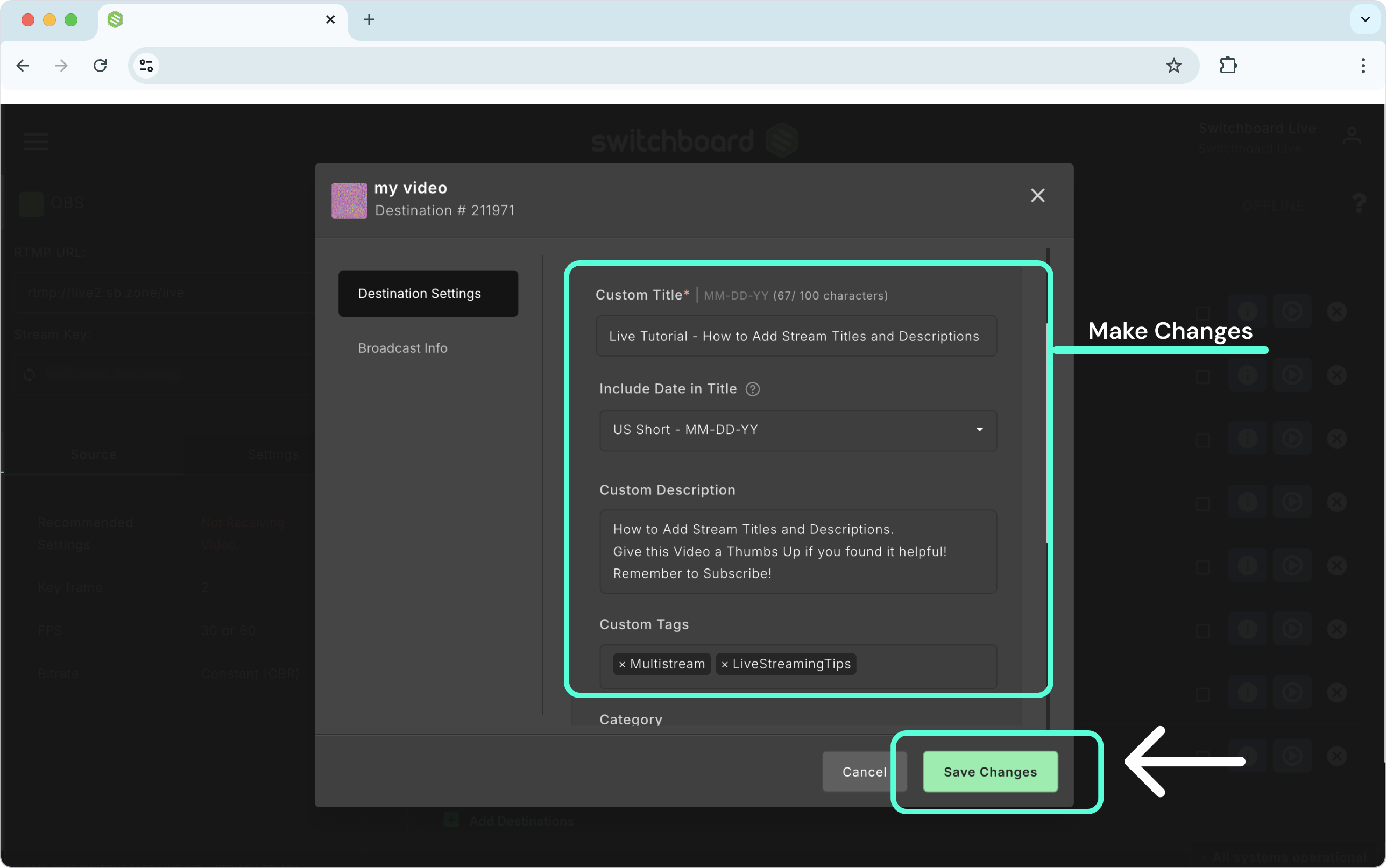
We can customize the Stream Details via the Destination Settings option.
Click Save Changes to confirm the update.
Key Concepts
Stream Titles apply to destinations added to the Switchboard account via direct integration. They will not be published on destinations added via RTMP.
Each Stream Group is independent of the others on a Workflow; any changes you apply will not affect other Stream Groups and their destinations.
Stream Titles can be changed while live streaming. This feature will only work for destinations that support live editing, such as YouTube, Facebook, Twitch, and LinkedIn. X (Twitter) does not support live editing.
If you delete the stream group, any stream titles and descriptions tied to it will be lost. If you decide to recreate the group, the default stream title and date feature will be applied to it.
Stream Title Limits
YouTube - Stream Title limit is 100 characters.
Twitch - Stream Title limit is 140 characters.
X (Twitter) - Stream Title limit 255 characters.
LinkedIn Live - Stream Title limit is 255 characters.
Facebook Live - Stream Title limit is 255 characters.