Delete (Unlink) a Destination from your Switchboard Account
Last updated Over 1 year ago
Occasionally, you may need to remove destinations from your Switchboard Connect account. To properly remove a destination, delete it from the Destination Manager.
The following quick and easy steps will guide you through the process.
💡 Note: When you unlink a destination from the destinations manager page, it is also removed from any Stream Groups it was connected to.
STEP 1
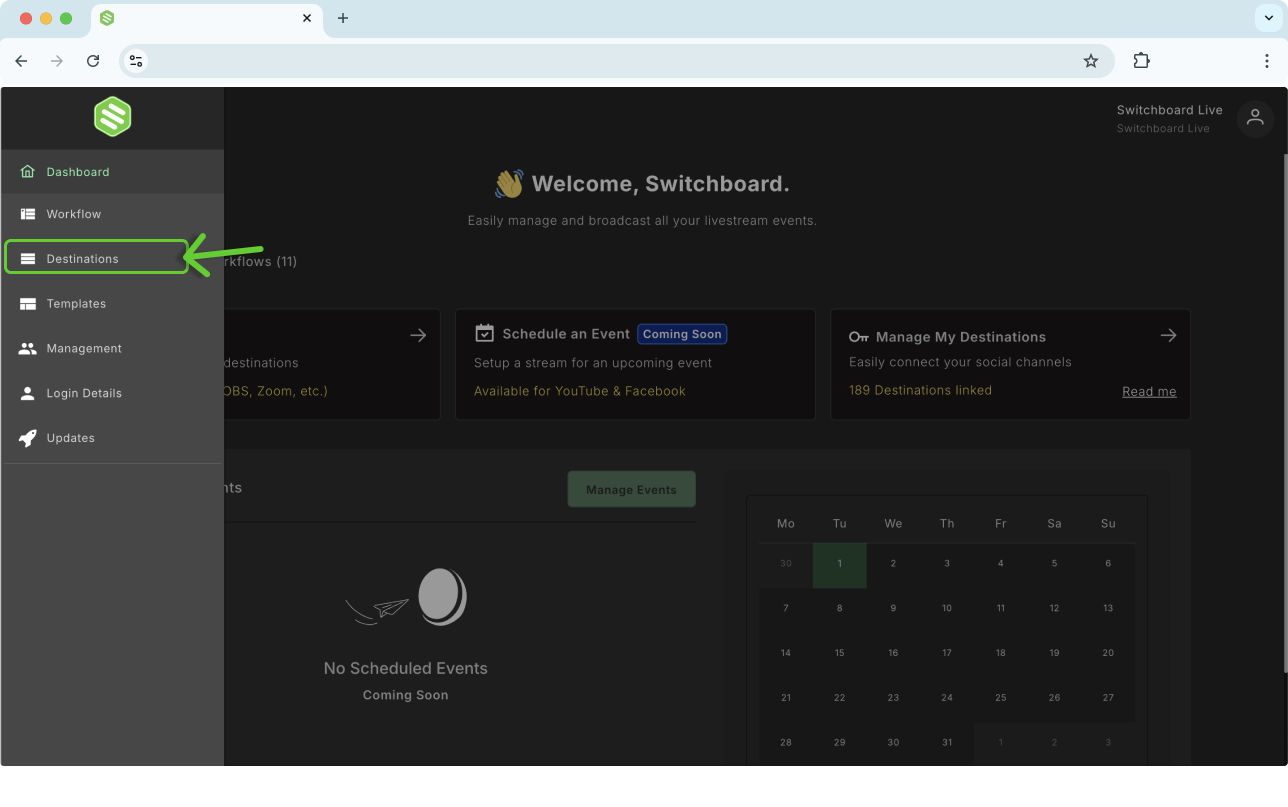
Click the Left Navigation menu in the upper left.
Choose Destinations from the Menu.
STEP 2
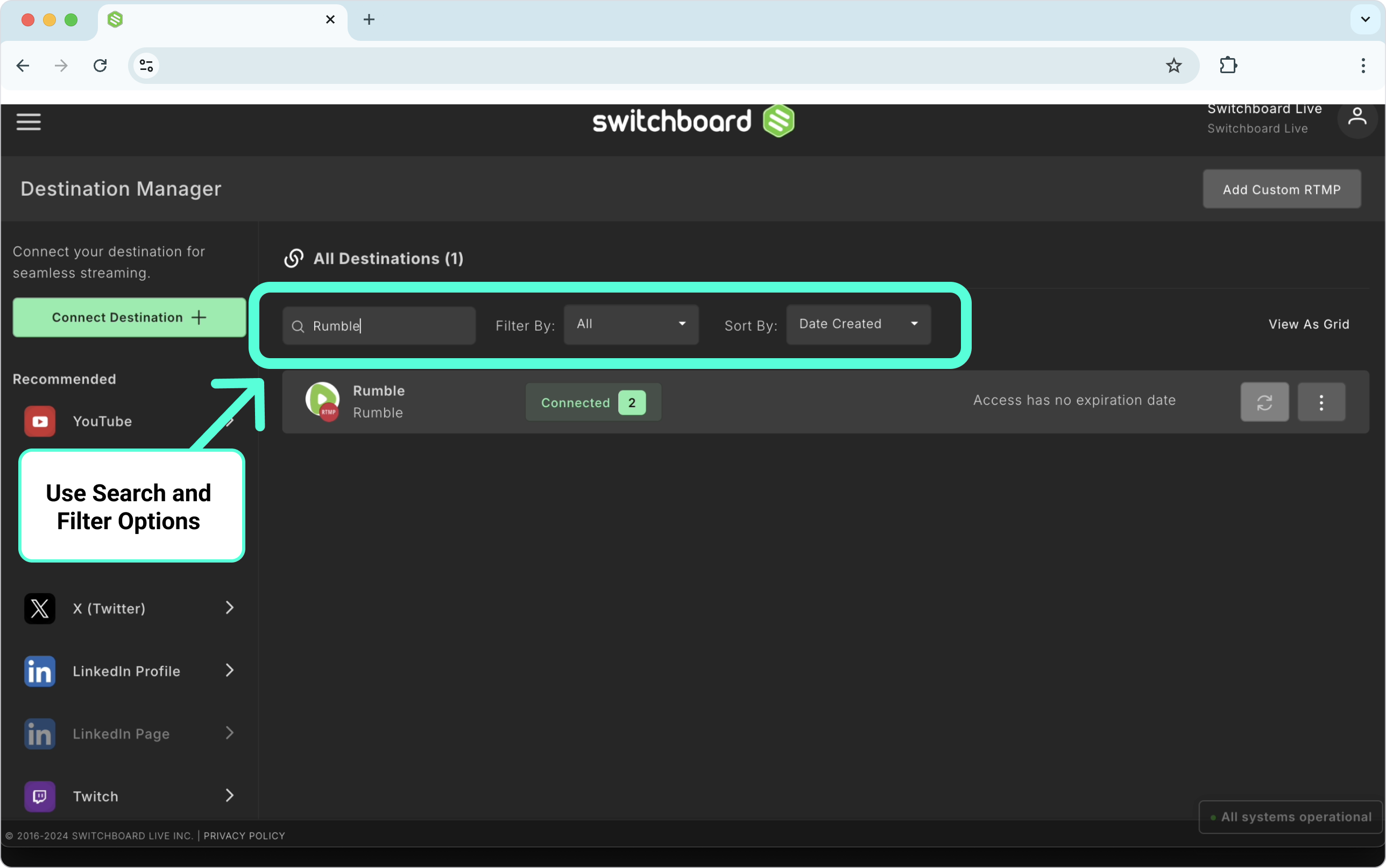
The Destination Manager page will open.
STEP 3
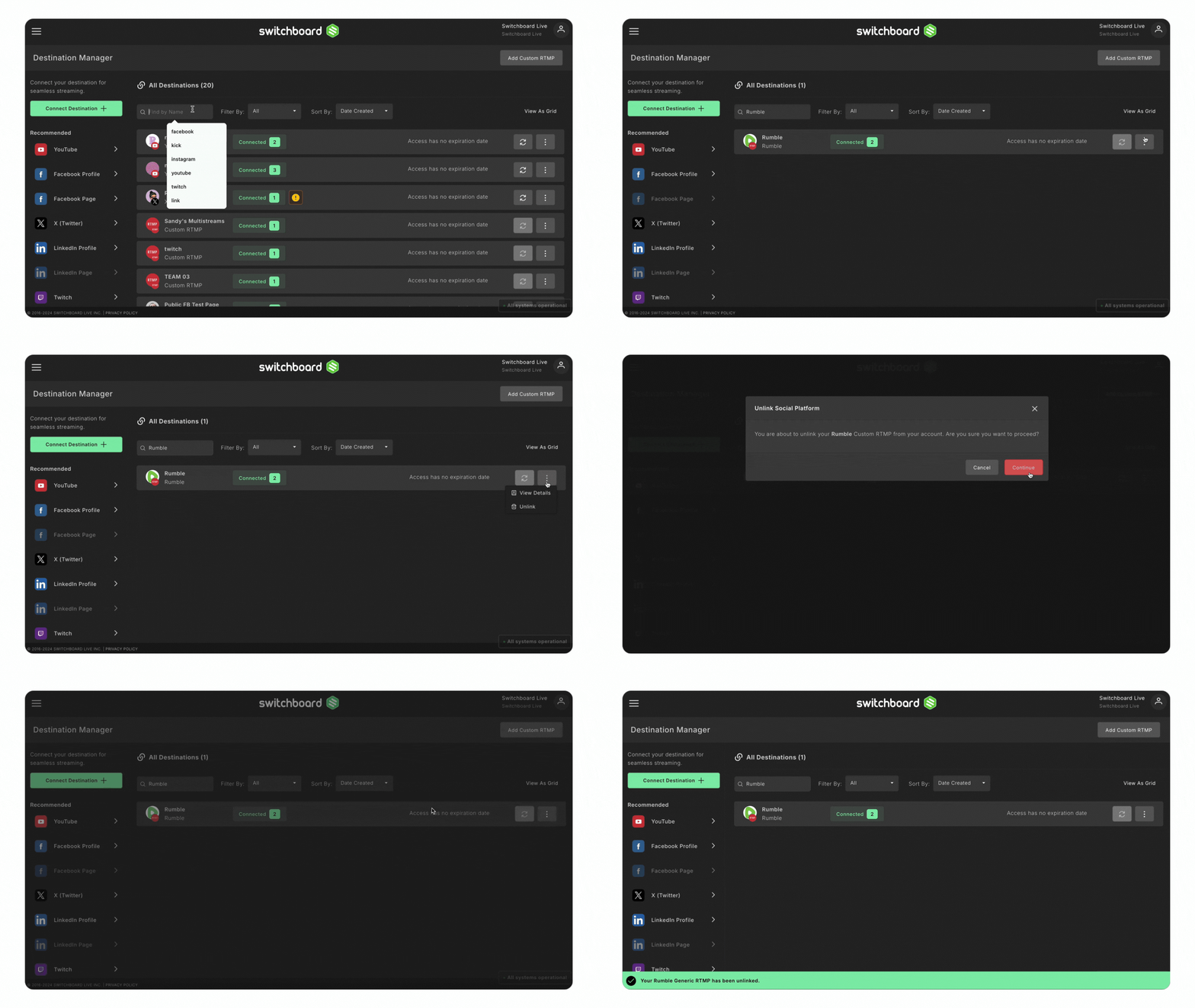
Identify the destinations that you want to remove permanently.
Use the sort option at the top of the page.
STEP 4
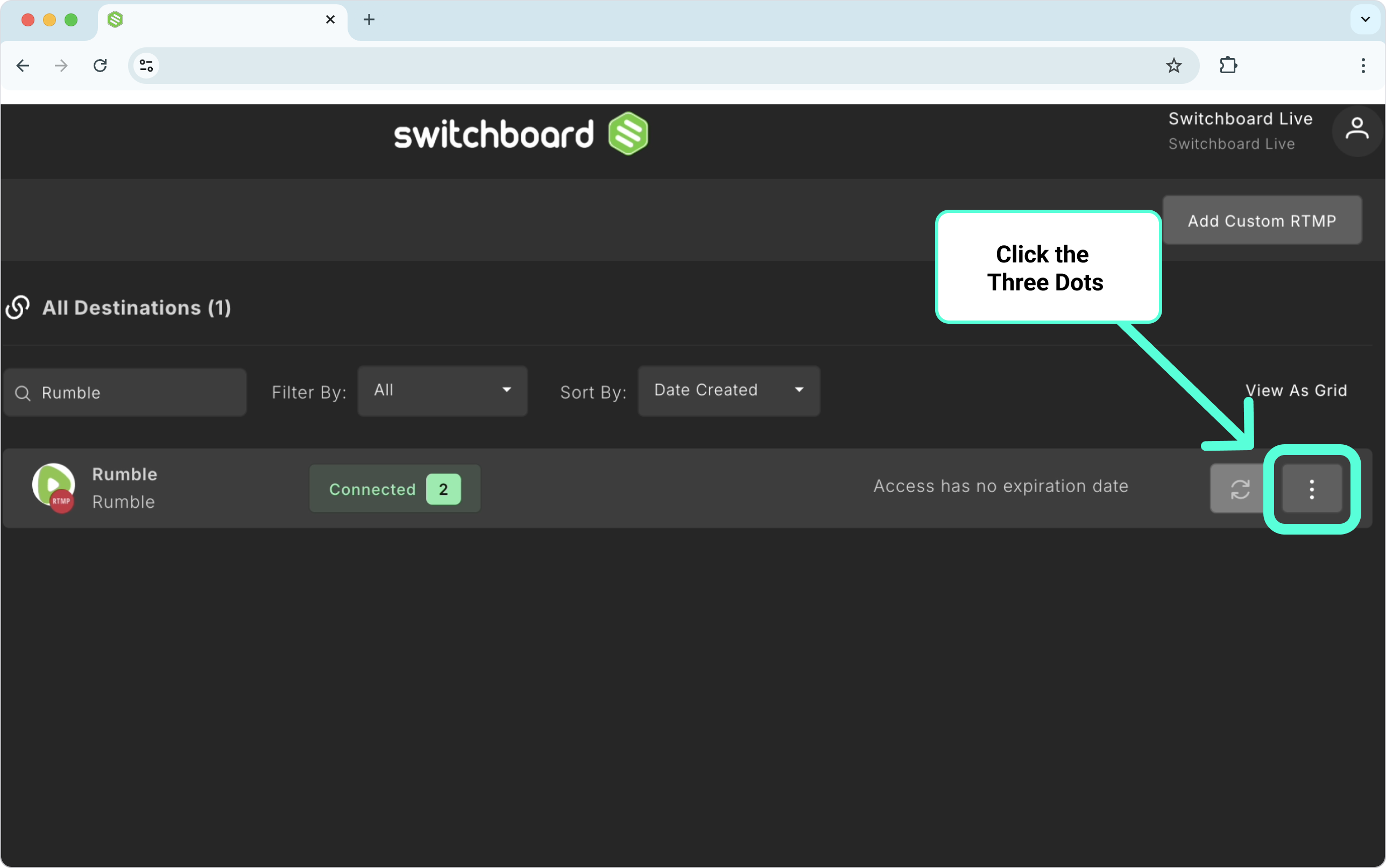
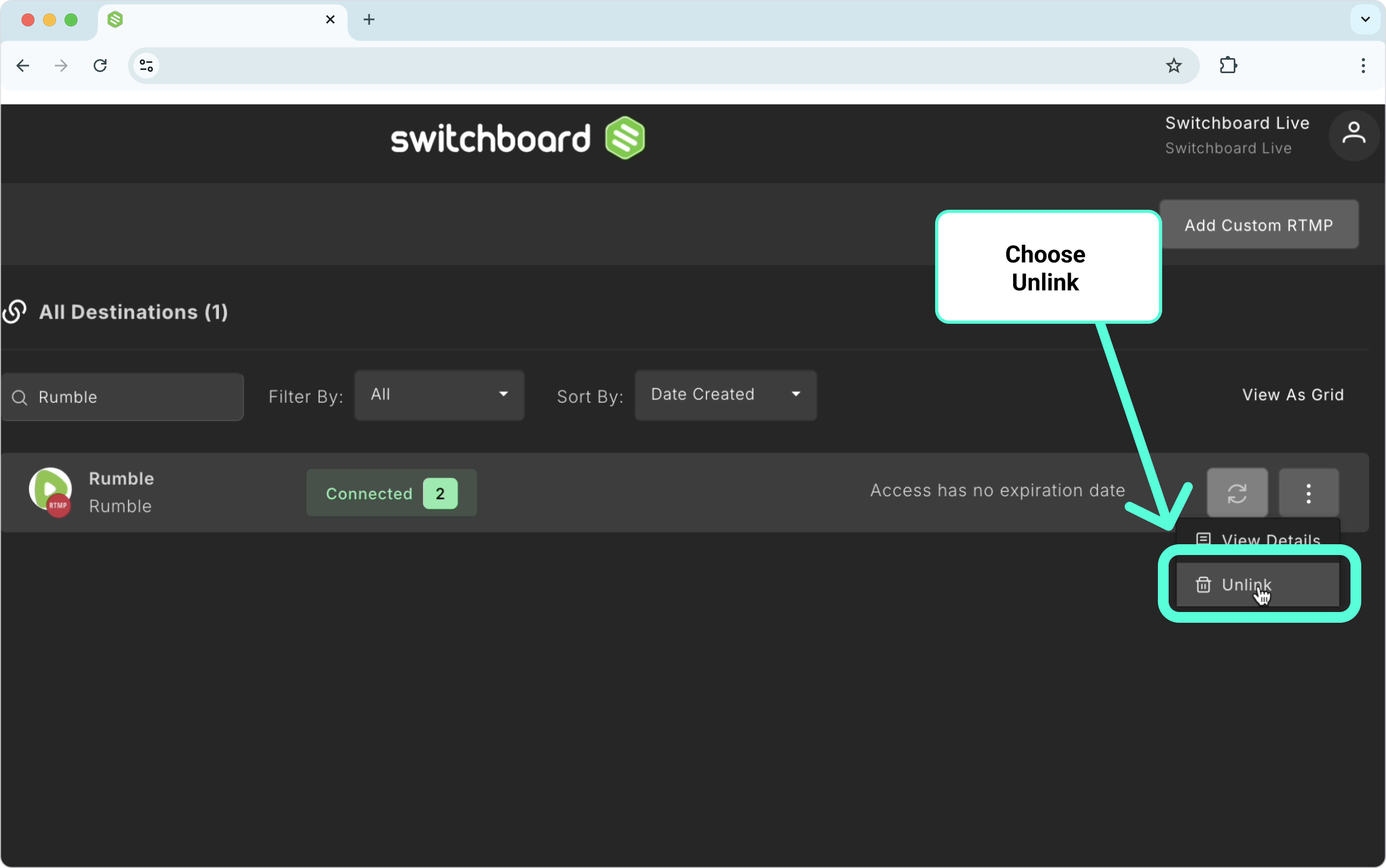
Click the three dots, and Choose Unlink.
STEP 5
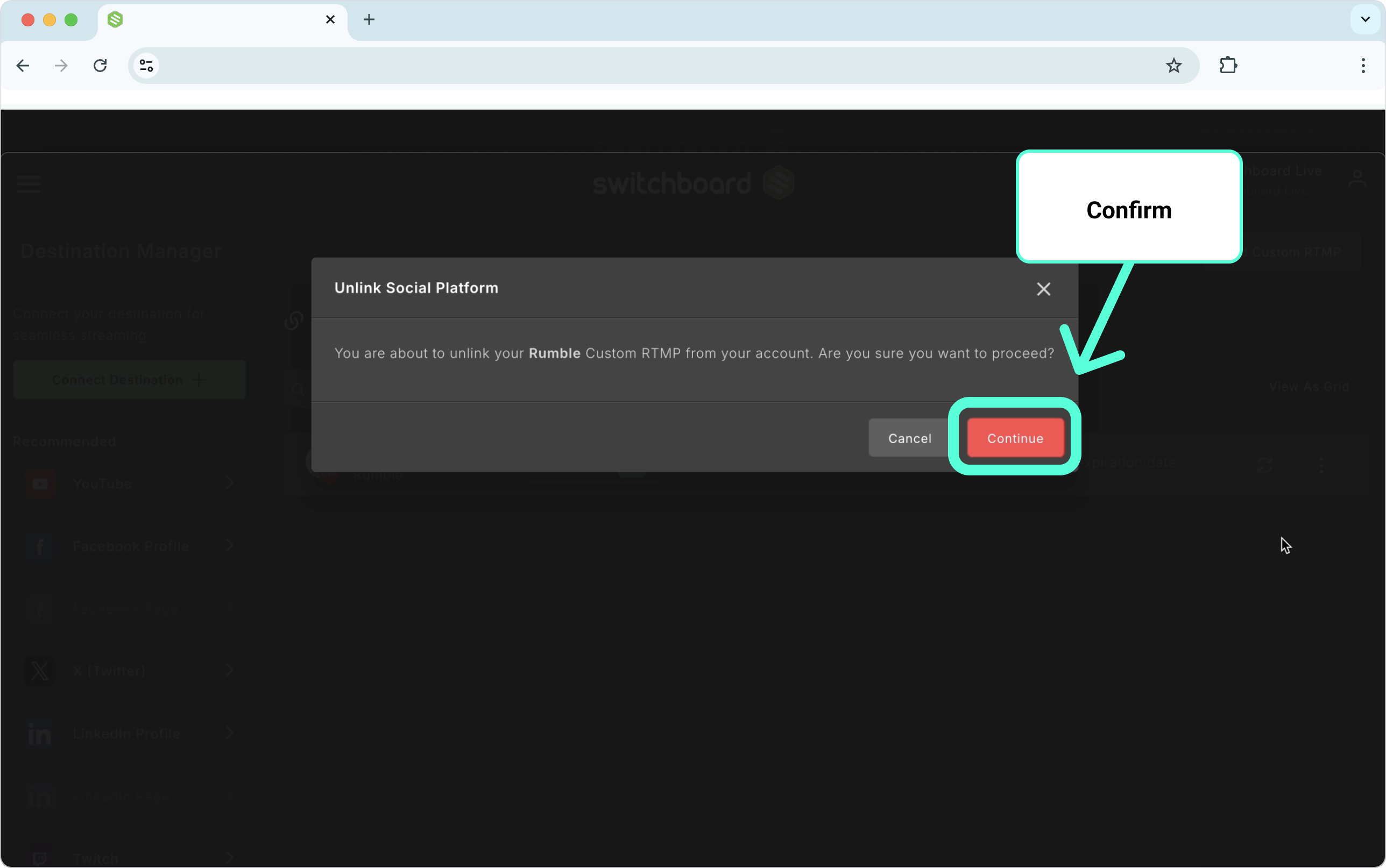
Confirm the action by clicking on continue.
After a few seconds, a pop-up notification will display.
Refresh the page if you don't see the pop-up message.
Quick Clip:
How To permanently unlink (delete) a destination from your Switchboard Account.
Great Job!
You have successfully removed destinations from your Switchboard account.