How to Connect Quicklink Cre8 with your Switchboard Account
Follow the steps below to learn how to connect Quicklink Cre8 with your Switchboard Account.
Last updated 12 months ago
Part 1: Create the Quicklink Cre8 workflow in your Switchboard Account.
Log in to your Switchboard Account.
Click the Add Workflow button.
Part 2: Connect Quicklink Cre8 with your Switchboard Account.
Step 1
Open Quicklink Cre8.
On the left side menu, click the cog icon ⚙️ to open Settings.
Select the Stream Tab at the top, and under Services, open the dropdown menu.
Click Show All > Switchboard Live.
Choose a Server nearest your location.
Step 2
Navigate to the desired workflow in your Switchboard Account.
Copy the Stream Key.
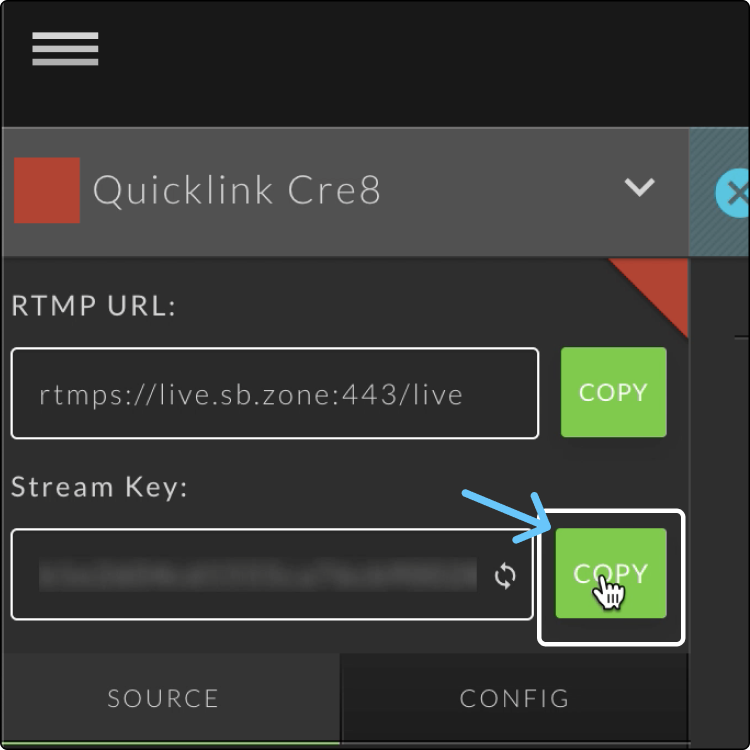
Paste the Stream Key into the Quicklink Cre8 Stream Key field.
Click Apply.
Step 3
Test the configuration between Quicklink Cre8 and your Switchboard Account.
Click the Start Streaming button.
Indicators of a successful connection between Quicklink Cre8 and Switchboard:
Video is displayed on the Confidence monitor.
Stream Status: "Receiving video" with a green dot.
Video Present with a checkmark on the workflow header.
The Go Live button is green, ready for multistreaming!
Part 3: Build up your Workflow with Social Channels
Step 4 | Create a Stream Group
Click the Add Group Button.
Give the group a name, and apply stream titles.
Click Save.
Step 5 | Add social channels to the group
Click the Add Destinations button at the bottom of the Stream Group.
Click the toggle button next to the social channel you want to add to the group.
To add a new destination to the group, click “connect more.”
Select a social channel from the platform menu, and follow the prompts for authorization.
Click Save. Close the window when complete.