How to Accept a Team Member Invitation
Welcome to the team! If you've received an email invitation to join a Switchboard account, you're a few clicks away from collaborating on your organization's broadcasts. Accepting the invitation gives you your own secure login to the shared account, with no separate subscription needed. This guide walks you through setting your password, logging in, updating your profile, and switching between accounts.
Last updated 5 days ago
What can Team Members of a Switchboard Account do?
What you can do depends on the role the account Owner or a Co-Owner assigns to you:
Co-Owner: Manage the account's streaming work and the team: invite and remove members and change their roles. Cannot view billing or change the Owner.
Editor: Manage workflows, Stream Groups, Destinations, Scheduled Events, and PartnerShare, and start and stop streams. Cannot manage team members or view billing.
Viewer: Monitor streams, Scheduled Events, Destinations, and activity in read-only mode. Cannot make changes or start a stream.
Topics Covered
Steps to join the team
Updating your name and phone number
Switching between accounts
Troubleshooting
Follow the steps below to verify your identity, set your password, and log in to the team dashboard.
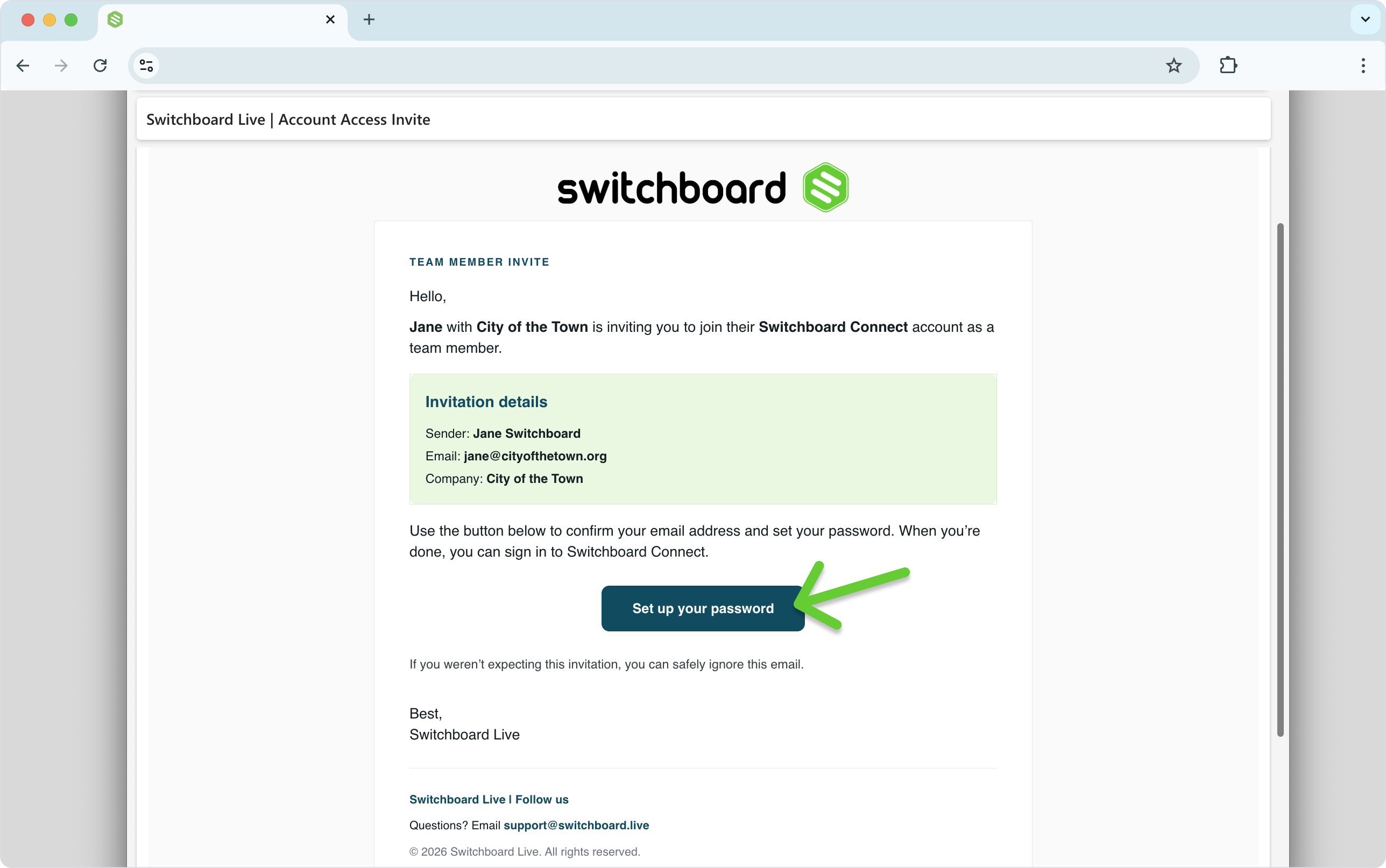
Step 1: Open Email Invite
Open the email invitation from Switchboard Live.
Search your inbox for the subject line: Switchboard Live | Create Account
The body of the email should display the following:
Sender ( the person or organization inviting you)
The Sender’s Email address.
Sender’s Company name.
Click Reset Password.
A new window will open.
Step 2: Request Password Reset
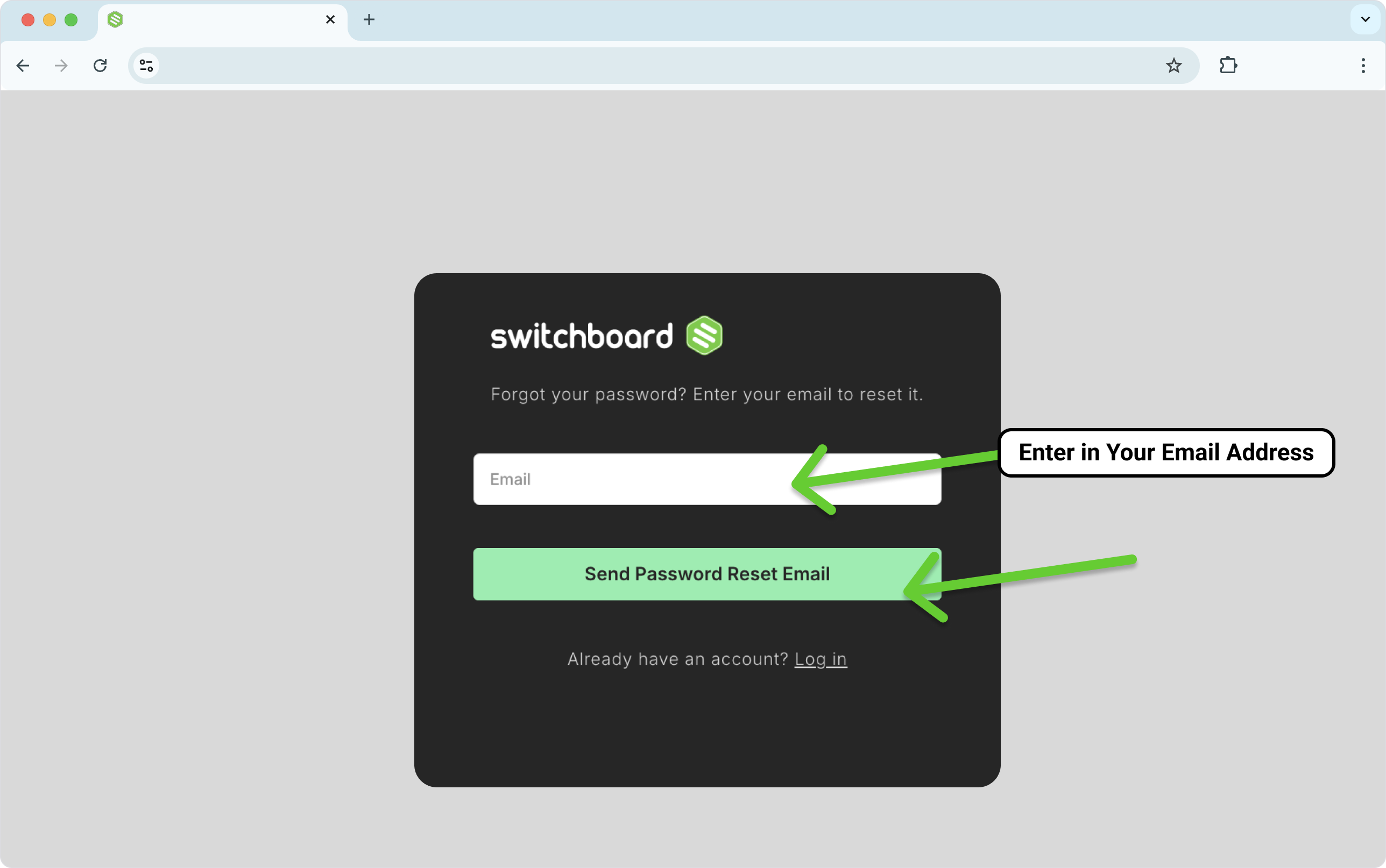
Type in your email address.
Note: Please enter the email address that received the invitation.Click Send Password Reset Email.
A password reset email will be sent to your email.
Step 3: Open the Password Reset Email
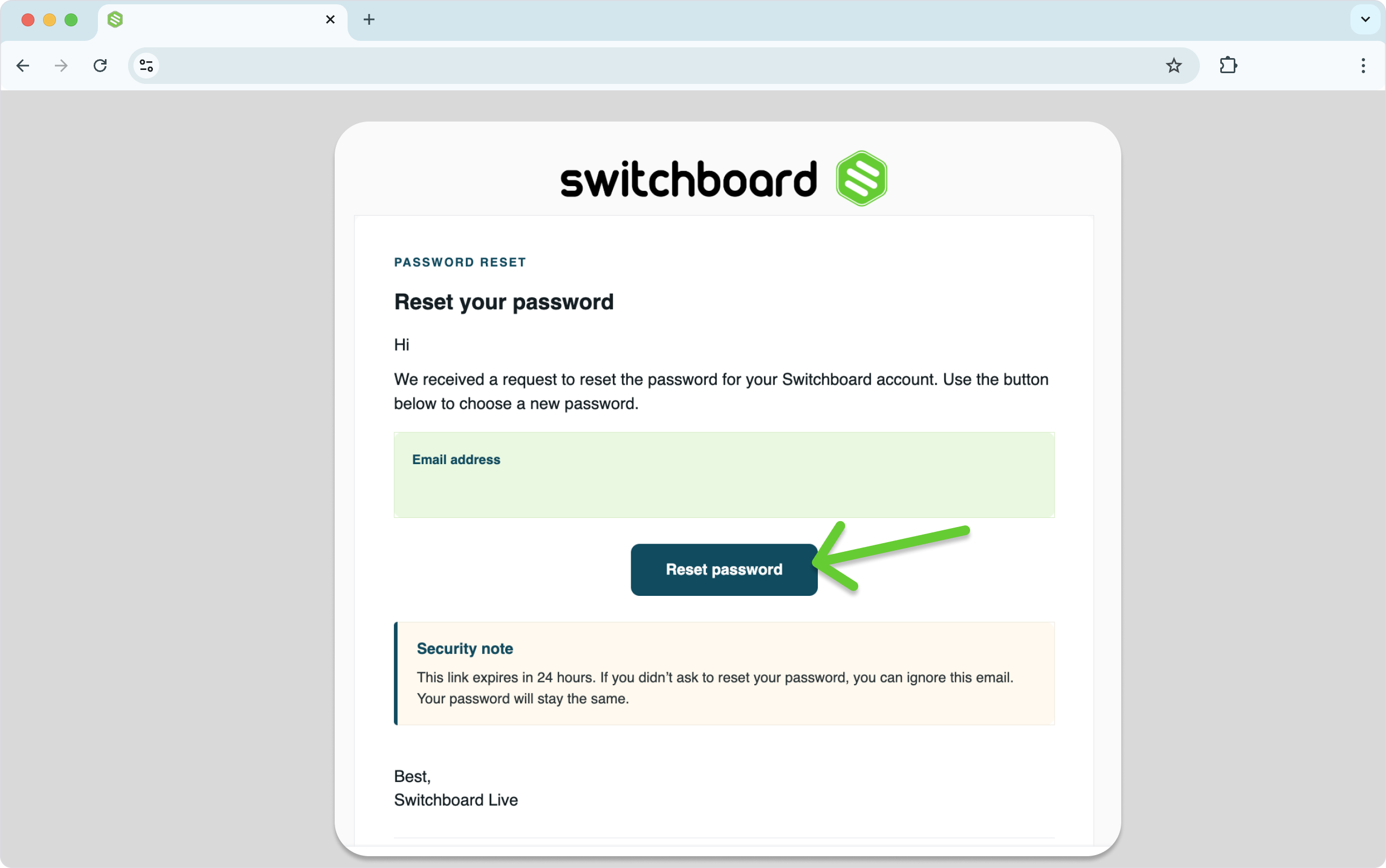
Open the Password reset email.
Click Reset Password. A new window will open.
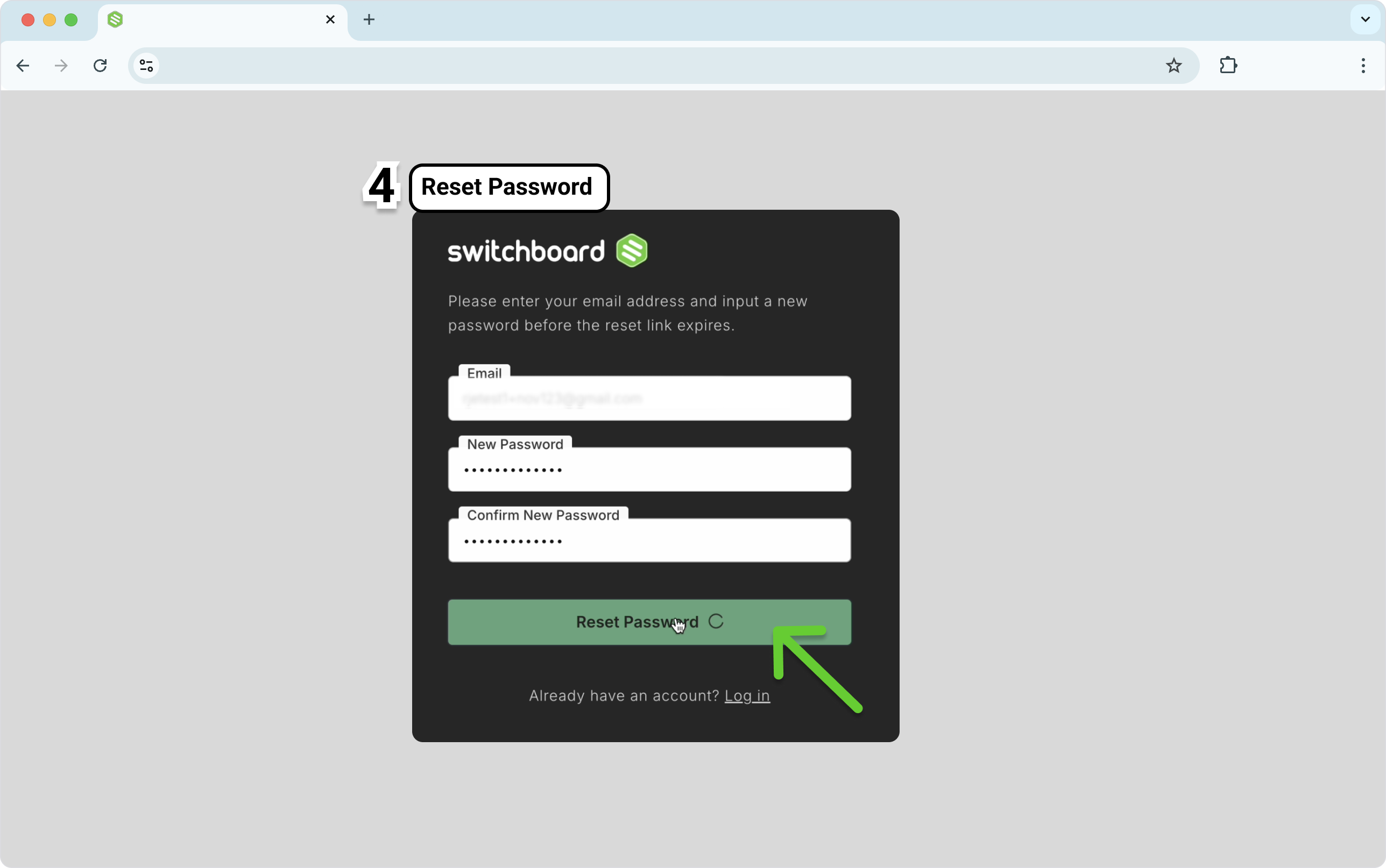
Step 4: Reset Password
Enter your email address.
Enter the New password.
Confirm New password
Click Reset Password.
Congratulations! Now you are part of the Team!
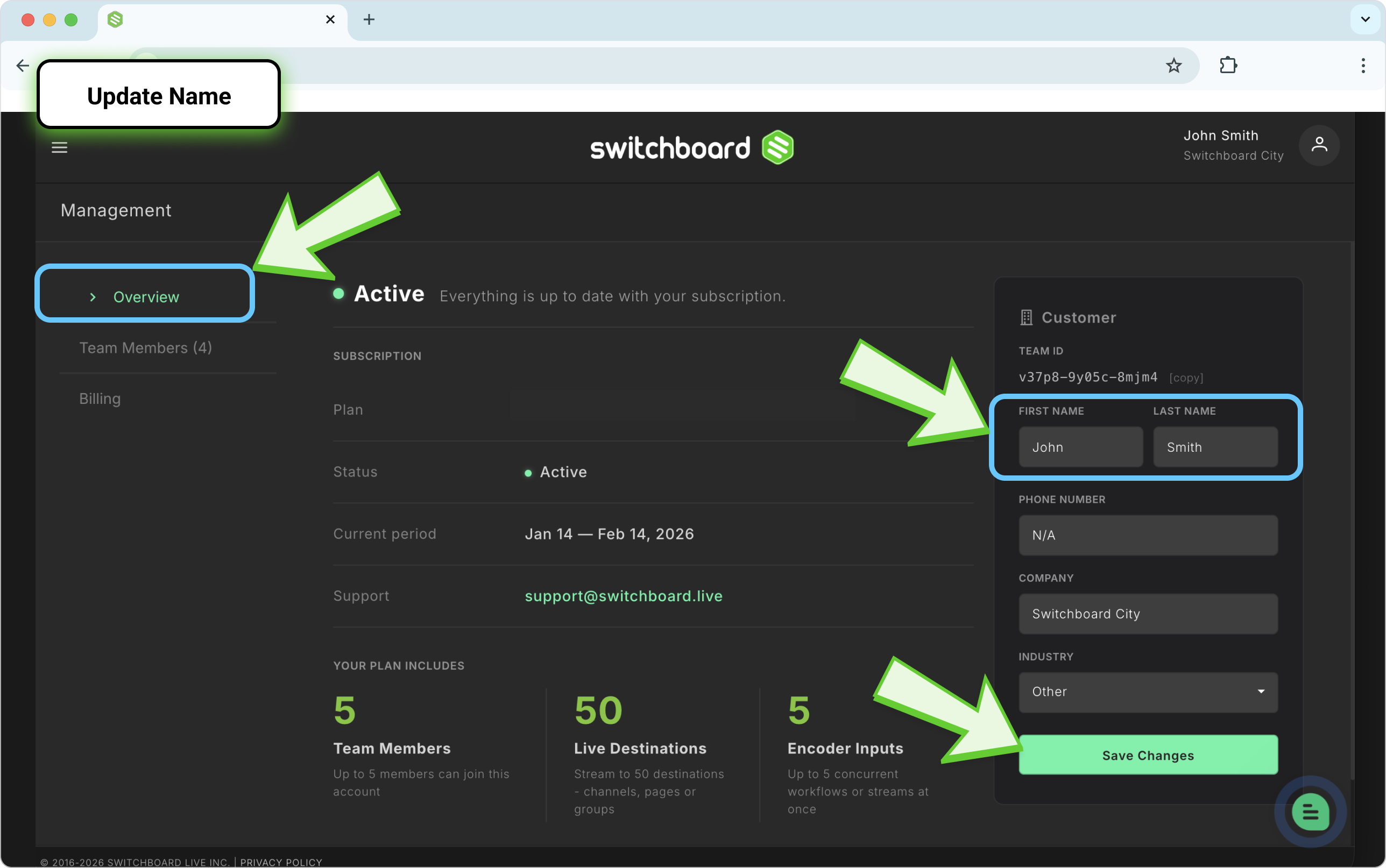
Step 5: Update Your Name and Phone Number
Add your name so your teammates can identify you in the Team Members list.
Click the Main Menu icon in the top-left corner and select Management or Team.
Choose Overview.
In the Your Profile section on the right side of the page, enter your First Name, Last Name, and Phone Number.
Click Save Changes.
Switching Between Accounts
IMPORTANT NOTE: Make sure you are in the correct Switchboard Account before making any changes to the Workflow or Going Live.
Your name appears in the top-right corner of Switchboard and in the Team Members list. Click your name in the upper-right corner to see your account details. The drop-down menu shows:
Name of your Account
List of accounts you have access to
The subscription plan for each account
Please review our Starting Guide to learn how to use Switchboard.
Troubleshoot
If you don't see an email from Switchboard Live, check your junk mail or spam folder.
For the invitation email
Look for this subject line: Switchboard Live | Create Account
Still can't find it? Ask the account Owner or a Co-Owner to remove you and send a new invitation.
For the Password Reset Email
Look for this subject line: Switchboard Live | Password Reset Request
Was this helpful?
Still need help? Ask the team