Connecting Facebook to Switchboard
This article will teach you how to add a Facebook Profile and Personal Page to your Switchboard account. The first time you set up your Switchboard account, you'll need to connect Social channels to your Switchboard account one time.
Last updated 11 months ago
Note: As of June 10th, 2024, Facebook Live updated its live stream requirements:
According to Facebook:
Your account must be at least 60 days old.
Your Page or professional profile must have at least 100 followers.
To go live from a Facebook Page, you need to have Facebook access or task access to create content.
Topics covered:
Connecting Facebook Profile
Add a Personal Facebook Page
Going Live on Facebook
Additional Resources
We recommend that you complete the following steps before proceeding with the authorization.
Use a desktop computer to authorize the destination to your Switchboard account.
In the same browser, log in to your Facebook Profile before starting the authorization process.
Connect Your Facebook Profile to Your Switchboard Account
The steps below describe connecting a Facebook Profile to your Switchboard account for the first time. You should only connect to each social channel once.
You can connect your Facebook profile in two ways. Add it directly from a Stream Group when you already have your workflow open, or use the Destinations Page to link multiple social platforms to your account at once. We'll walk you through both methods.
Connecting Facebook Profile Via the Stream Group
Step 1
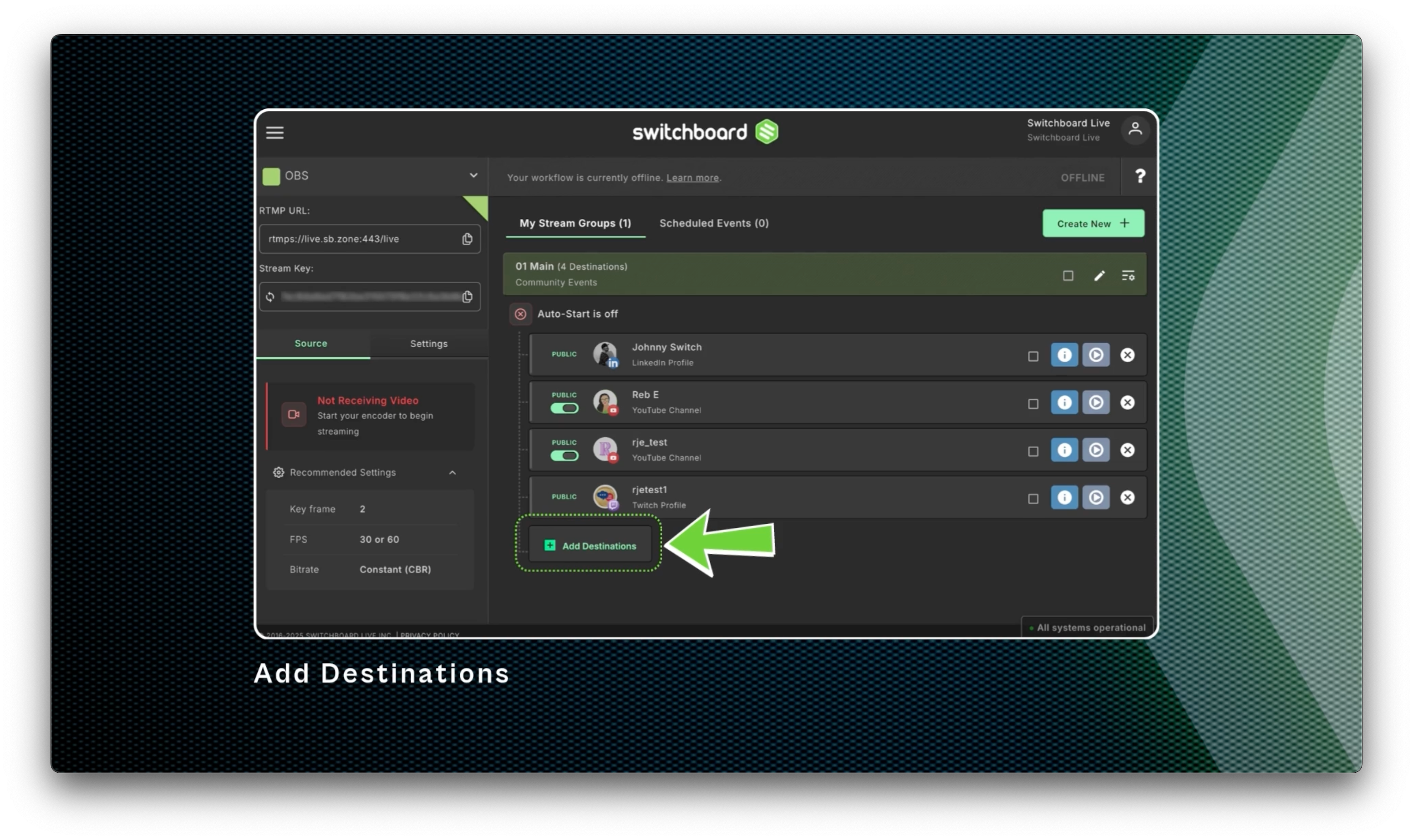
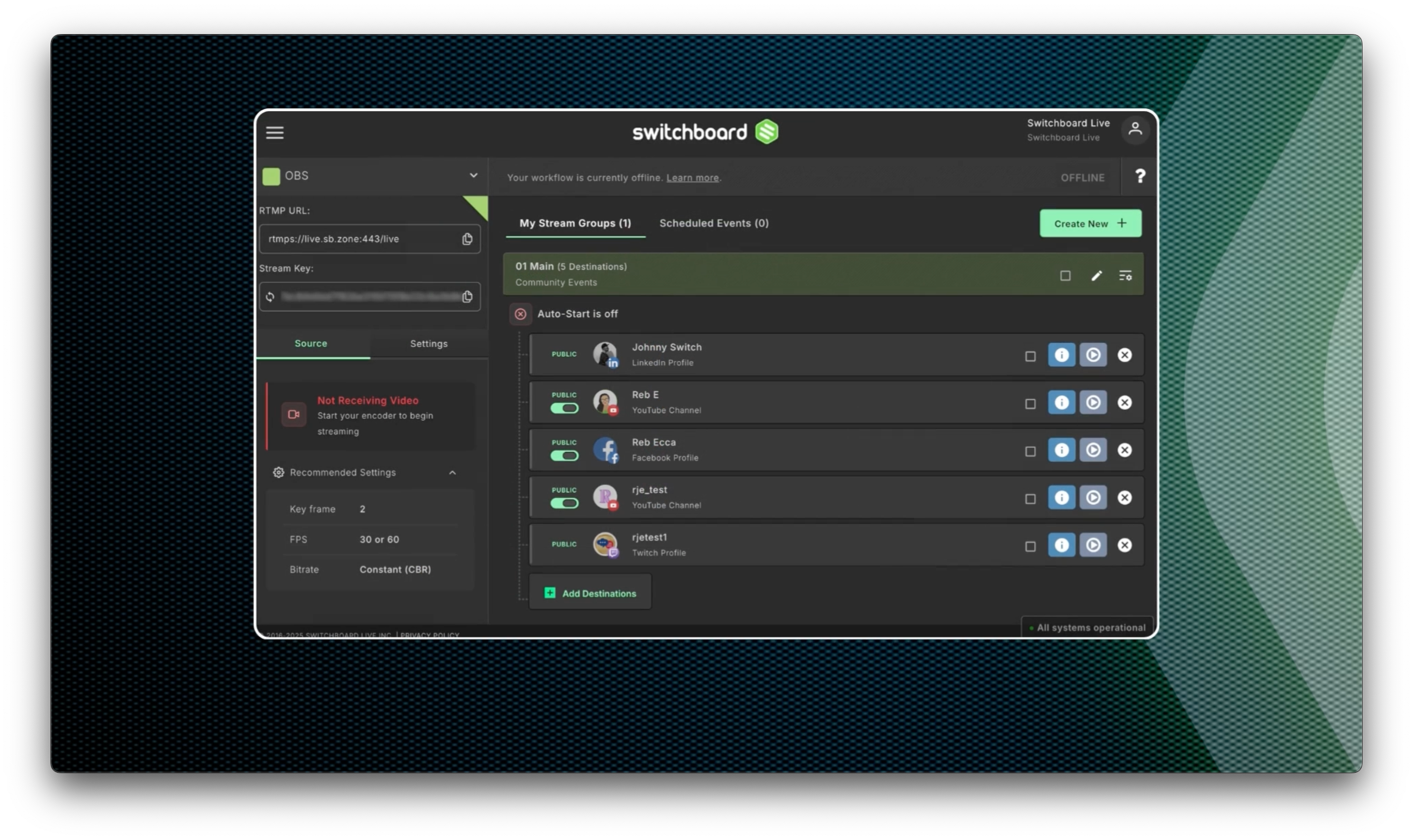
Click the Add Destinations button ( or skip to Step 2 while creating the first Stream Group)
Step 2
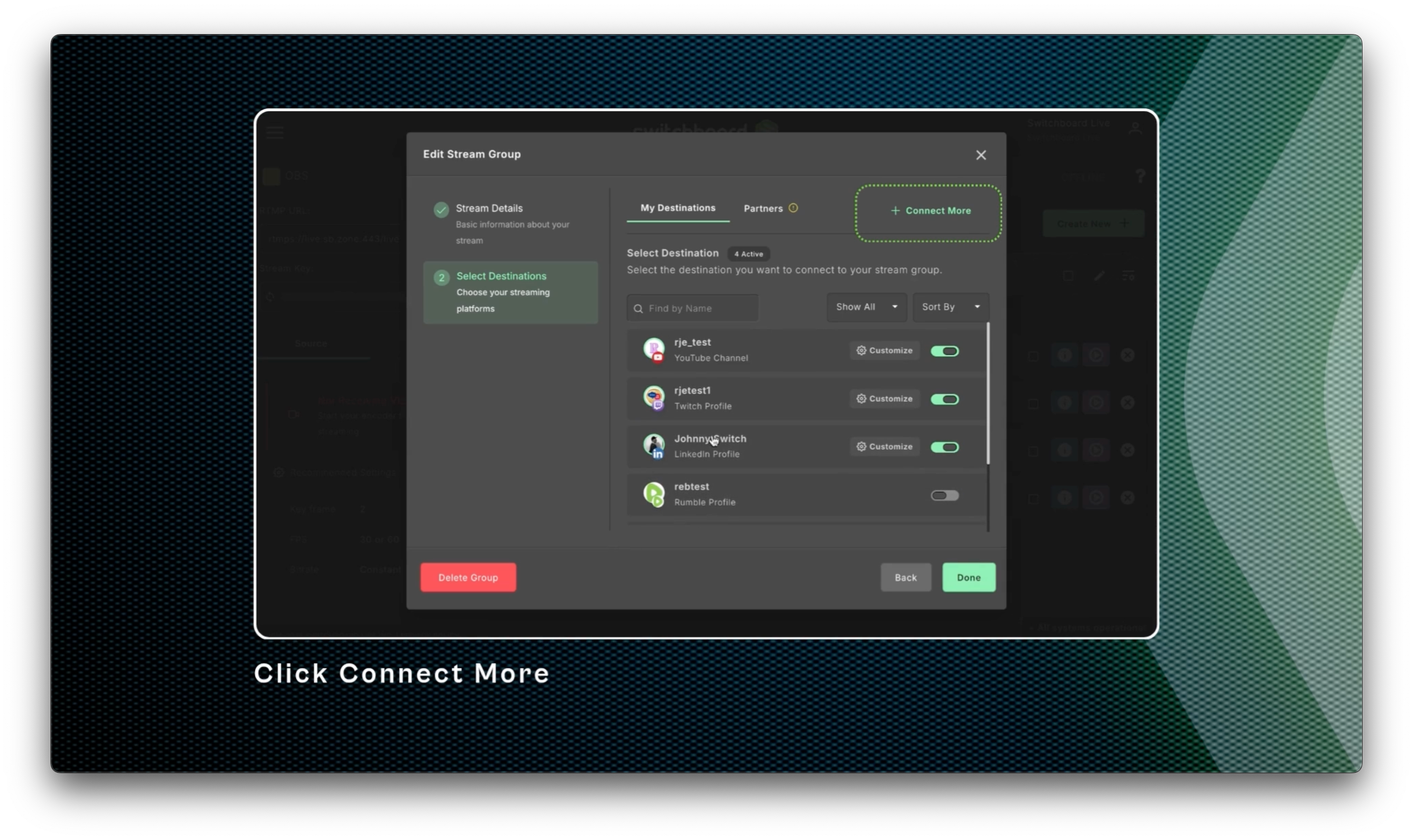
Click Connect More.
Step 3
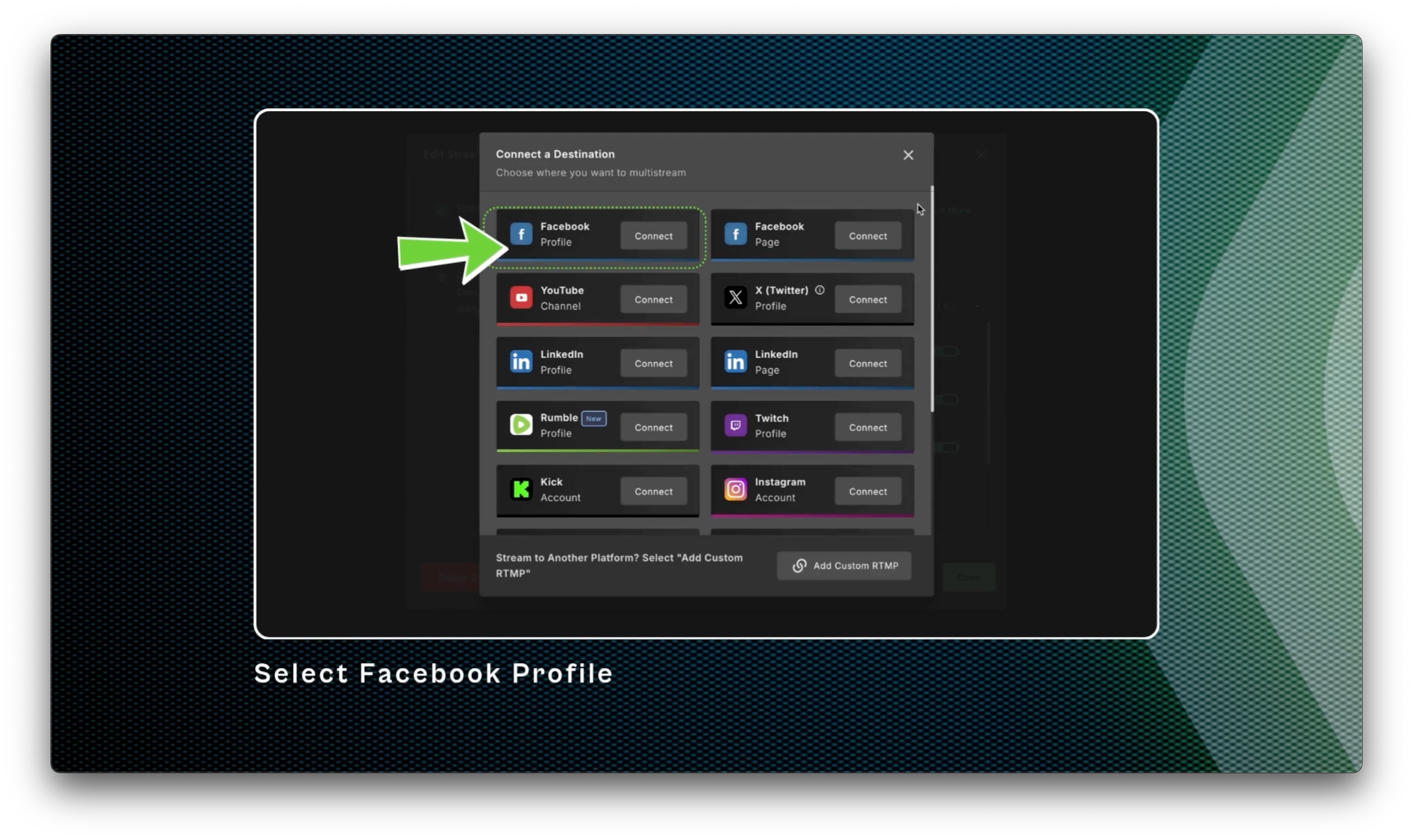
Select Facebook Profile from the menu.
You'll be prompted to log in to your Facebook Profile.
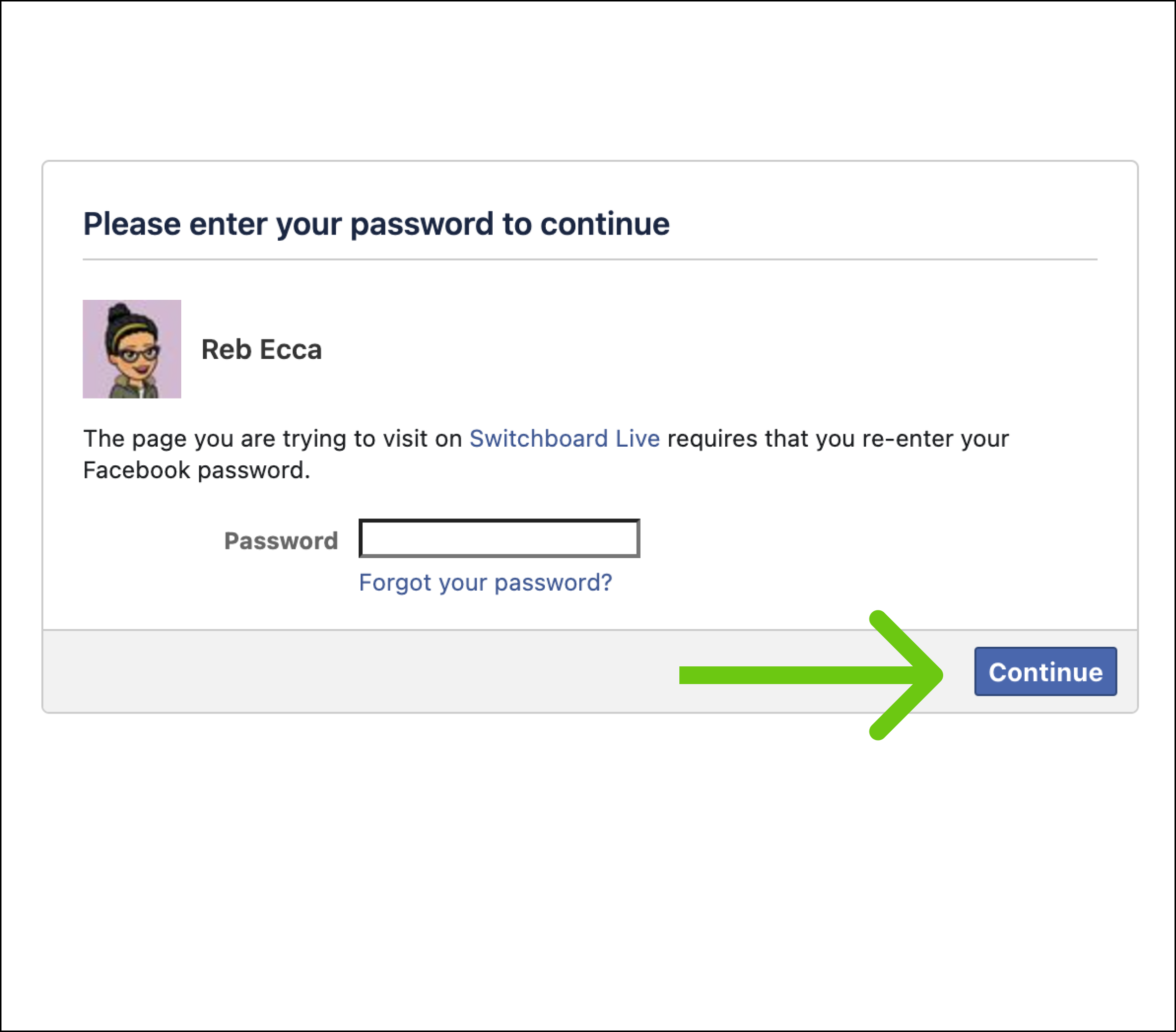
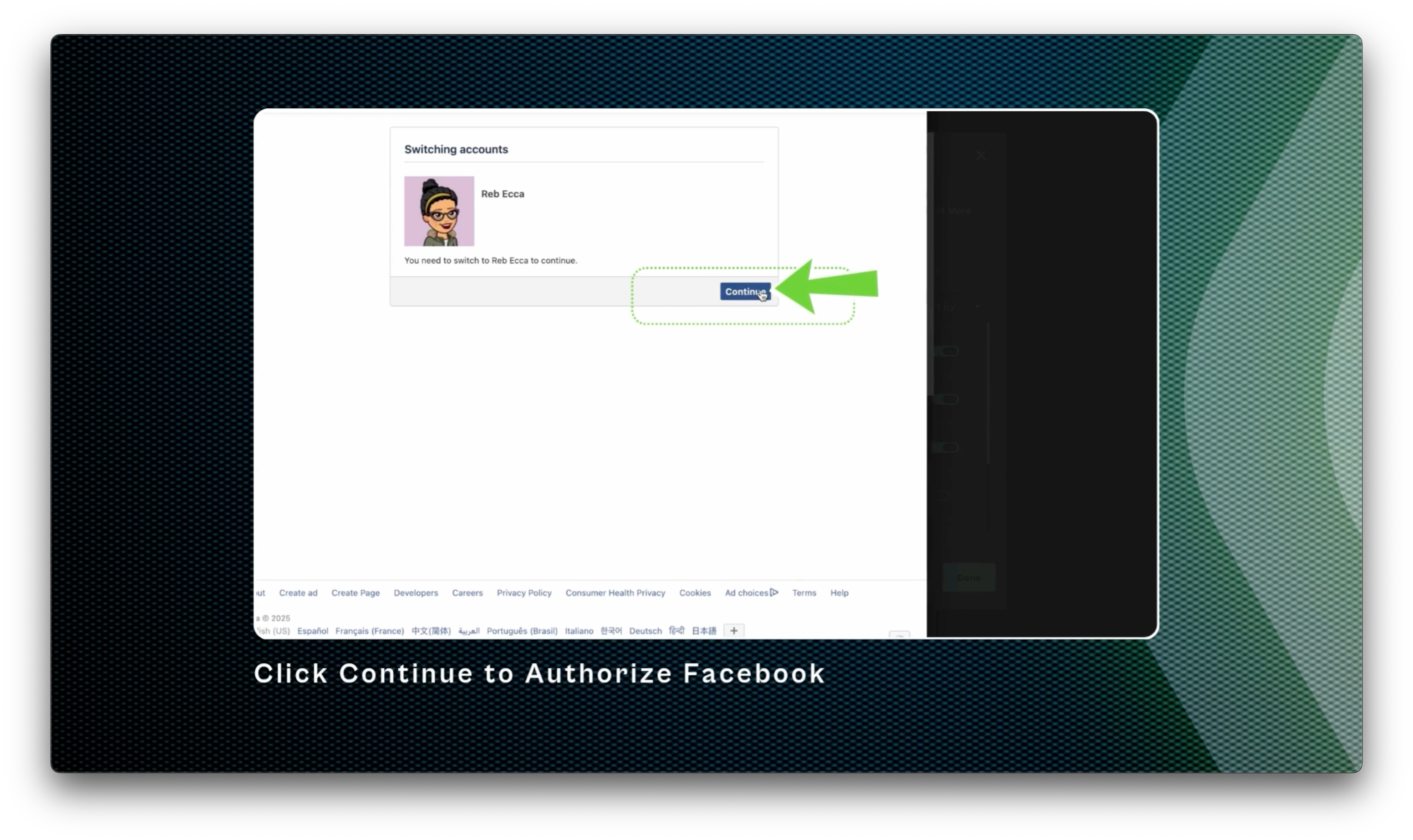
Complete the authorization by clicking “Continue” until you reach the Success Screen.
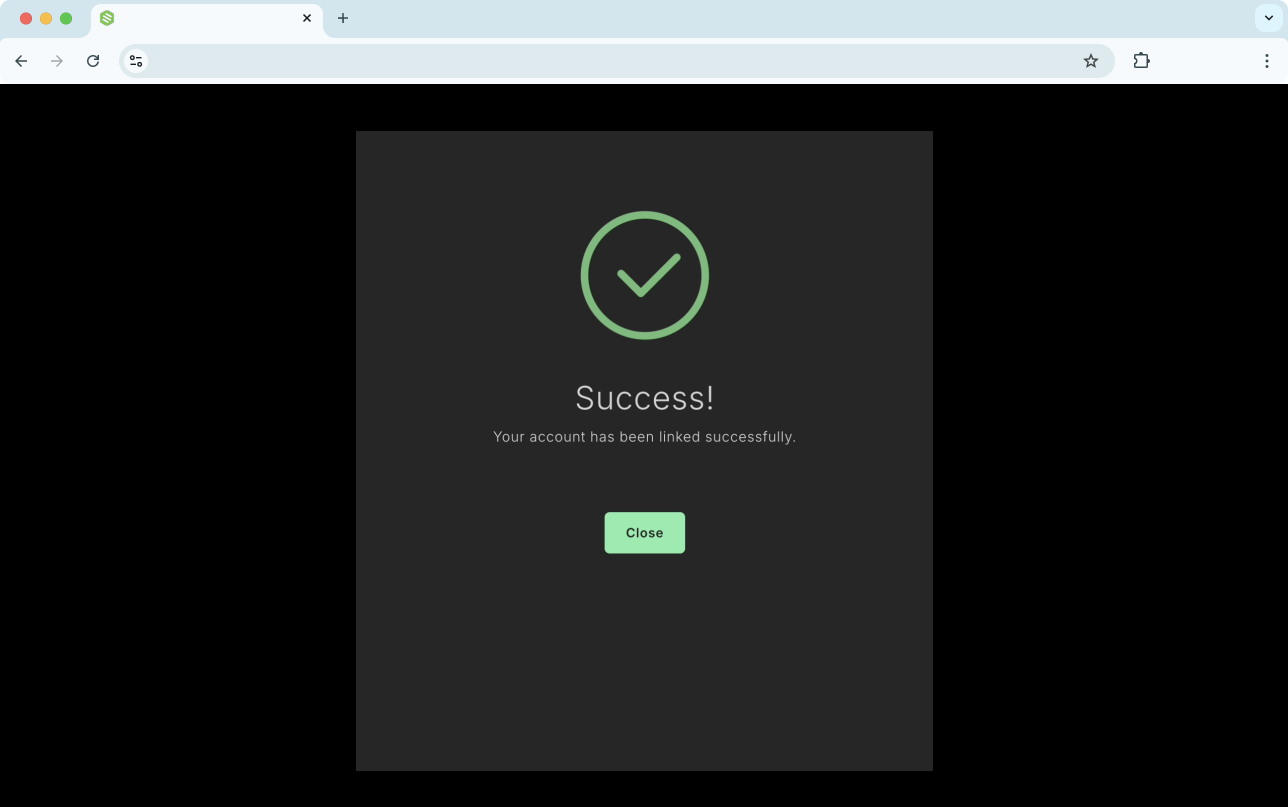
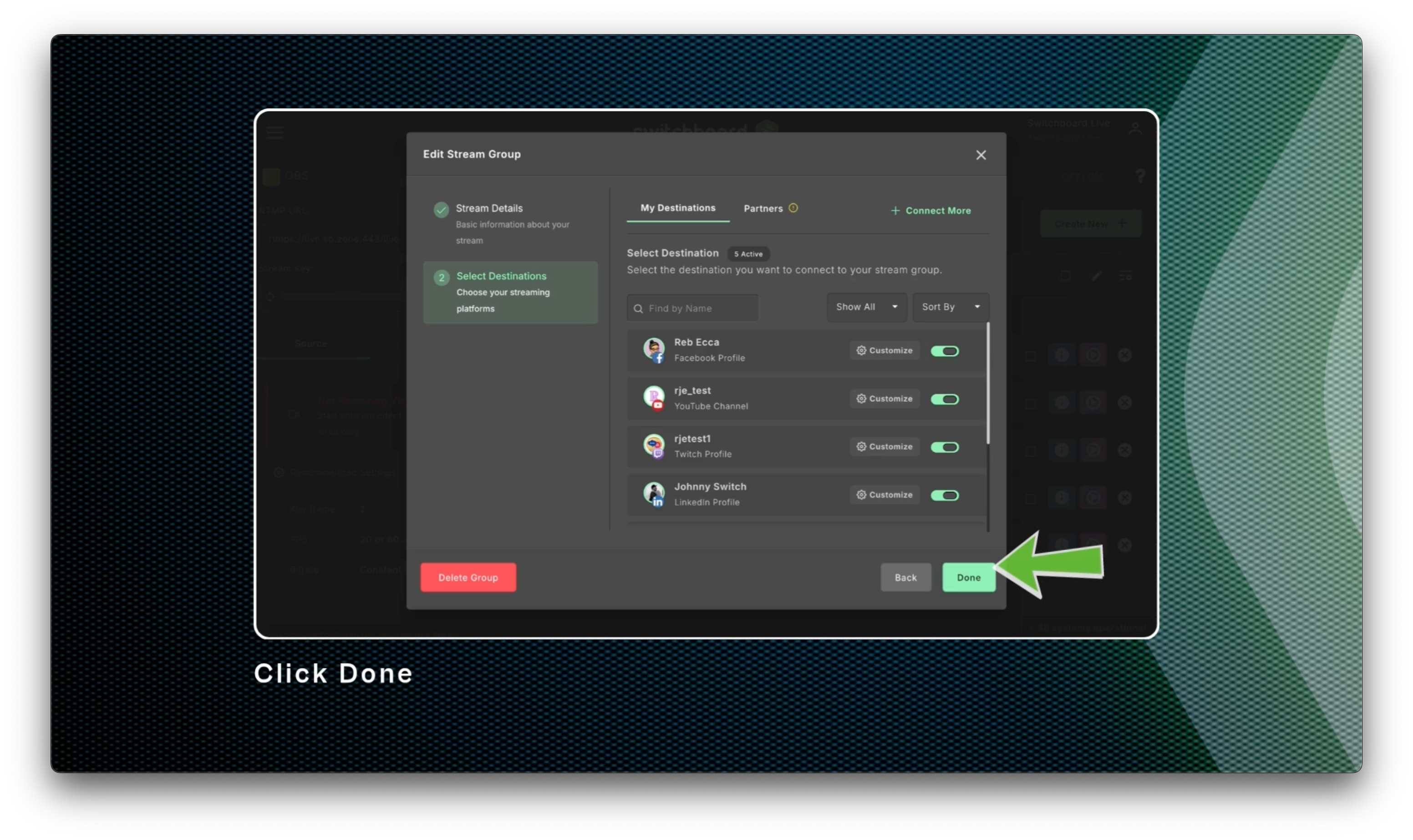
You'll see that the Facebook Profile has been successfully connected to your Switchboard account and automatically activated in the Stream Group.
Click Save & Next ( or Done) to continue, or "Connect More" to add New Destinations to your Switchboard Account.
Connecting Via the Destination Manager Page
You can link your Facebook profile through the Destinations manager page. We recommend this process when adding multiple social channels at once, especially if you intend to organize them into specific stream groups later.
Step 1
Select the Main Menu > Choose Destinations

Step 2
Select Facebook Profile from the side menu.
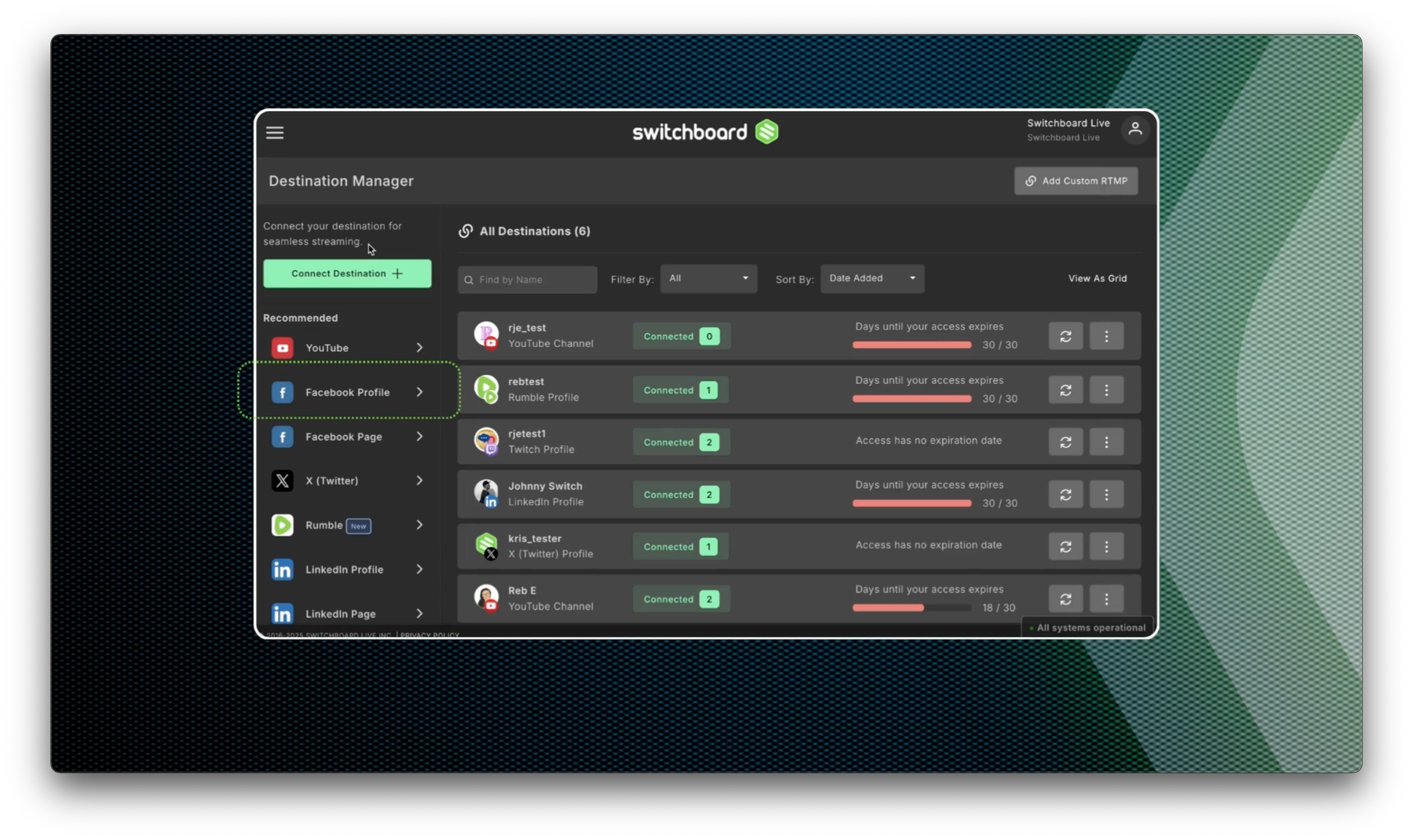
Step 3
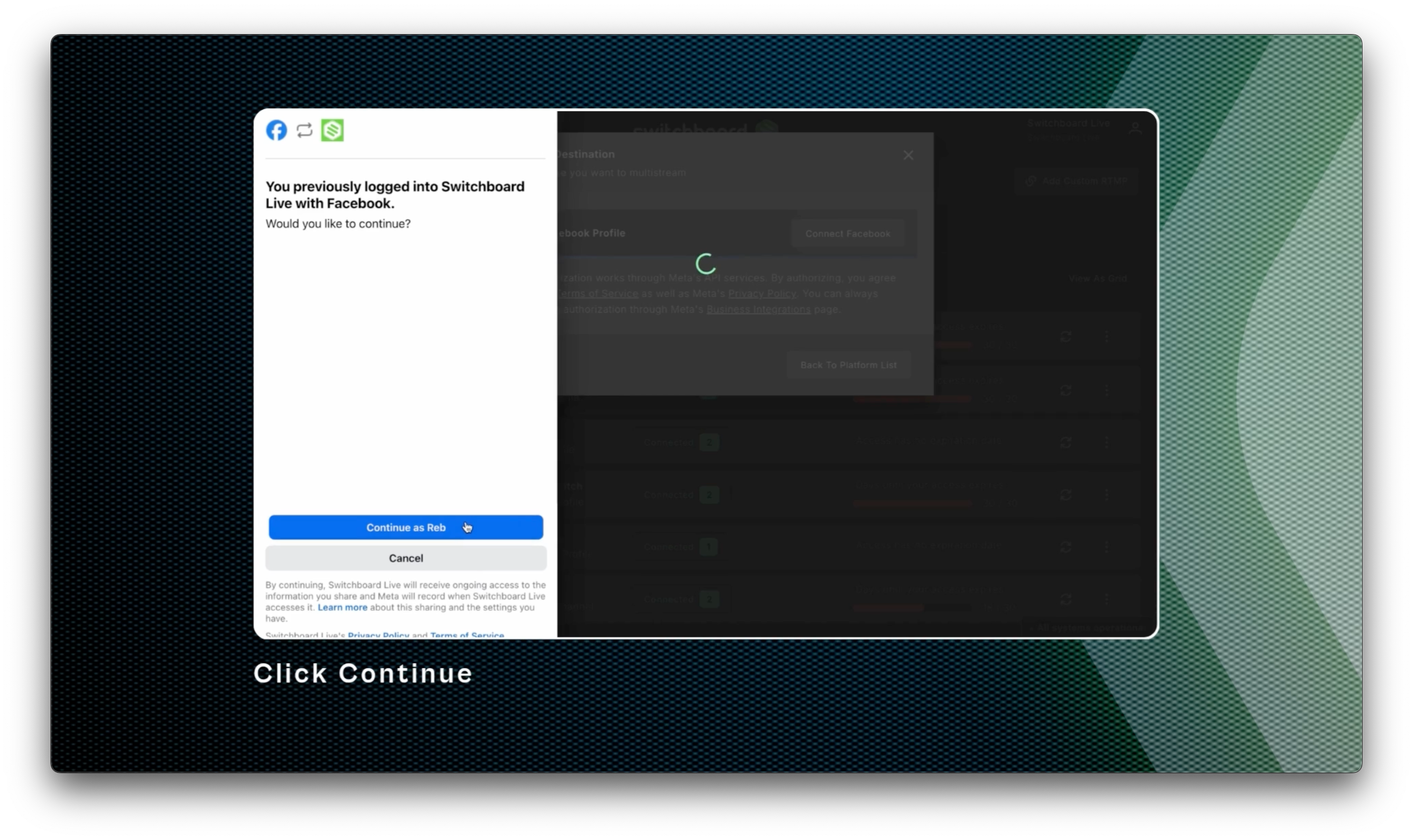
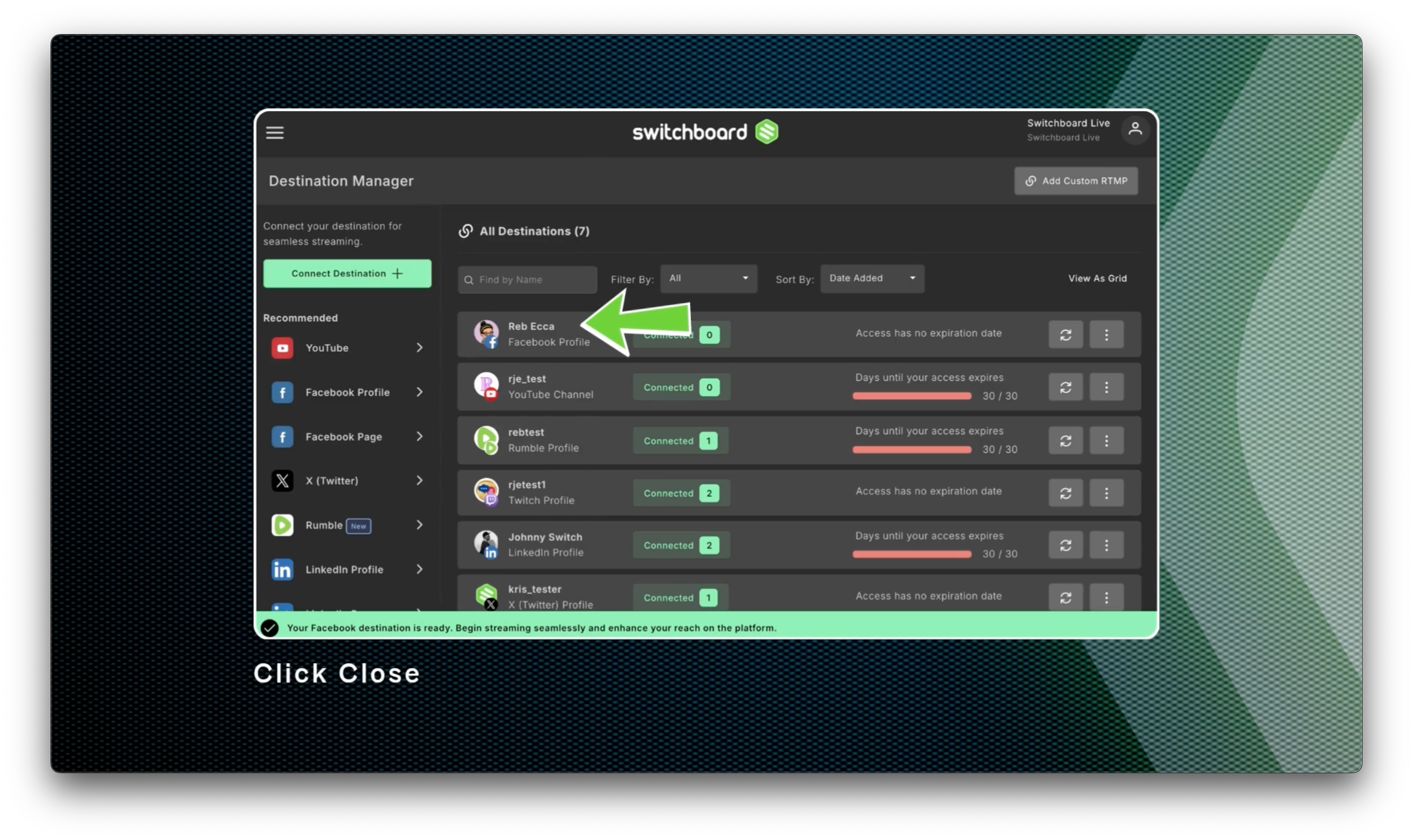
Follow the prompts by logging into your Facebook Profile and clicking continue until you reach the success screen. Click Close when you reach the Success Screen.
Success!
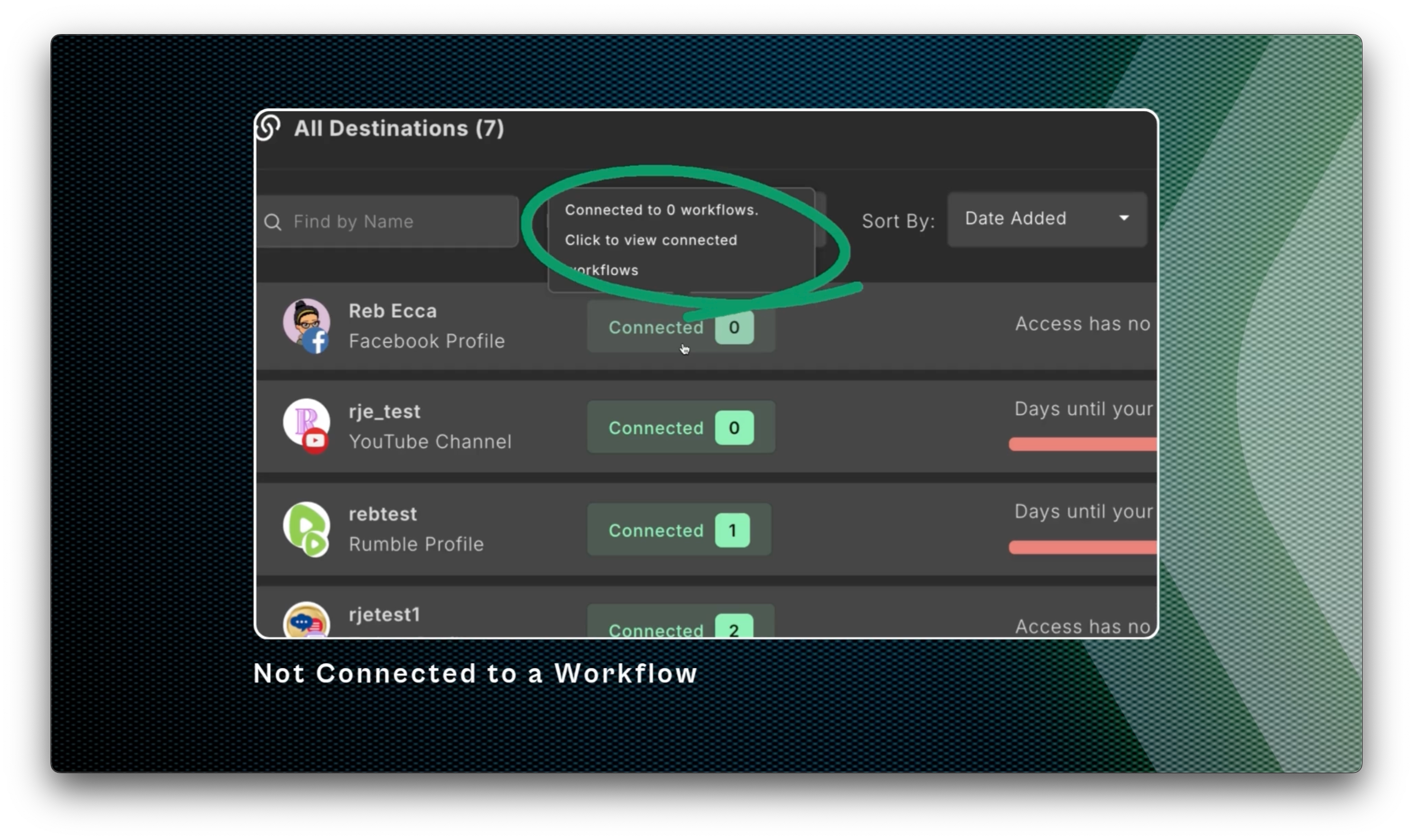
The Facebook Profile has been successfully added to the Switchboard Account. But it hasn’t been added to a stream group or scheduled event. When ready, add the Facebook Profile to any Stream Group or Scheduled Event.
Step 4
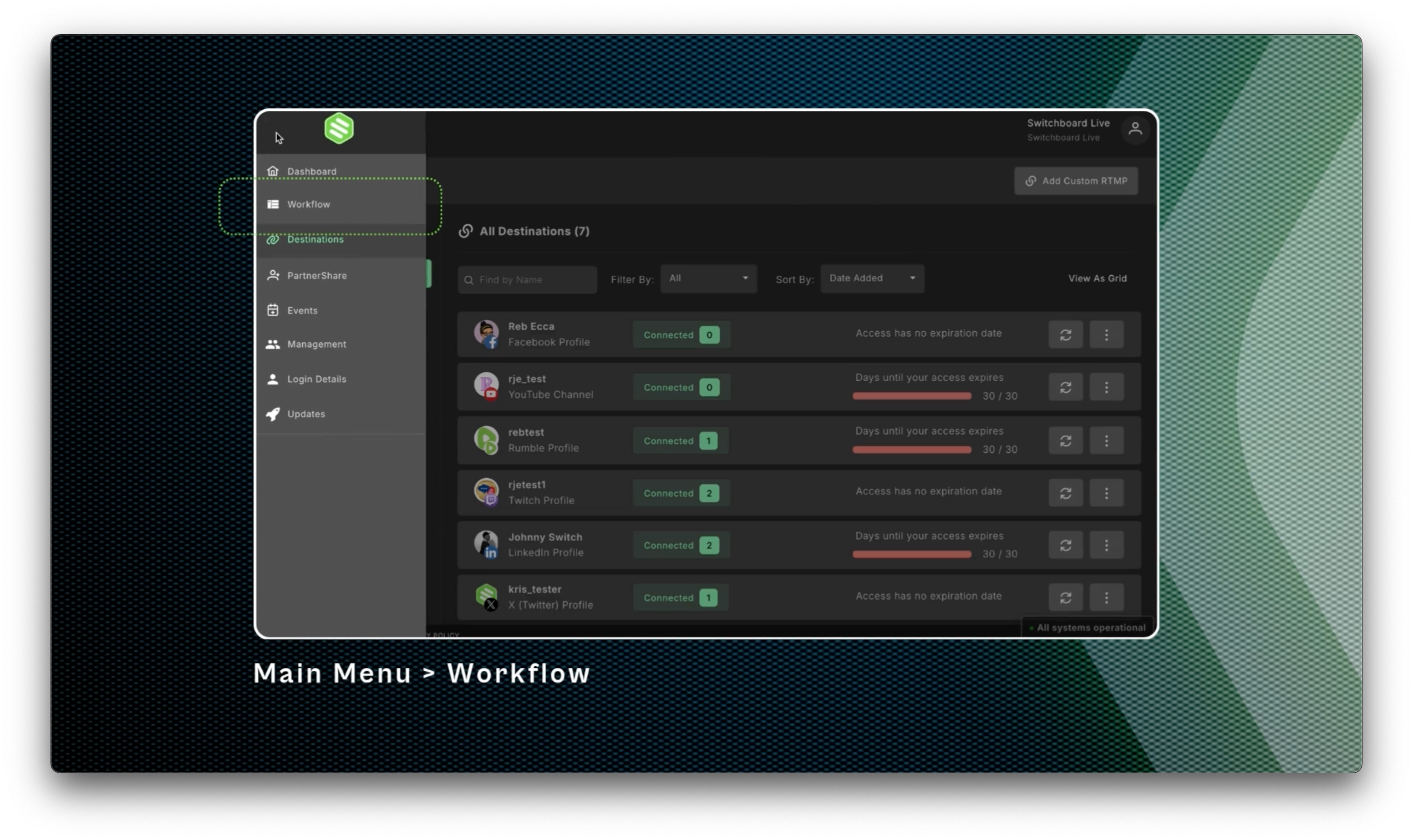
Navigate to the Workflow. Main Menu, select Workflow.
Step 5
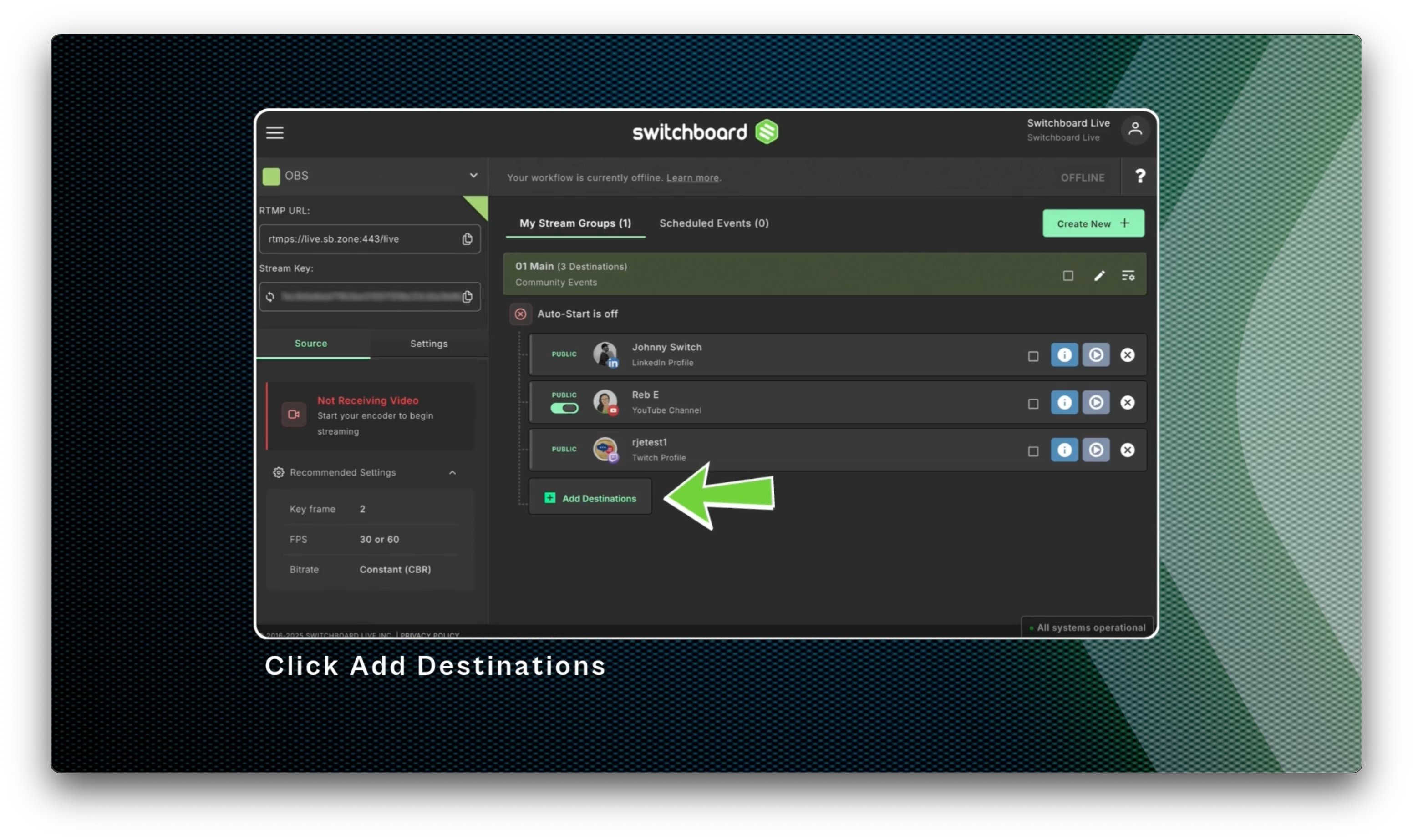
Click Add Destinations at the bottom of the Stream Group.
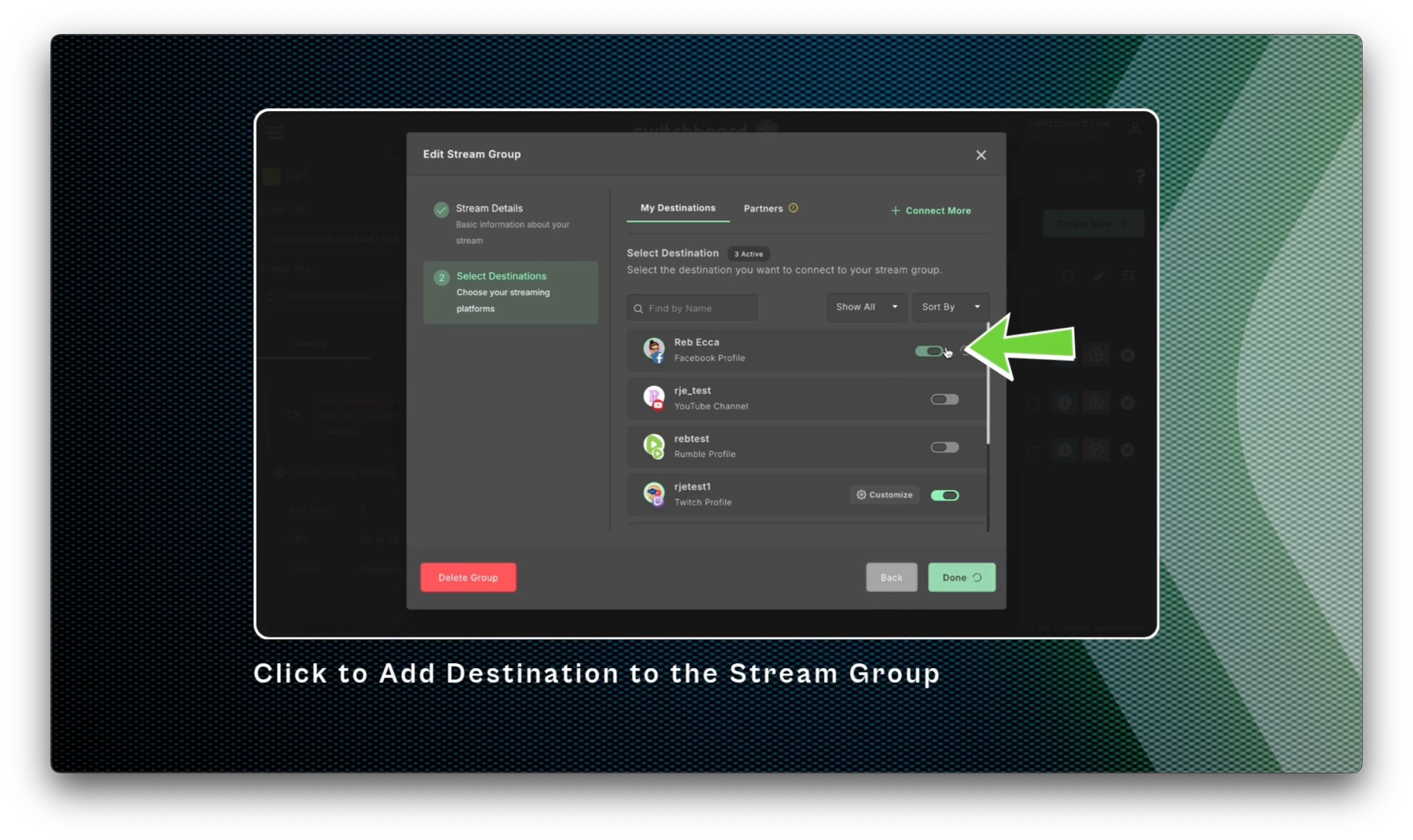
Click the toggle button next to the Facebook Profile to add it to the Stream Group.
Click Done.
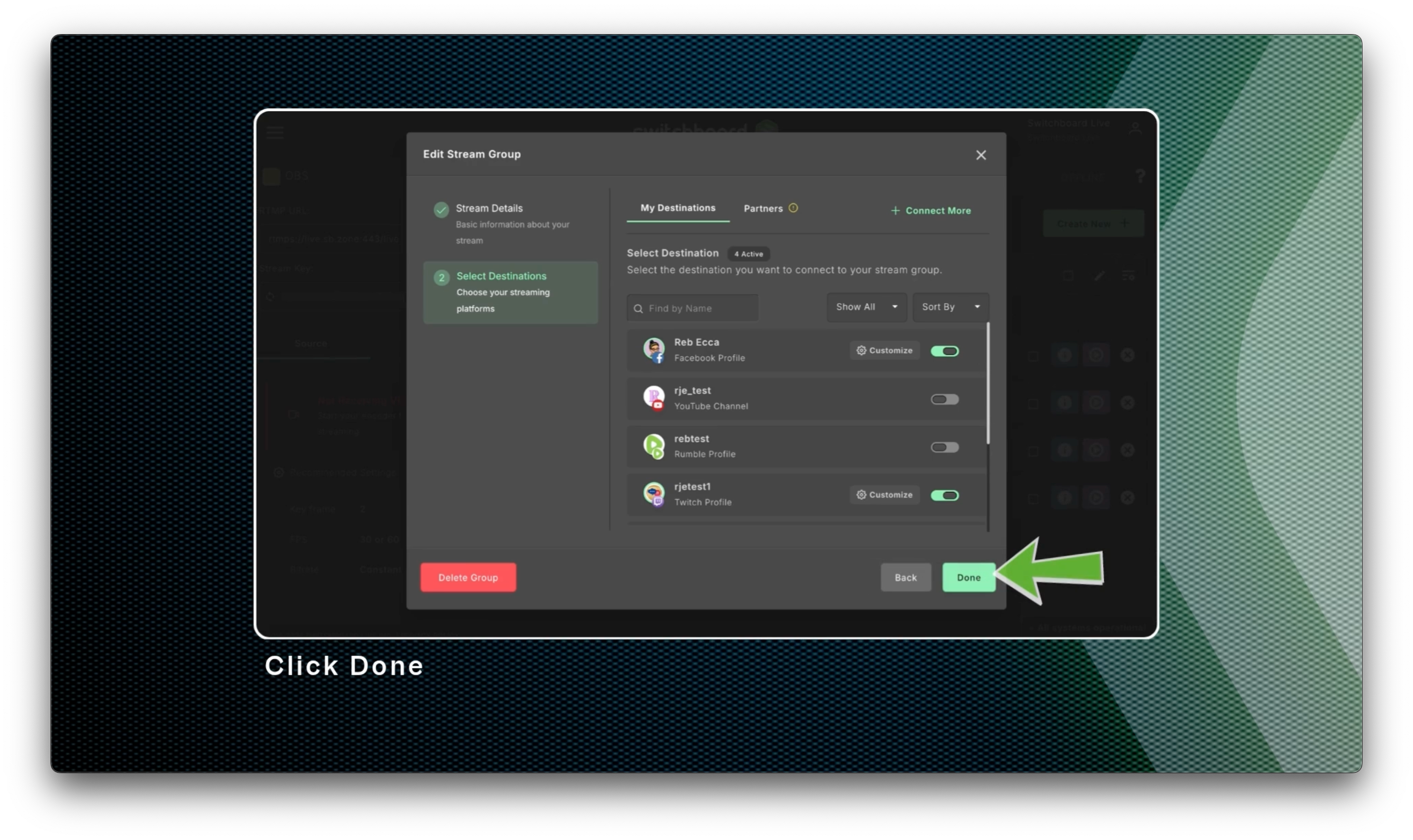
Success! The Facebook Profile has been successfully added to the stream Group, along with the other social channels that have already been added.
How to Add a Facebook Page
Adding a Facebook Page is just as straightforward. Remember, you need the proper credentials and must meet the live streaming requirements. For Facebook Business Pages, please follow the steps in this resource: Connecting Facebook Business Pages with your Switchboard Account.
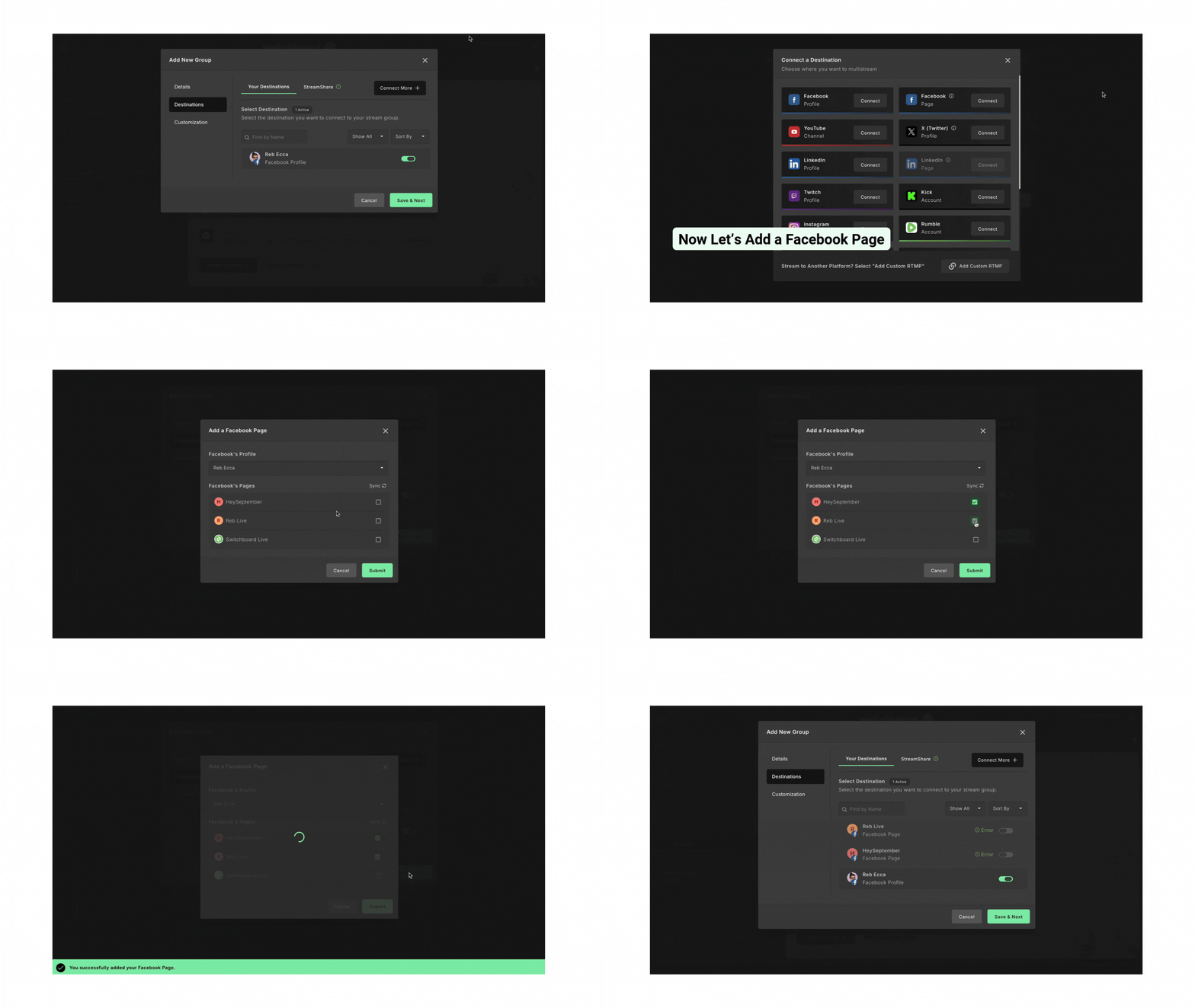
While the Edit Group Modal is open
Click Connect More.
Select Facebook Page from the Destination Menu.
Check the box next to the Facebook Pages you want to add to the Stream Group.
Click Save & Next ( or Submit).
‼️ To live stream on the Facebook Page, you must meet the requirements set by Facebook. If it doesn't meet the requirements, you'll see an error following the Facebook Page.
Confirm Changes
Click Save & Next to confirm all the changes you've just made to the Stream Group.
The Facebook Profile and Page will be displayed inside the Stream Group.
Congratulations! You've successfully added a Facebook Destination to your Switchboard Account!
Going Live on Facebook
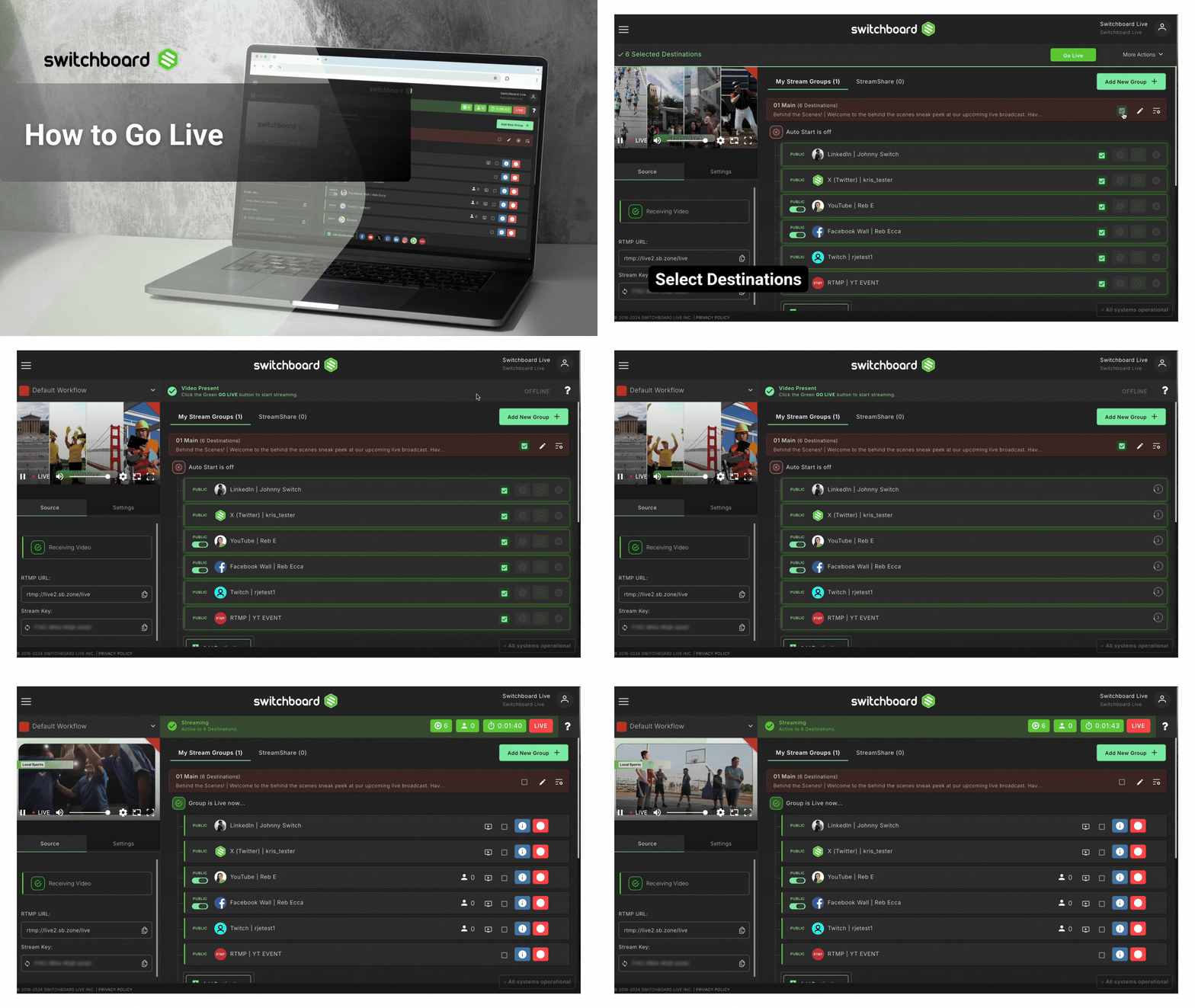
After setting up your workflow with Stream Groups and connecting Destinations to the Stream Group, you're ready to Go Live!
When ready to go live, start sending the video from your encoder.
Double-check that the video shows on the confidence monitor and that the “receiving” indicator is green.
Select the destinations and press Go Live.
After a few seconds, the selected destinations will be live-streaming.
Resources
Adding Facebook Groups
You'll need to add a Facebook group using the RTMP method. Follow these steps to stream to Facebook Groups.
Connecting Facebook Business Page
Follow these steps to connect a Facebook Business Page
Add a Facebook Destination as a Custom RTMP
Add a Stream Title and Description for the Broadcast
How to Create a Facebook Live Event and Go Live with Switchboard