Connecting Twitch to Switchboard Cloud
Last updated About 1 year ago
You can follow the instructions below to learn how to stream on Twitch from Switchboard Cloud.
This article will provide the steps to add Twitch as a destination through direct API and as a Custom RTMP destination.
Note:
We recommend that you do the following before you begin the authorization.
1. Use a desktop computer to authorize the destination to your Switchboard Cloud account.
2. In the same browser, log into the appropriate social media account before starting the authorization process.
3. Please ensure 2FA is enabled within your Twitch account before adding your channel to your Switchboard Cloud account. You can read more here: Twitch Two Factor Authentication
Let's Begin!
Connect Twitch for the First time to your Switchboard Account.
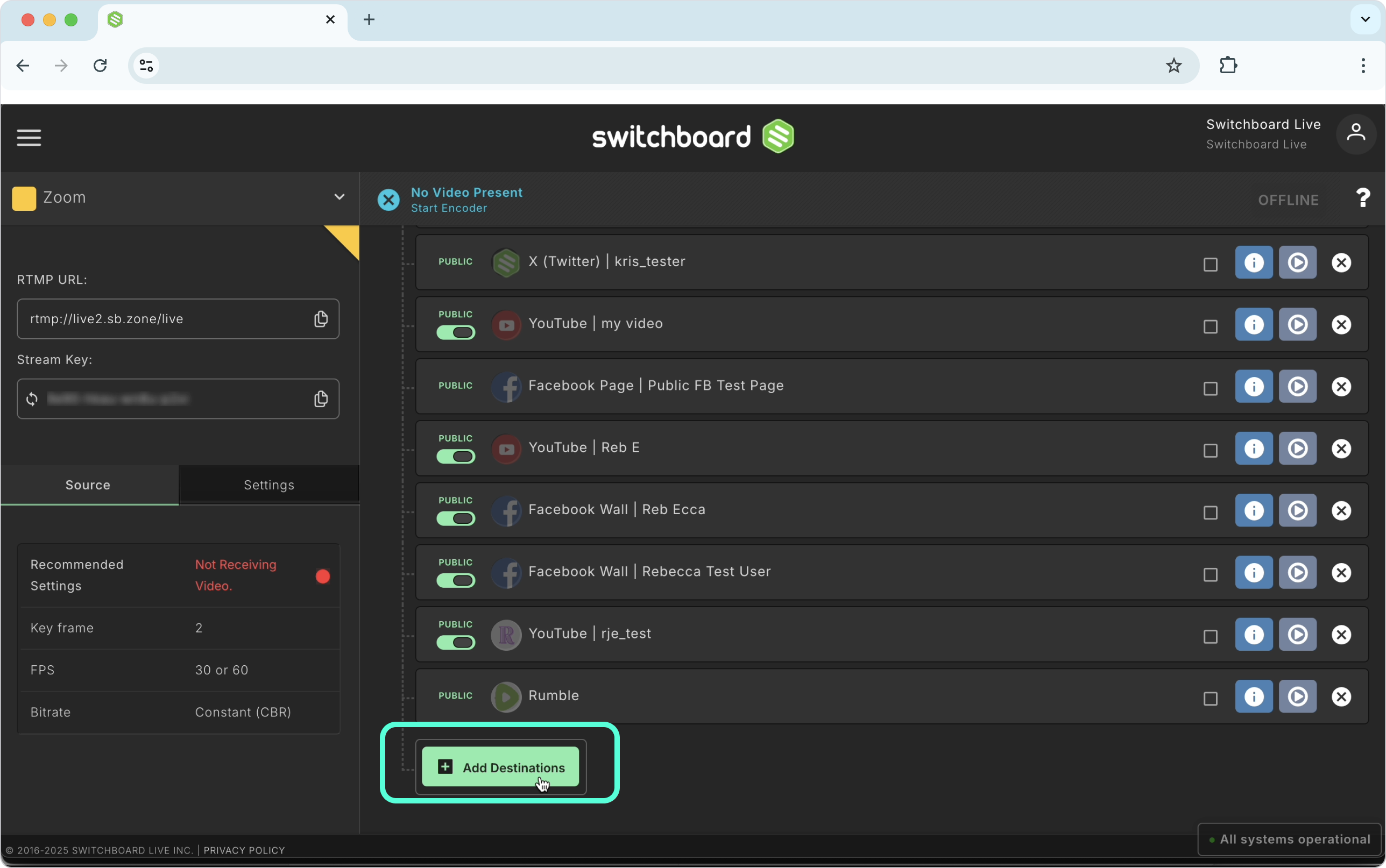
Click the Add Destinations button at the bottom of the Stream Group.
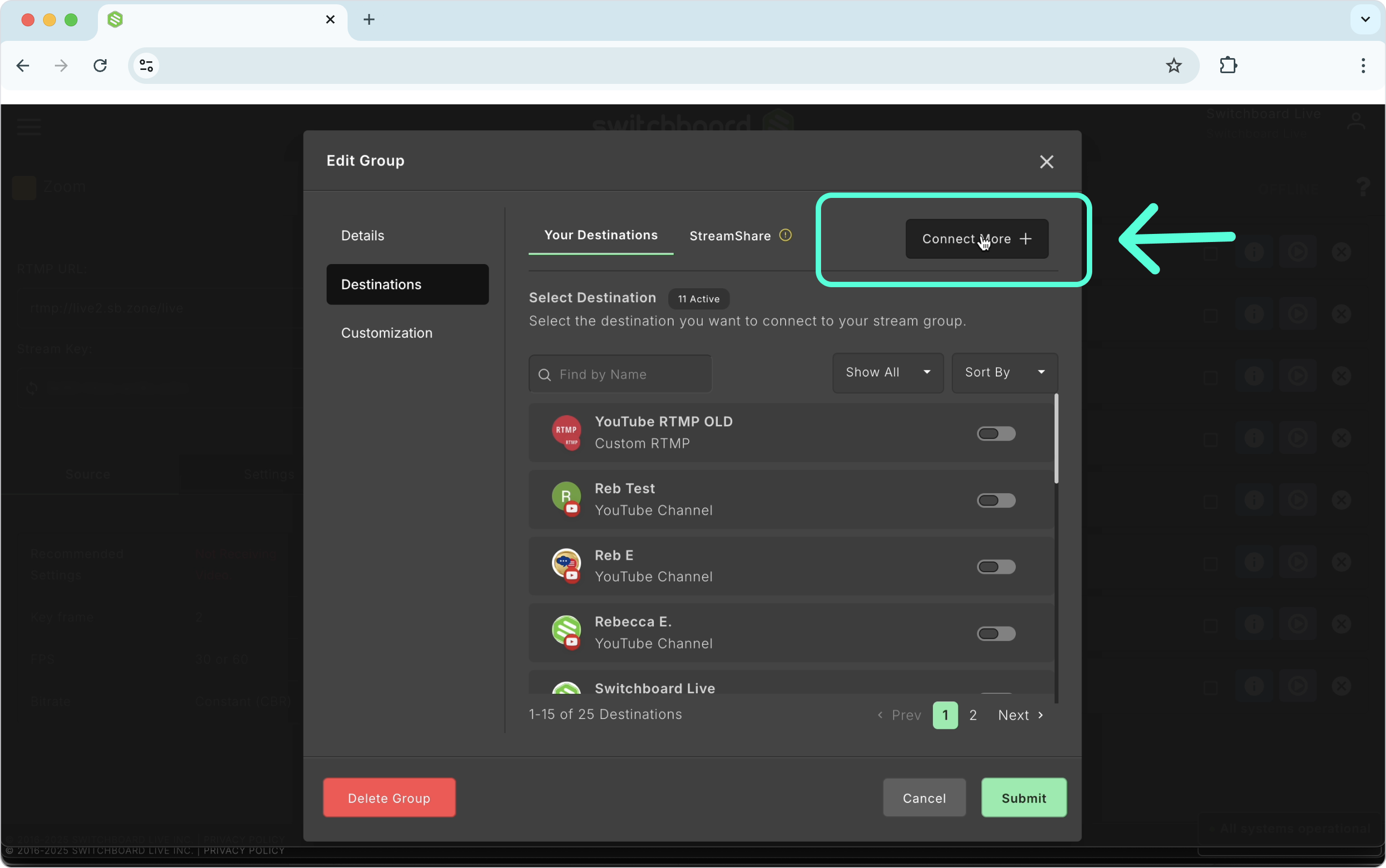
A new window will open; click Connect More.
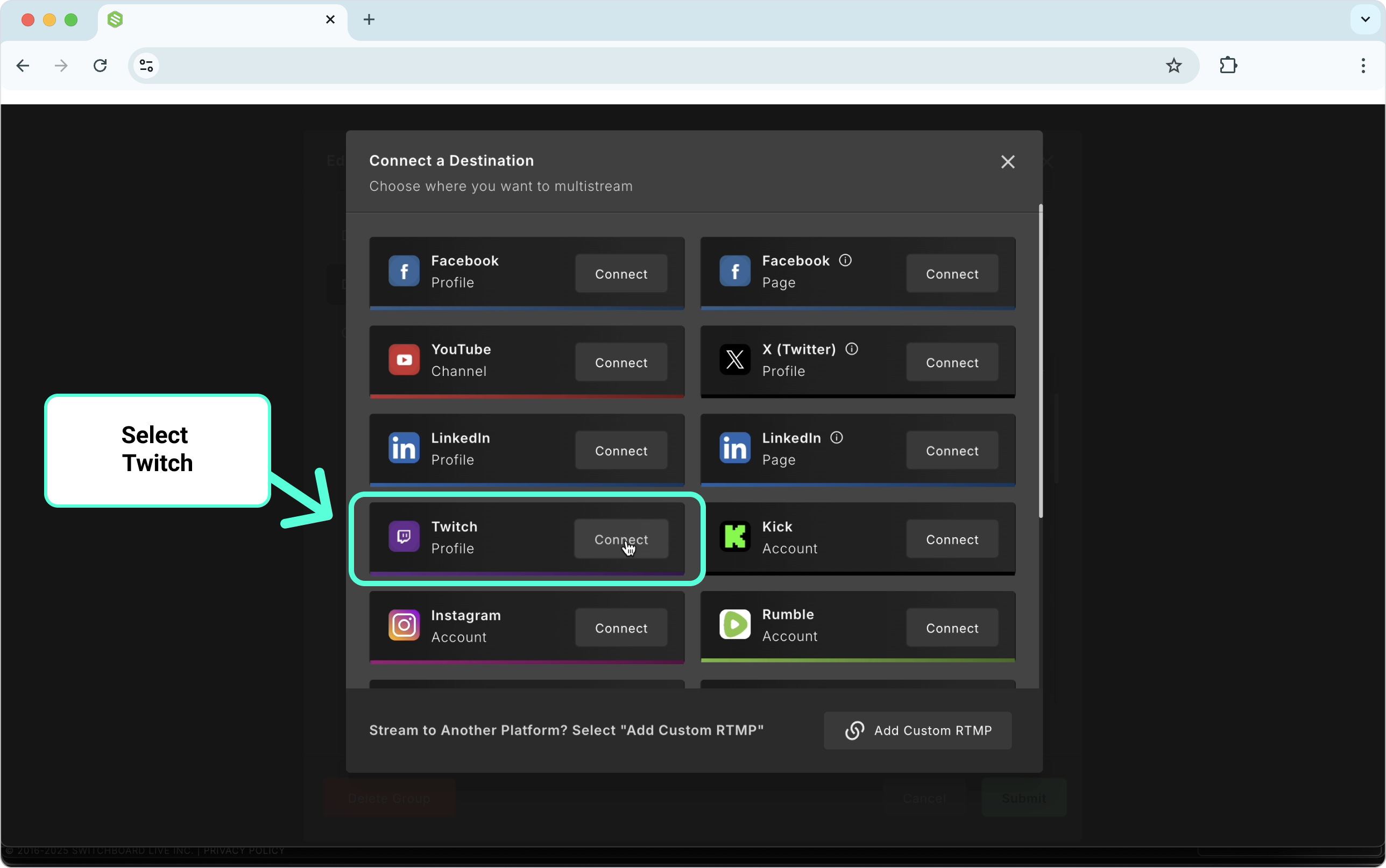
The destination menu will open; select Twitch from the menu.
Authorize Twitch
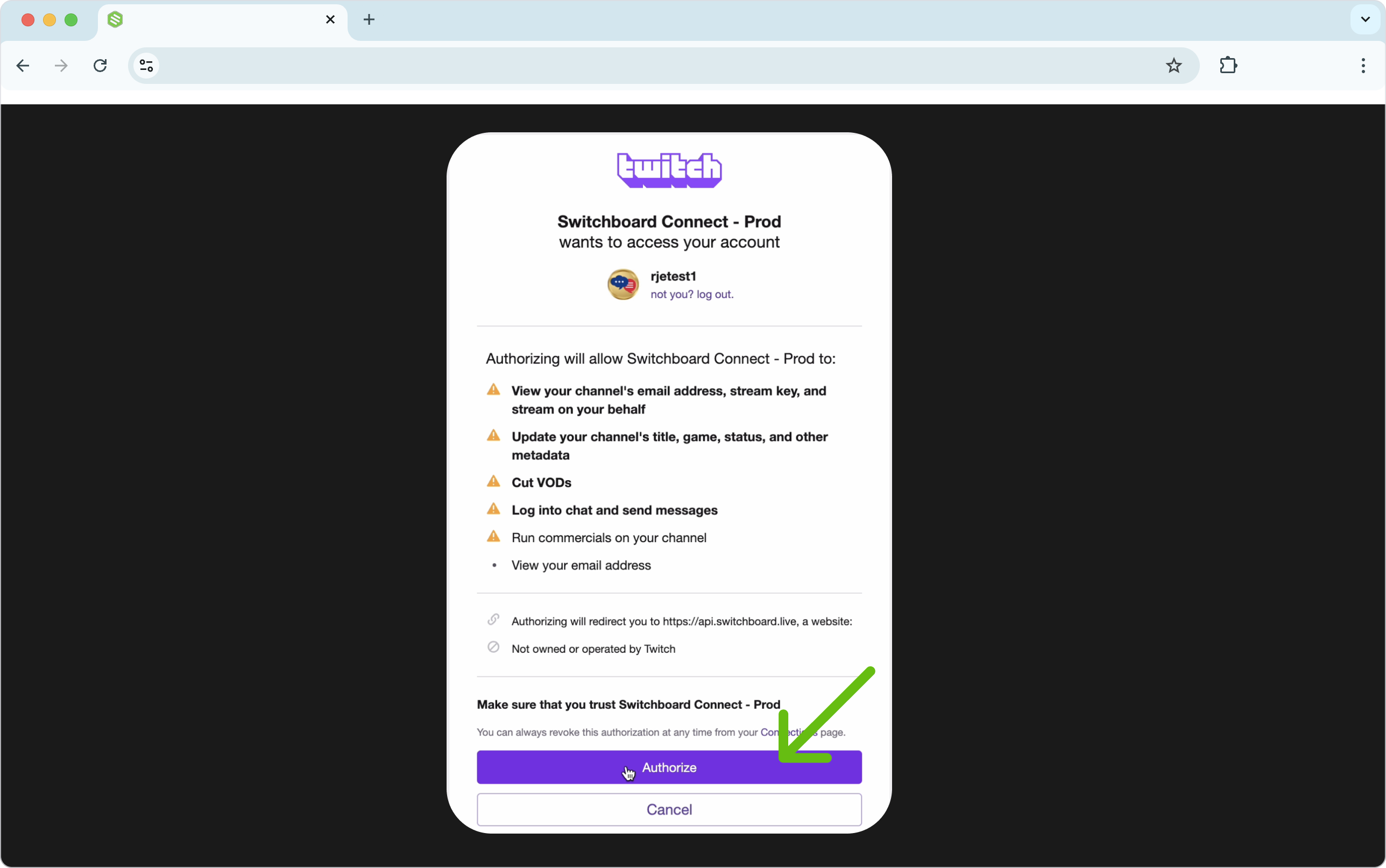
Next, an official Twitch Authorize Application will open in a new browser tab.
You may be prompted to log into your Twitch account. It helps to have pop-up blockers disabled. Log into your Twitch account and click continue.
Scroll down and click the ALLOW button at the bottom of the screen.
Click Authorize and follow the prompts until you reach the success Screen.
Click Close.
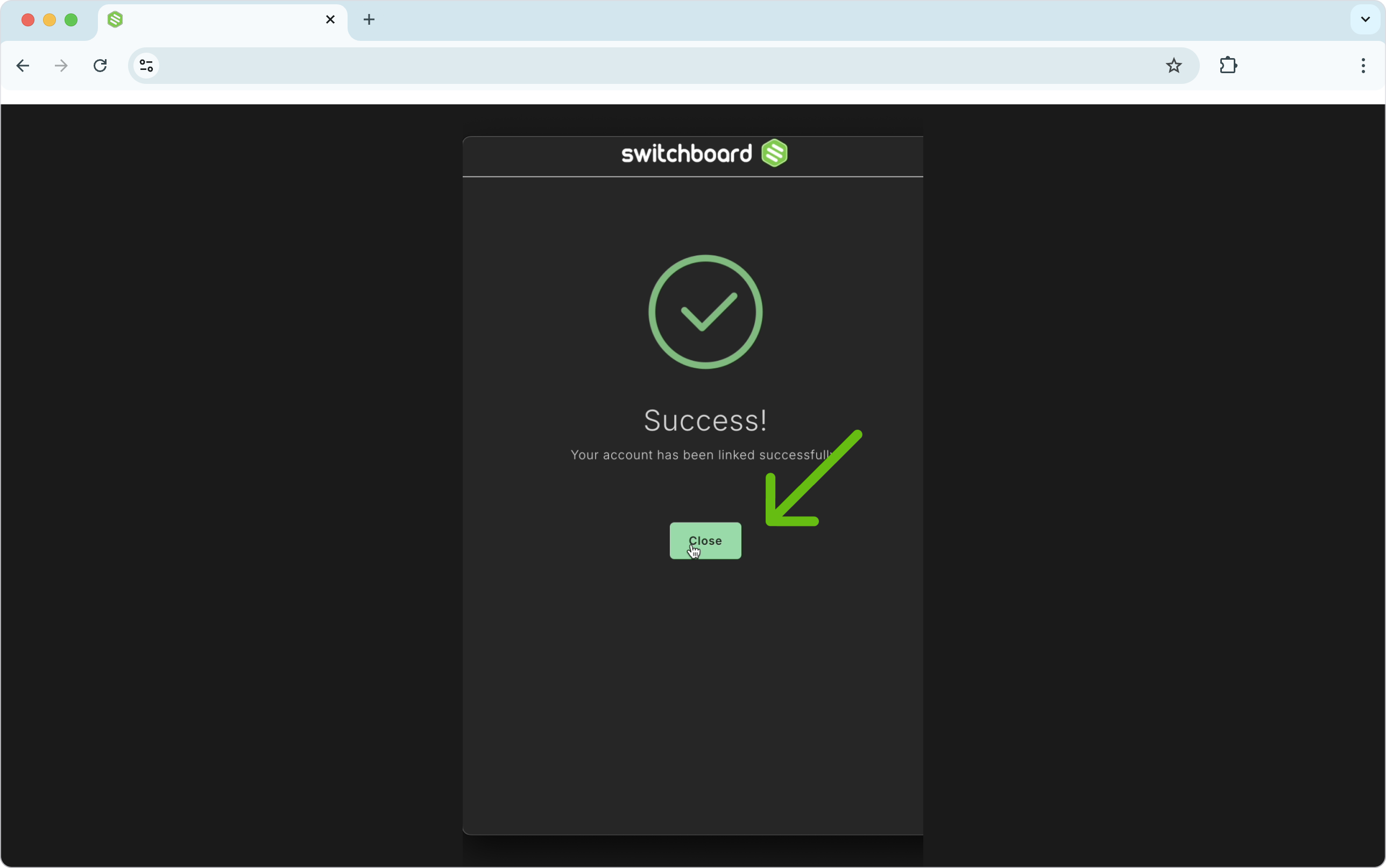
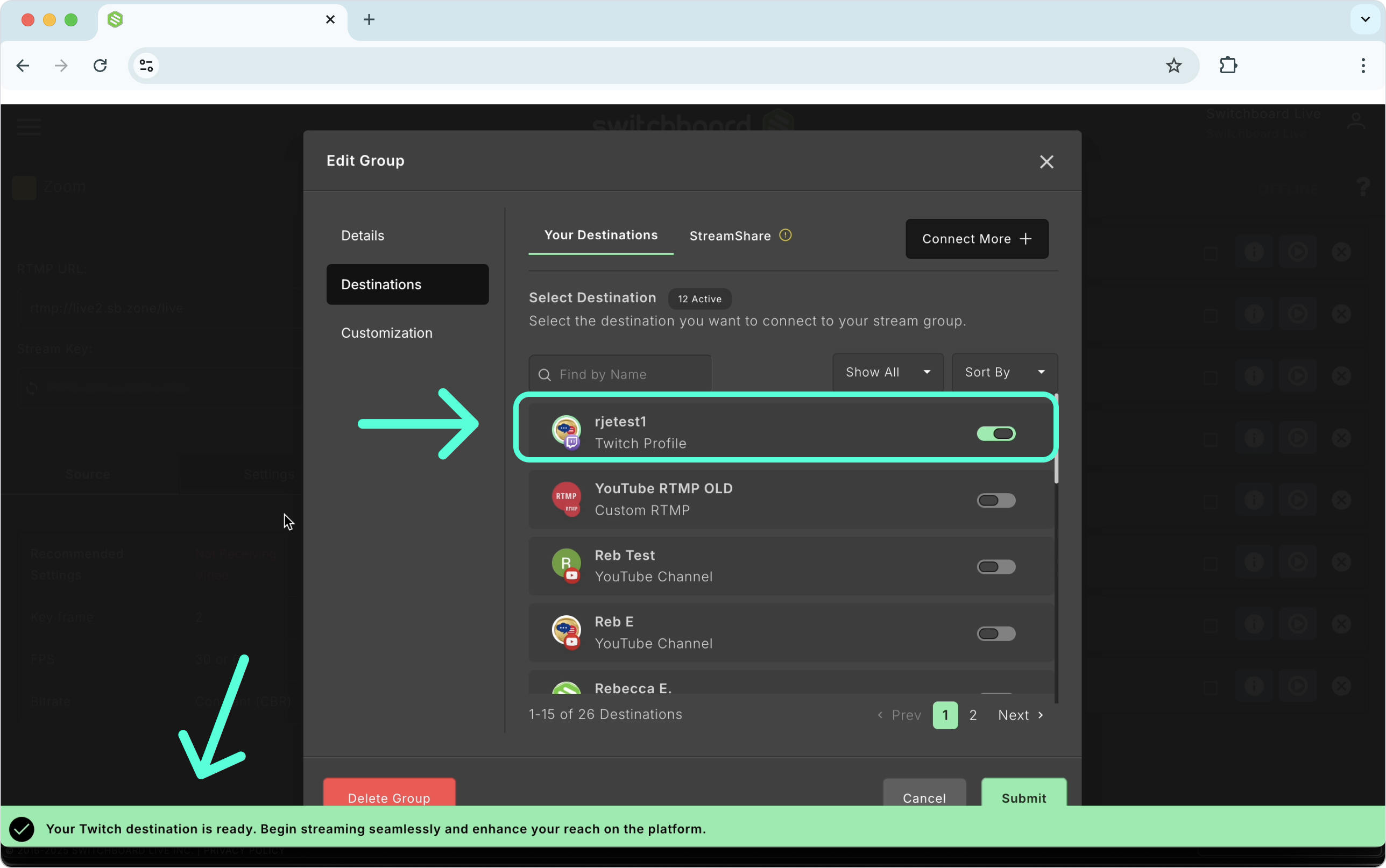
Your Twitch Destination will automatically be added to the Stream Group.
Click Submit to confirm.
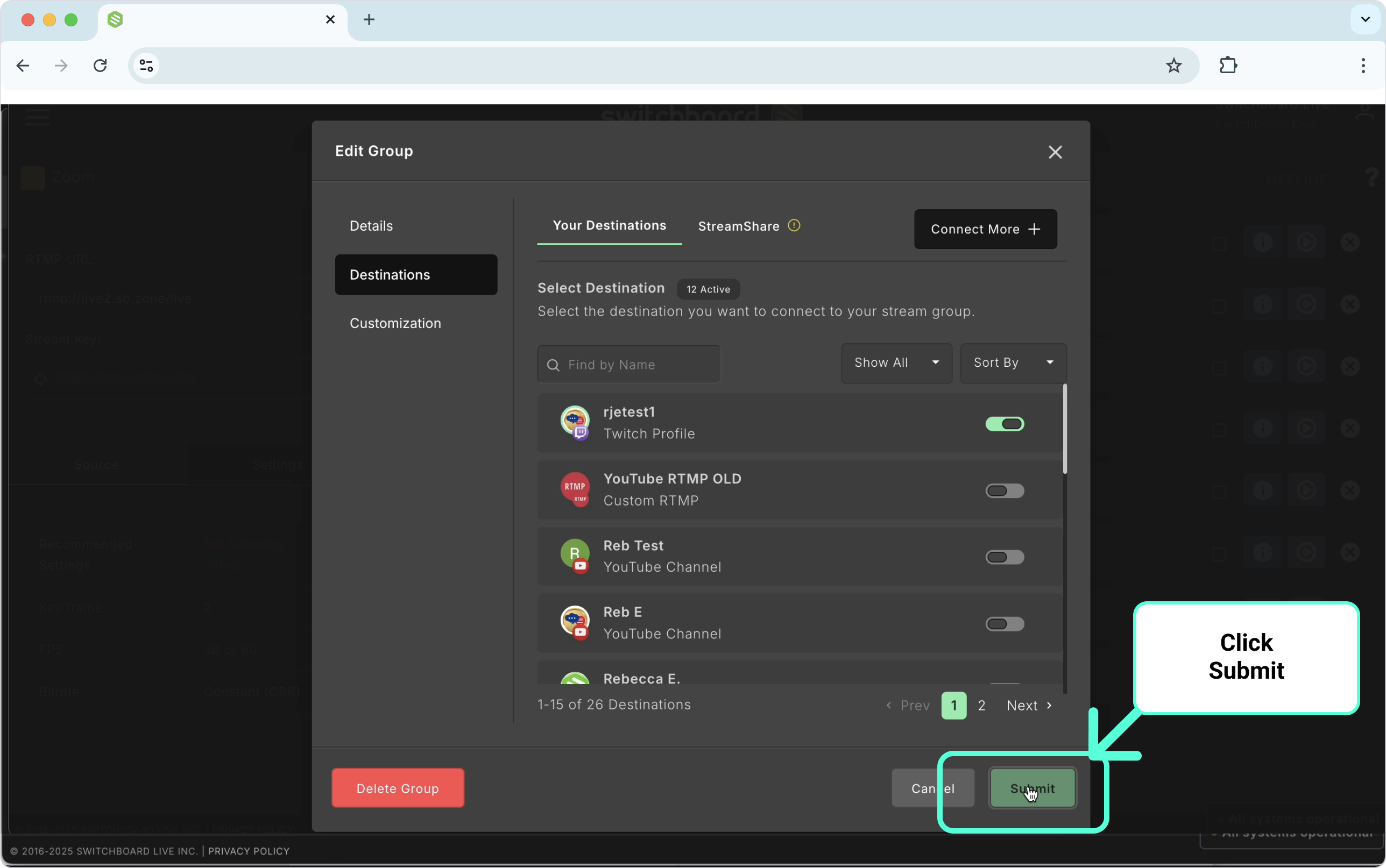
Congratulations!
You've successfully connected your Twitch Channel with your Switchboard account.
Ready to Go Live!
When you are ready to go live on Twitch, set up your Encoder to send content to the recommended settings; here is an article we wrote on Twitch's encoder settings.
‼️ Important:
Exceeding a bitrate of 6000 kbps may cause issues when connecting to Twitch. Please review the Recommended Encoder Settings when connecting to Twitch.
Start sending the video to Switchboard.
Verify the video is coming via the confidence monitor.
Press Go Live next to Twitch and the other destinations you want to go live to.
Add Twitch as a Custom RTMP to your Switchboard Account.
We recommend following these steps on a desktop web browser.
Click the Add Destinations Button.

Click Connect More.
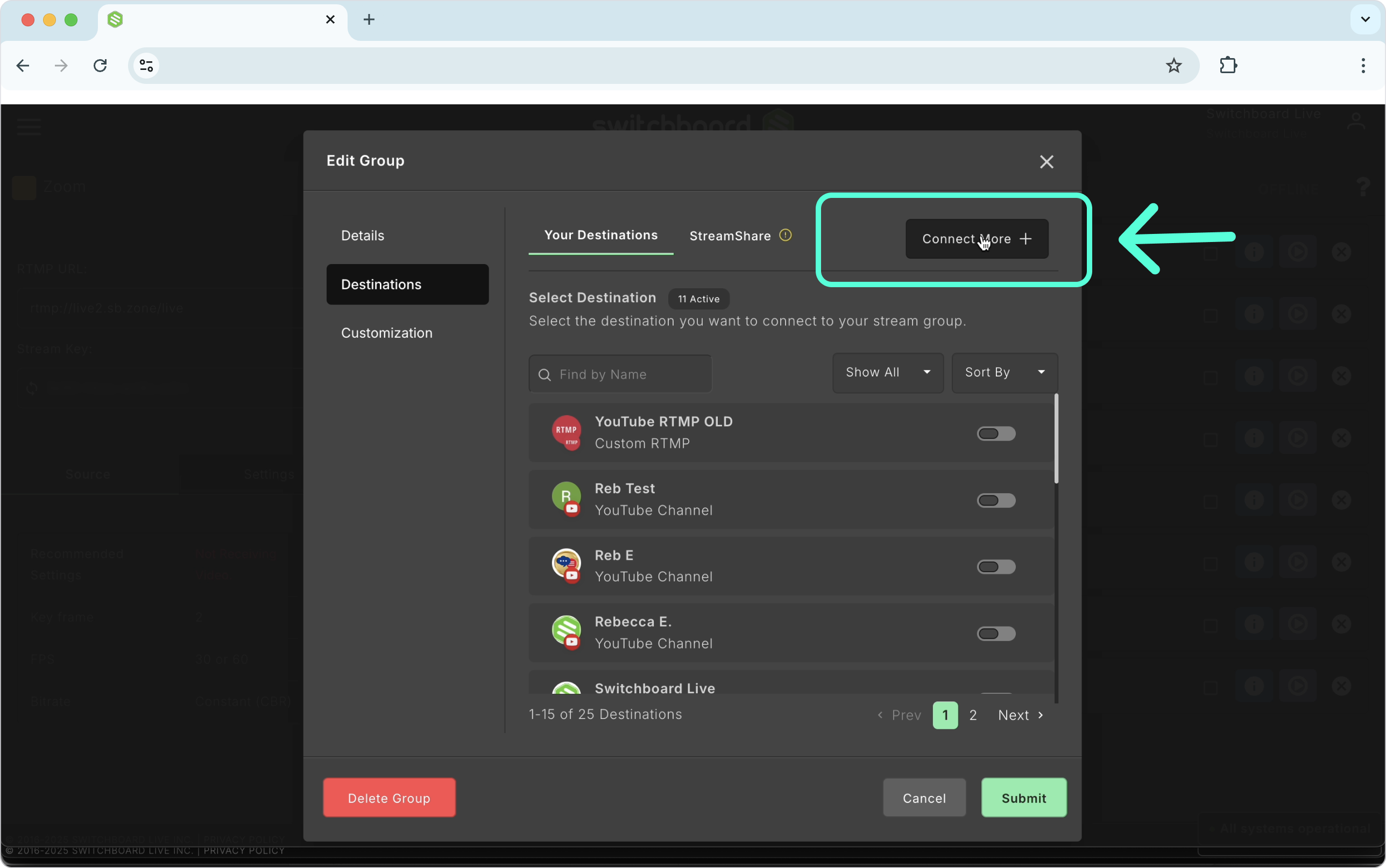
Click Add RTMP at the bottom of the window.
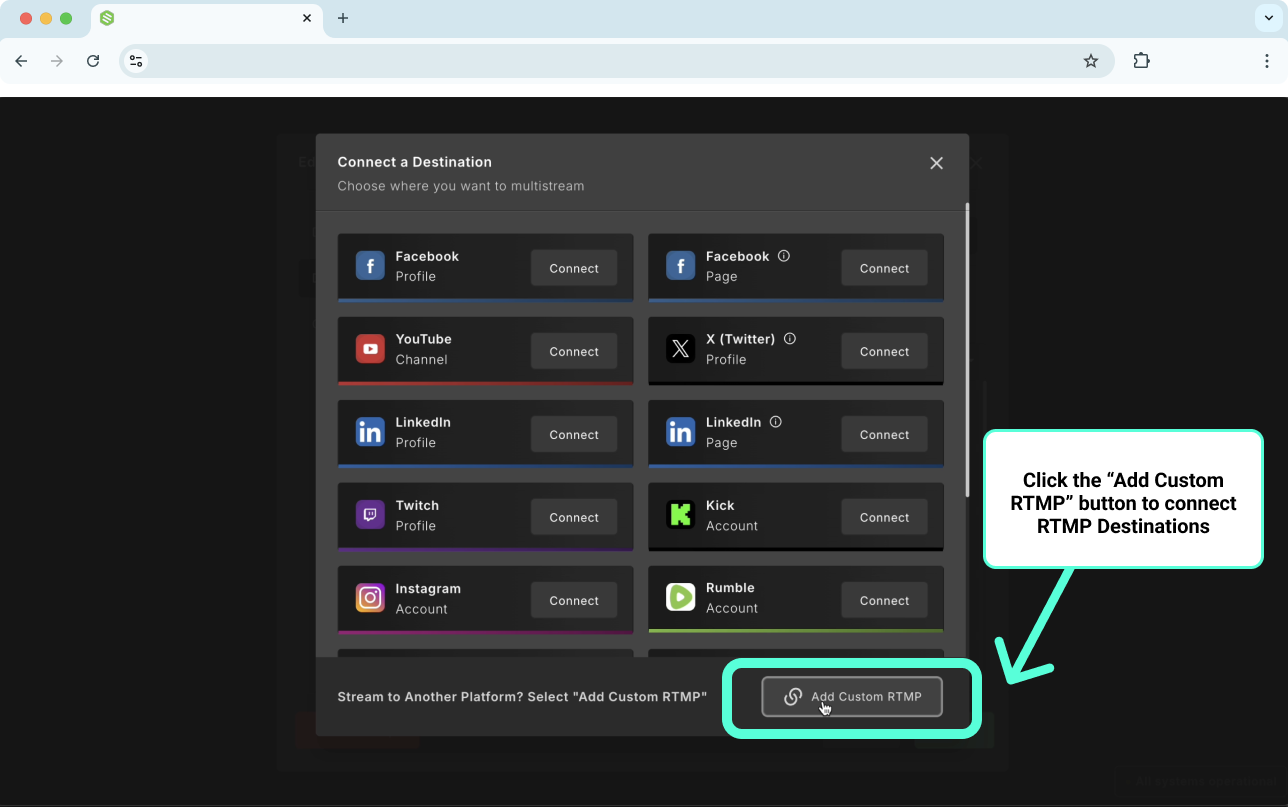
Next, you'll need to grab two pieces of information from the Twitch platform.
Server URL
Stream Key
Twitch Server URL
Click on this link to access the Server URLs on Twitch's website: https://help.twitch.tv/s/twitch-ingest-recommendation?language=en_US
Choose the server that is nearest you.
For this example, I will select Server #1 US East New York, NY.
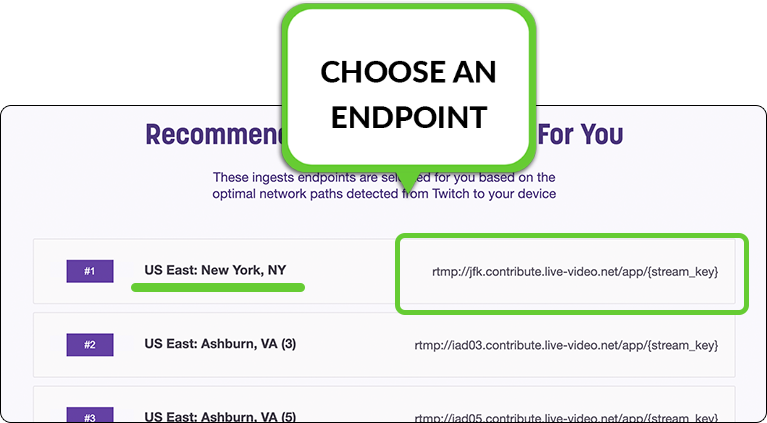
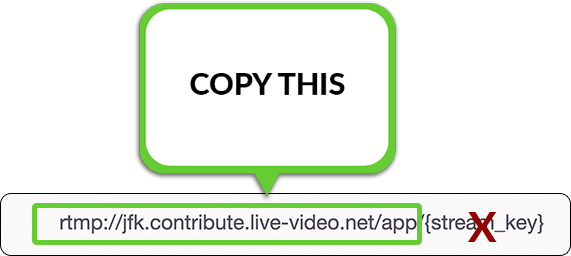
Copy the Server URL that corresponds to the endpoint that you've chosen.
Do not include the characters: "{stream key}"
I chose US EAST: New York, NY, so I'll copy "rtmp://jfk.contribute.live-video.net/app"
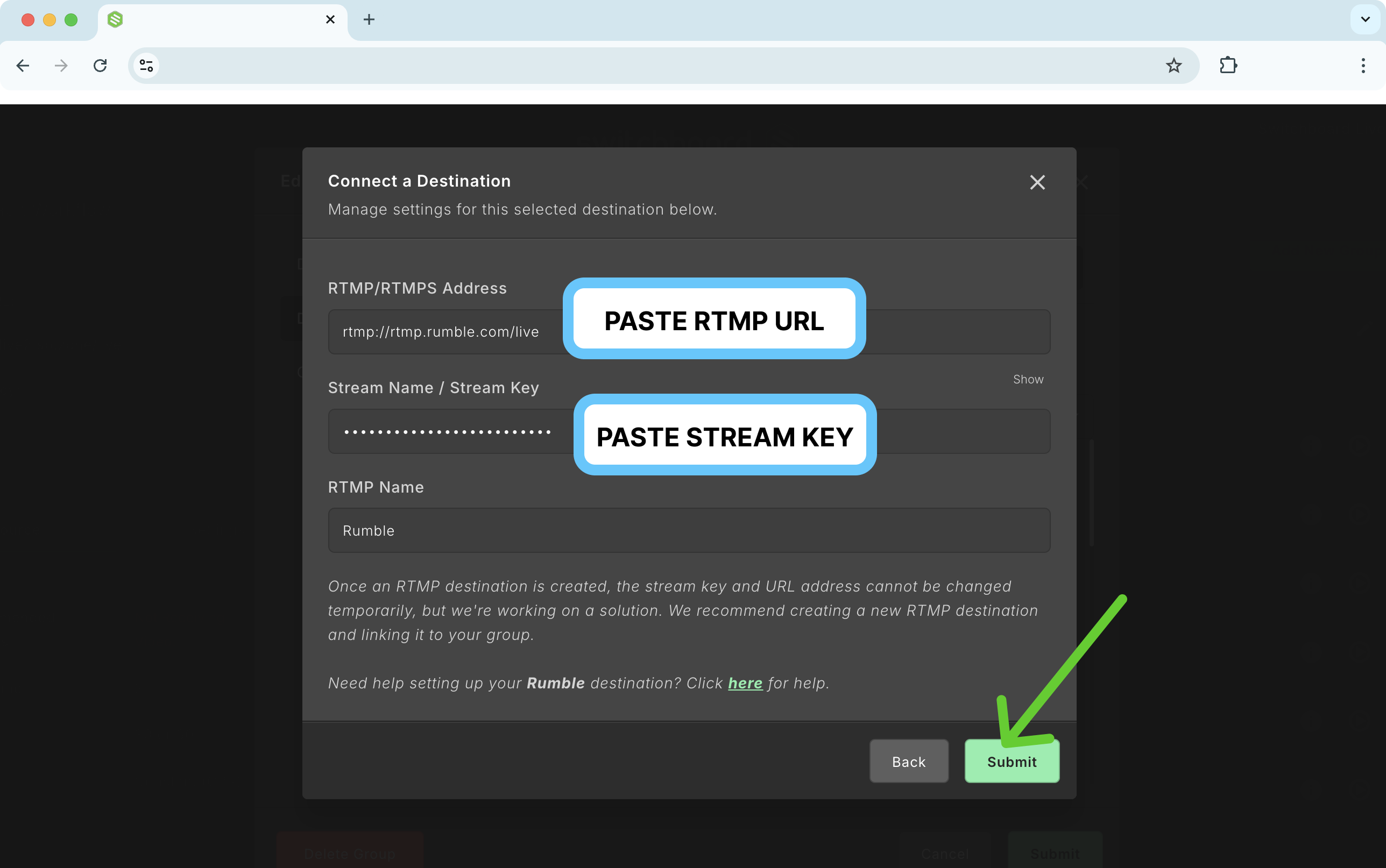
Paste the Server URL in this format.
Twitch Stream Key
Log into your Twitch account- or use this link: https://dashboard.twitch.tv/
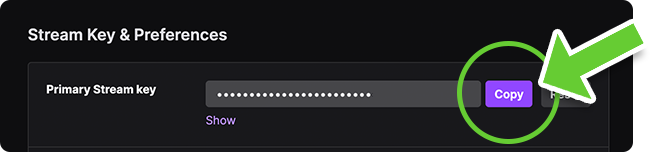
On the Creator Dashboard menu, select Stream.

At the top of the "Stream Key & Preferences" section, click the Copy button next to the Primary Stream Key and paste it into Switchboard.
Verify that the information matches both platforms.
Rename the Custom RTMP destination so that you can easily identify it as Twitch.
Happy #Multistreaming