Add a Team Member to a Switchboard Account
Need to collaborate with a multi-person production team or share broadcasting duties across different departments? Adding Team Members to your Switchboard Live account allows you to securely invite staff or volunteers to help manage your multistreaming workflow without ever sharing your master password. Whether your team is covering a weekend festival or managing emergency press conferences, this guide shows you how to grant secure access, track invitations, and manage your team so you can confidently go live.
Last updated 27 days ago
Team Roles
Team roles help give the right people the right level of access, so you can share the workload without giving everyone full control of the Account.
Owner: Full account control, including billing and team management.
Co-Owner: Can manage most of the Account, including inviting team members, but cannot view billing or subscription information, and cannot remove the Account Owner or other Co-Owners.
Administrator: Manages workflows and team activity, without sensitive account access.
Viewer: Read-only access. Can monitor streams, scheduled events, destinations, and activity, but cannot make changes or go live.
🛡️ Security Note on Permissions
When you invite a team member, you choose a role from the Role dropdown: Co-Owner, Administrator, or Viewer. Regardless of role, invited members can never change your Account's master Stream Key or remove the Account Owner; only the Owner can view billing and subscription information (Co-Owners included).
Important Notes:
The invited person must complete the process to become a team member of a Switchboard account they've been invited to. They'll need to open the email and click the reset password button. The steps are explained in the article "Invitation to become a Team Member of a Switchboard Account."
Phase 1: Send the Team Invite
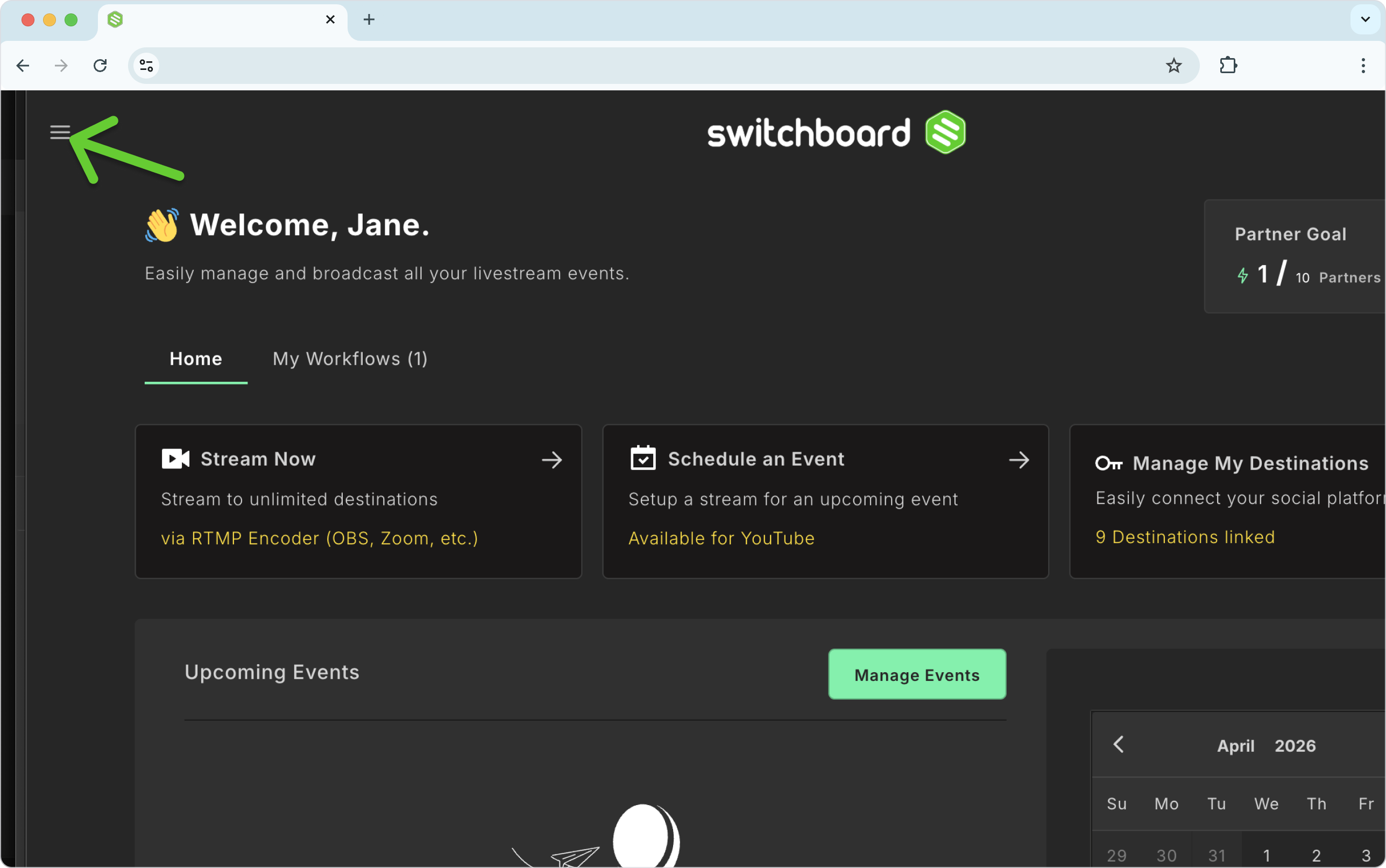
Click the Main Menu icon in the top-left corner of your Switchboard dashboard.
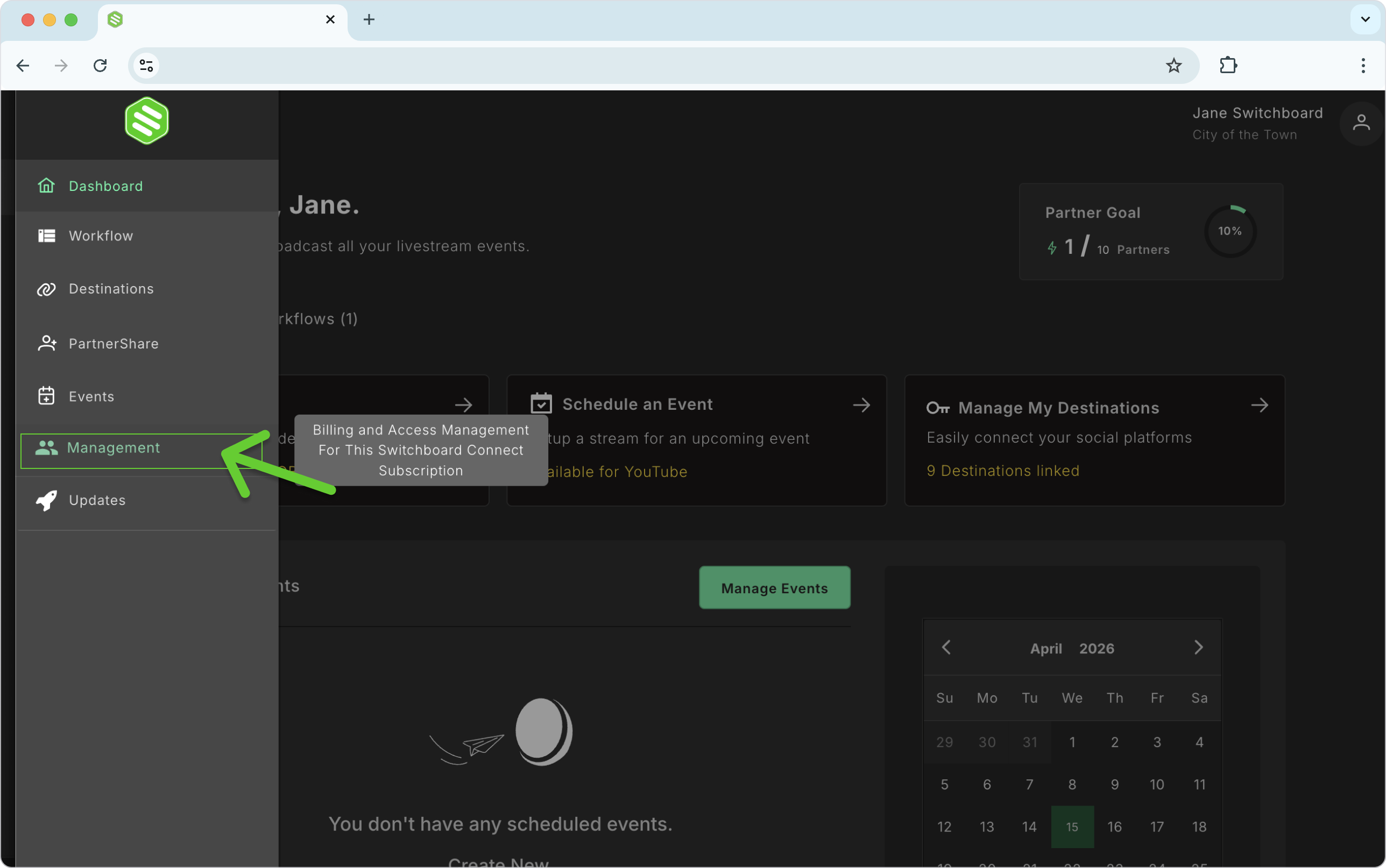
Navigate to Management and select Team Member.
Enter the invited person's email address into the text field.
Click the ROLE dropdown menu and select the role you'd like to assign: Co-Owner, Administrator, or Viewer.
Click the Add button.
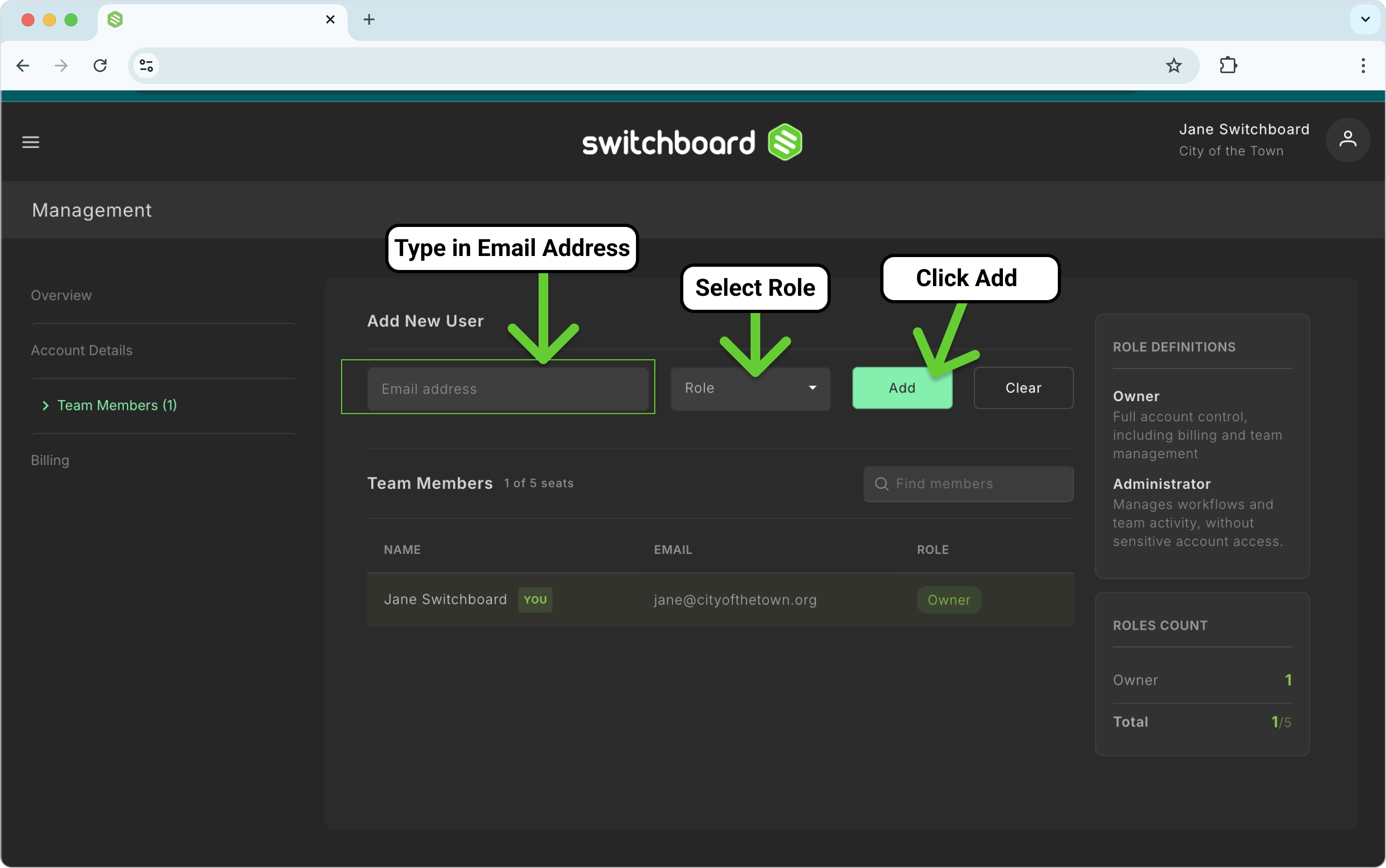
The invited user will now appear in your team list below. Repeat these steps to add as many team members as you need!
Phase 2: Tracking Invite Status & User Acceptance
Once you press "Add," the new team member's status will show as "Pending Invite" until they complete the joining process.
What the invited user needs to do:
The invited user will receive an automated email from Switchboard.
They must open the email, click the link, and set up their own unique password. (For full instructions, you can share this article with them: How to Accept a Team Member Invite.)
Once they complete this process, their status on your dashboard will automatically update from "Pending Invite" to their assigned role, and they can begin working immediately. As the original creator, you will always be labeled as the Owner.
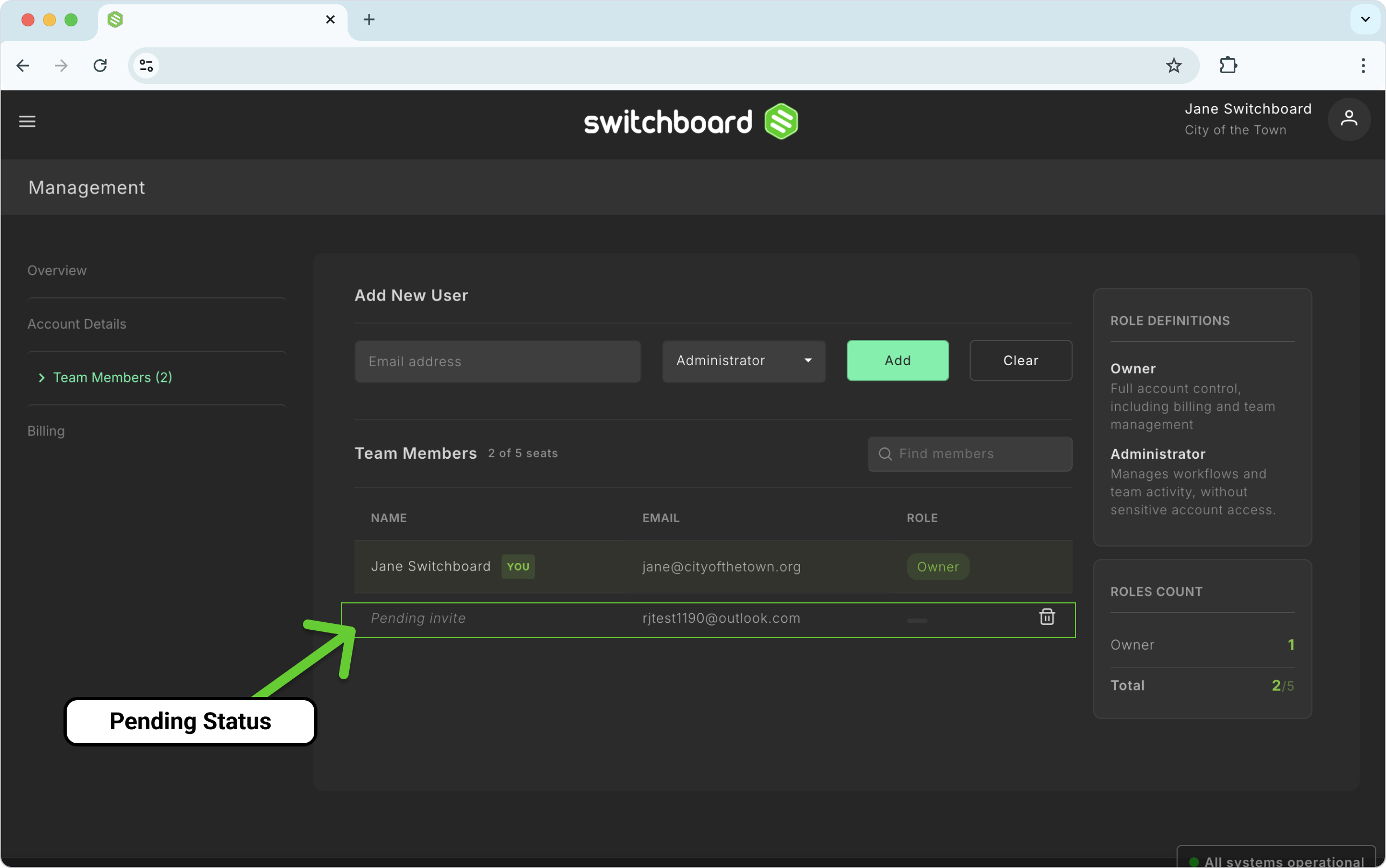
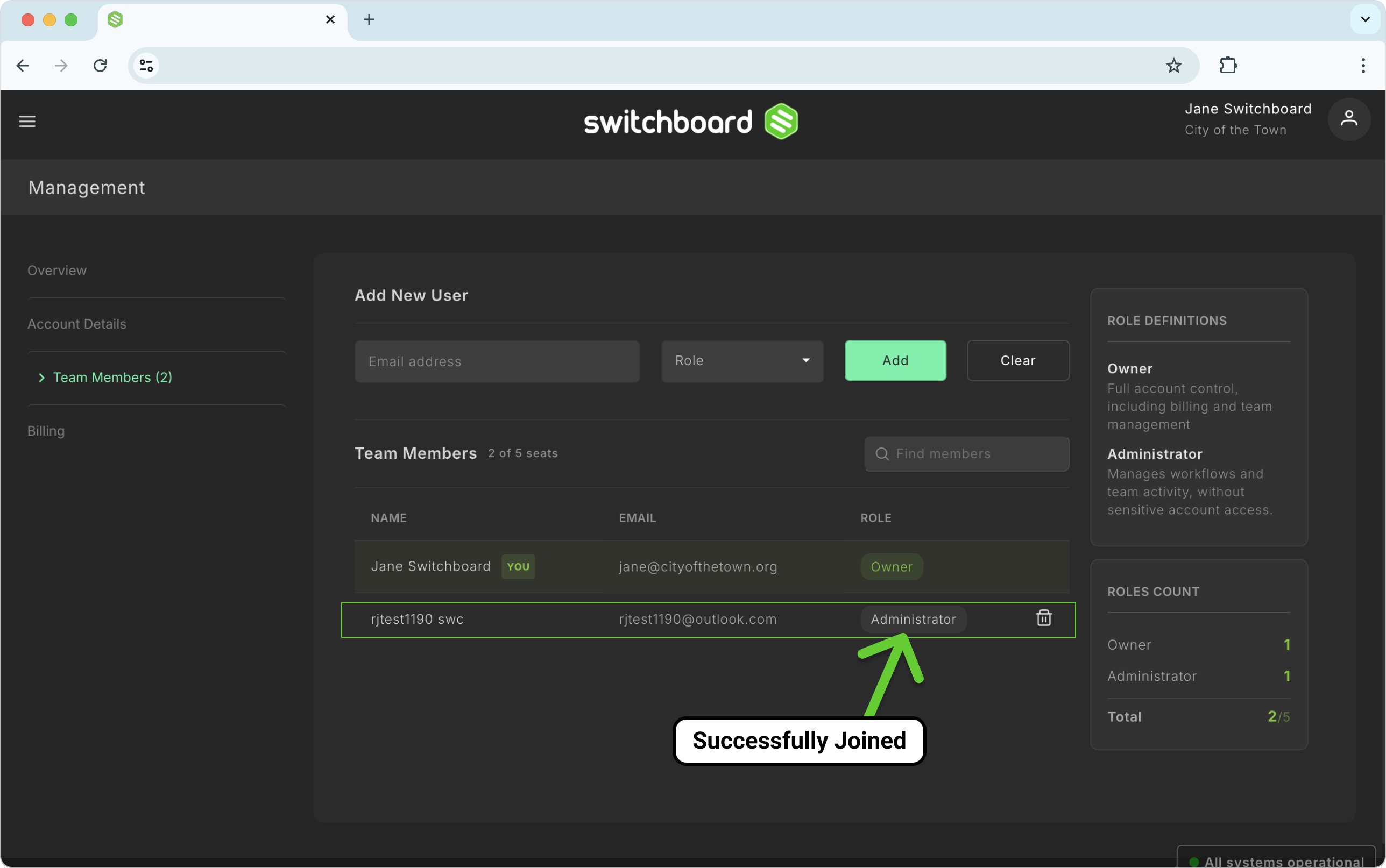
Troubleshooting Tip: If their status remains "Pending Invite" for a long time, ask them to check their Spam/Junk folder for an email with the subject line: Switchboard Live | Create Account
You can also remove the invited person and re-invite them. This will generate a new invitation email.
Phase 3: Reassigning a Team Member's Role
Need to promote or adjust someone's access after they've already joined? Owners and Co-Owners can reassign roles for Administrators and Viewers at any time; no need to remove and re-invite them.
Navigate to the Team Members page (Main Menu > Management > Team Member).
Click on the team member whose role you'd like to change. This populates the Update User fields at the top of the page with their email and current role.
Click the Role dropdown and select the new role from the list.
Click the Update button. The team member's access updates immediately, and their new role appears in the Team Members list below.
Phase 4: How to Remove a Team Member
If a volunteer leaves or a project ends, revoking access takes just two clicks.
Navigate back to the Team Members page (Main Menu > Management > Team Member).
Locate the user you want to remove from your list.
Click the trash can icon next to their name.
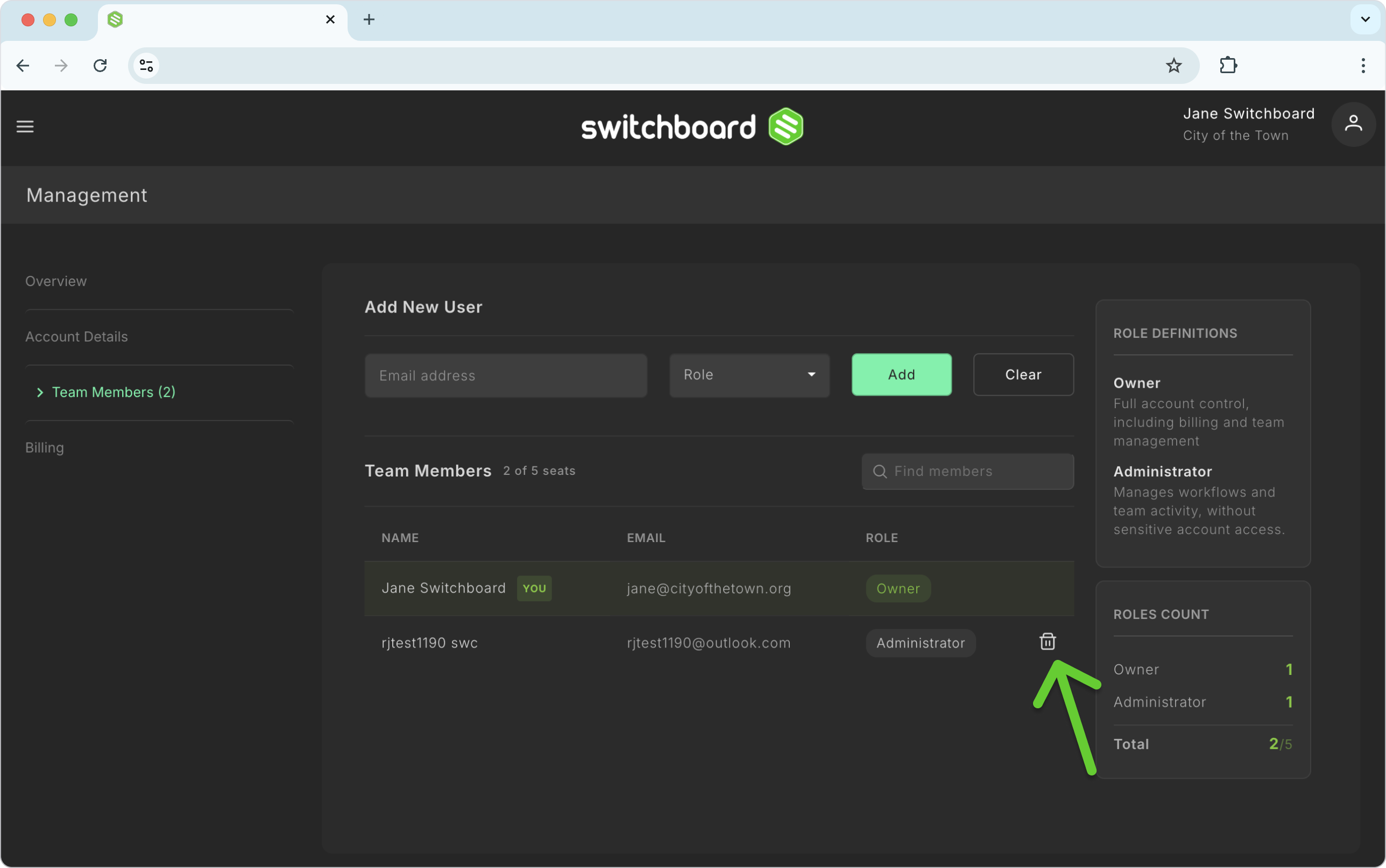
Click to confirm the removal. Their access to your Switchboard account will be revoked instantly.
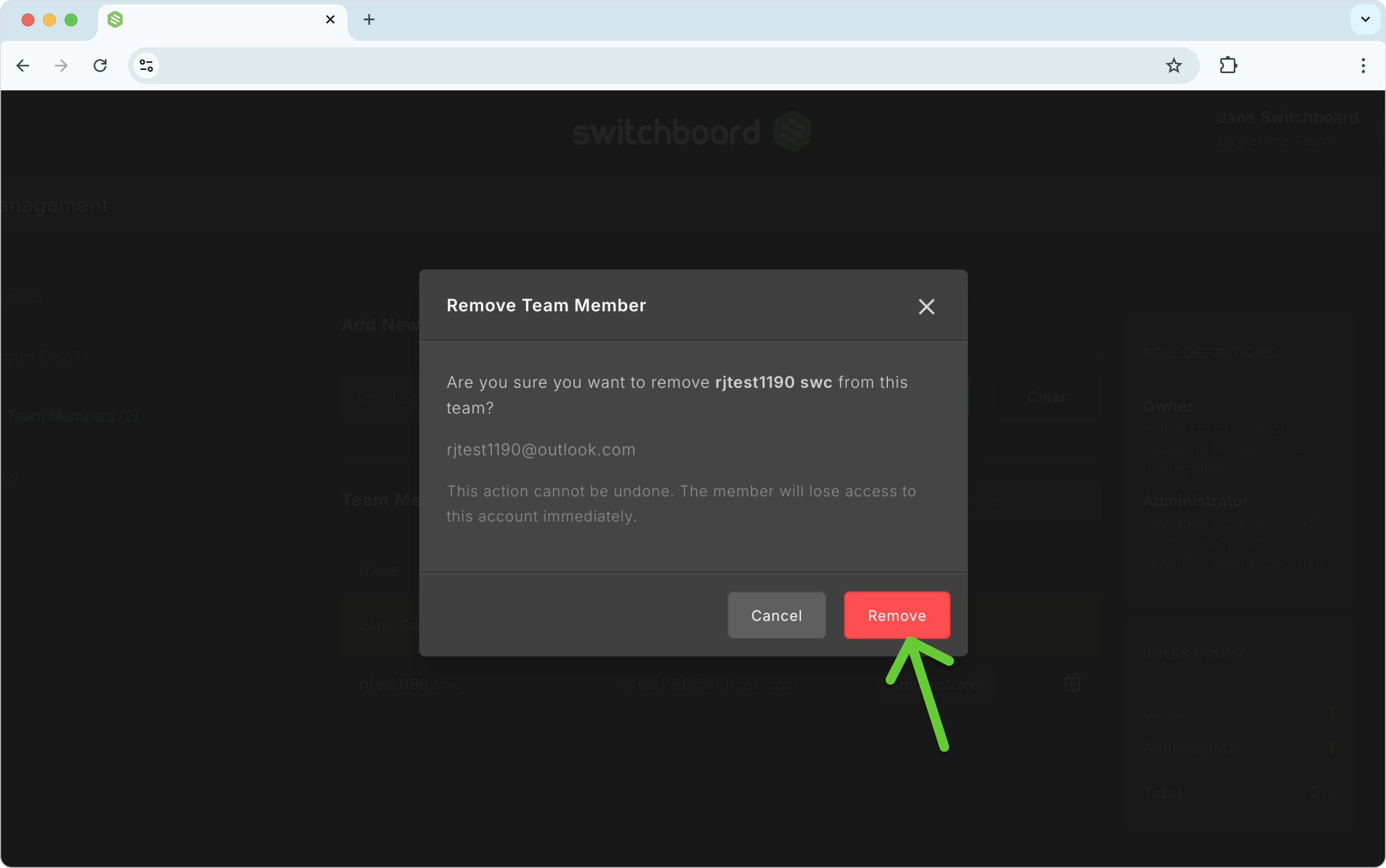
Note: Co-Owners can remove Administrators and Viewers, but cannot remove the Account Owner or other Co-Owners.
FAQ
Q: If I add a Team Member, do they log in with my email and password?
A: No. This is the main benefit of the Team Member feature! They will receive an email invitation to create their own unique, secure password. You never have to share your personal login credentials.
Q: Can a Team Member accidentally delete my main Switchboard account?
A: No. Only the Owner has the top-level permissions to delete the Account. Co-Owners can remove Administrators and Viewers, but neither Co-Owners nor any other role can remove the Account Owner.
Q: What's the difference between an Owner and a Co-Owner?
A: Co-Owners can manage most of the Account, including inviting team members and reassigning roles, but they cannot view billing or subscription information, and they cannot remove the Account Owner or other Co-Owners. Only the Owner has full account control, including billing.
Q: Can I change a team member's role after I've invited them?
A: Yes. Owners and Co-Owners can reassign roles for Administrators and Viewers at any time from the Team Members page — see Phase 3 above.
Q: Can I resend an invitation if the team member lost the email?
A: Yes. If their status still says "Pending Invite," you can delete their pending invitation using the Trashcan icon, then re-add their email at the top of the page to trigger a new invitation email.