How to Go Live on Telegram using Switchboard
Want to engage your community directly on Telegram? With Switchboard, you can go live in your Telegram Channels and Groups using our Custom RTMP feature. This guide will walk you through the process, which involves starting a live event in your Telegram app to receive your unique stream credentials and then adding them to your Switchboard account. Let's get started
Last updated 12 months ago
What is Telegram?
Telegram is a cloud-based mobile and desktop messaging app that focuses on security and speed.
Download Telegram here: https://telegram.org/
How to Find the Telegram Stream Details
STEP 1 Open Telegram.
Select the chat icon.

STEP 2
Select the channel you want to Go Live.

STEP 3
Press the three dots located at the top right.

STEP 4
Select "Live Stream" from the fly-out menu.

STEP 5
Select how you want to be displayed.

STEP 6
Select "Start With" to access the stream details.

Next, you'll go back and forth between Telegram and Switchboard as you copy and paste the Server URL and Stream Key from Telegram into Switchboard.
How to Add Telegram as a Custom RTMP destination to Switchboard
STEP 7
Log into your Switchboard Account.
Navigate to the destination group that you want to add Telegram.
Press the green Add Destination button located at the bottom of the destination group. Select New Destination.

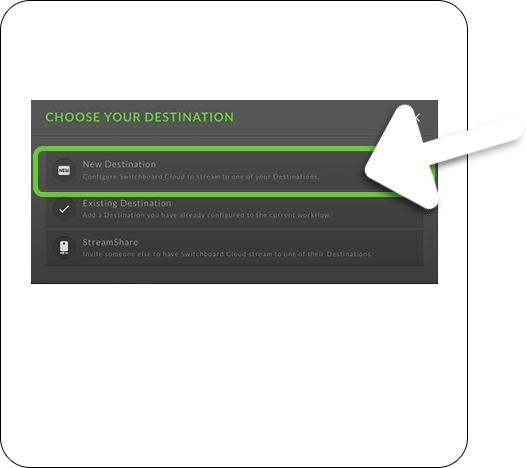
STEP 8
Select RTMP from the list.

STEP 9
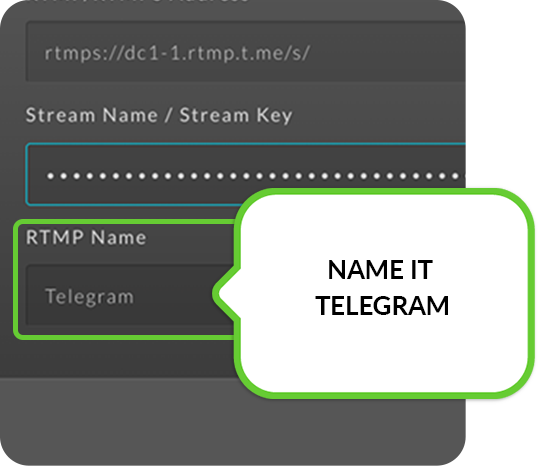
Copy and Paste the Telegram streaming details (Server URL and Stream key) into Switchboard.


STEP 10
Name it Telegram. Press NEXT.
Ready to Go Live on Telegram
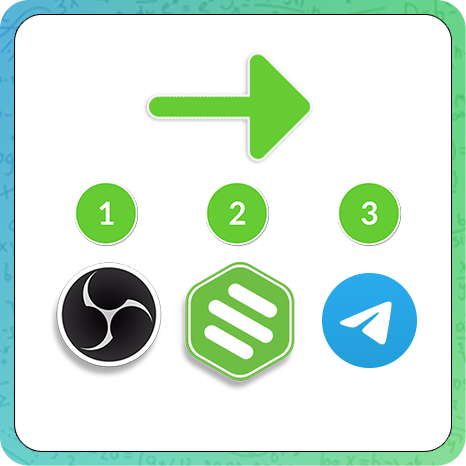
FOLLOW THE STEPS IN THIS ORDER
1. Start streaming from the encoder into Switchboard.
2. Go Live on Switchboard.
3. Go Live on Telegram.
STEP 1
Start sending the live feed from your live streaming encoder into the Switchboard Workflow.
STEP 2
Check the Switchboard confidence monitor to verify that the feed is coming in from the live streaming encoder.
STEP 3
Press "Go Live" next to the Telegram destination and other social channels.
Pro Tip | Skip the Press GO Live Step with the Auto-Start feature.
You can save time and skip the Press GO live step by enabling the Auto-Start feature ahead of time.
STEP 4
Test the connection.
With Telegram still open, press Start Streaming at the bottom of the popup window.

Your live video will show on the Telegram channel within a few seconds.
Additional tips
The next time you are ready to go live on Telegram, repeat the process.
Start streaming from your live streaming encoder into Switchboard Live.
Press Go Live next to Telegram and other destinations.
Go Live on Telegram.
Open Telegram.
Select the chat icon.

Select the channel you want to Go Live.
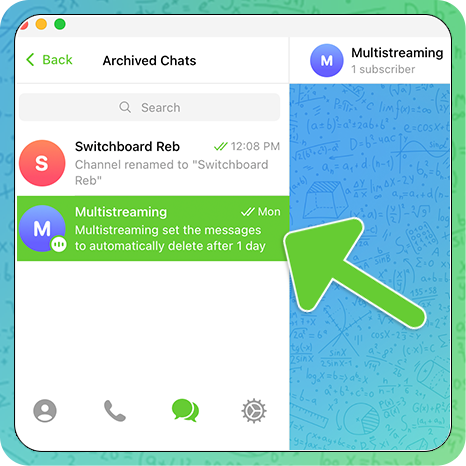
Press the three dots located at the top right.

Select "Live Stream" from the fly-out menu.

Select how you want to be displayed.
Press "Continue As"... to go live on Telegram!
The live stream will start on Telegram.
Not seeing the video coming through on Telegram?
End the stream on Telegram and try some of the recommended troubleshooting tips below.

1. Make sure that you are sending live video from Switchboard to Telegram BEFORE starting the live stream on Telegram.
2. If you have more than one Telegram channel, make sure that you've selected the correct channel.
Each Telegram Channel has its own unique Server URL and Stream Key.
3. Verify that the Server URL and Stream Key from the Telegram channel match the info that you've pasted into Switchboard.
Here's how to verify.
Press the three dots at the top right.

Select Live Stream. Choose "Start With".


Press the eye icon to reveal the Telegram Stream Key.


On Switchboard press the Blue Info button next to the Telegram destination.
Under Basic setup, Select configuration from the pop-up modal.


Compare the information that you've entered from Telegram with the info that you see inside of Switchboard. You can also copy-paste the Telegram Server URL and Stream Key at this step.
