How to Add Multiple Workflows to a Switchboard Account
As your streaming operations expand, managing all of your destinations in a single list can become overwhelming. The Multiple Workflows feature is the key to keeping your account organized, allowing you to create separate, dedicated workspaces. This is the perfect solution for agencies managing multiple clients, creators producing different shows, or organizations separating streams by department. This guide will show you how to create and manage your workflows to build a more efficient and tidy account.
Last updated 12 months ago
Let's Get Started!
Adding New Workflow from the Workflow Page
Step 1 |
Click the down arrow at the top right of the Switchboard confidence monitor.
Click Add Workflow.

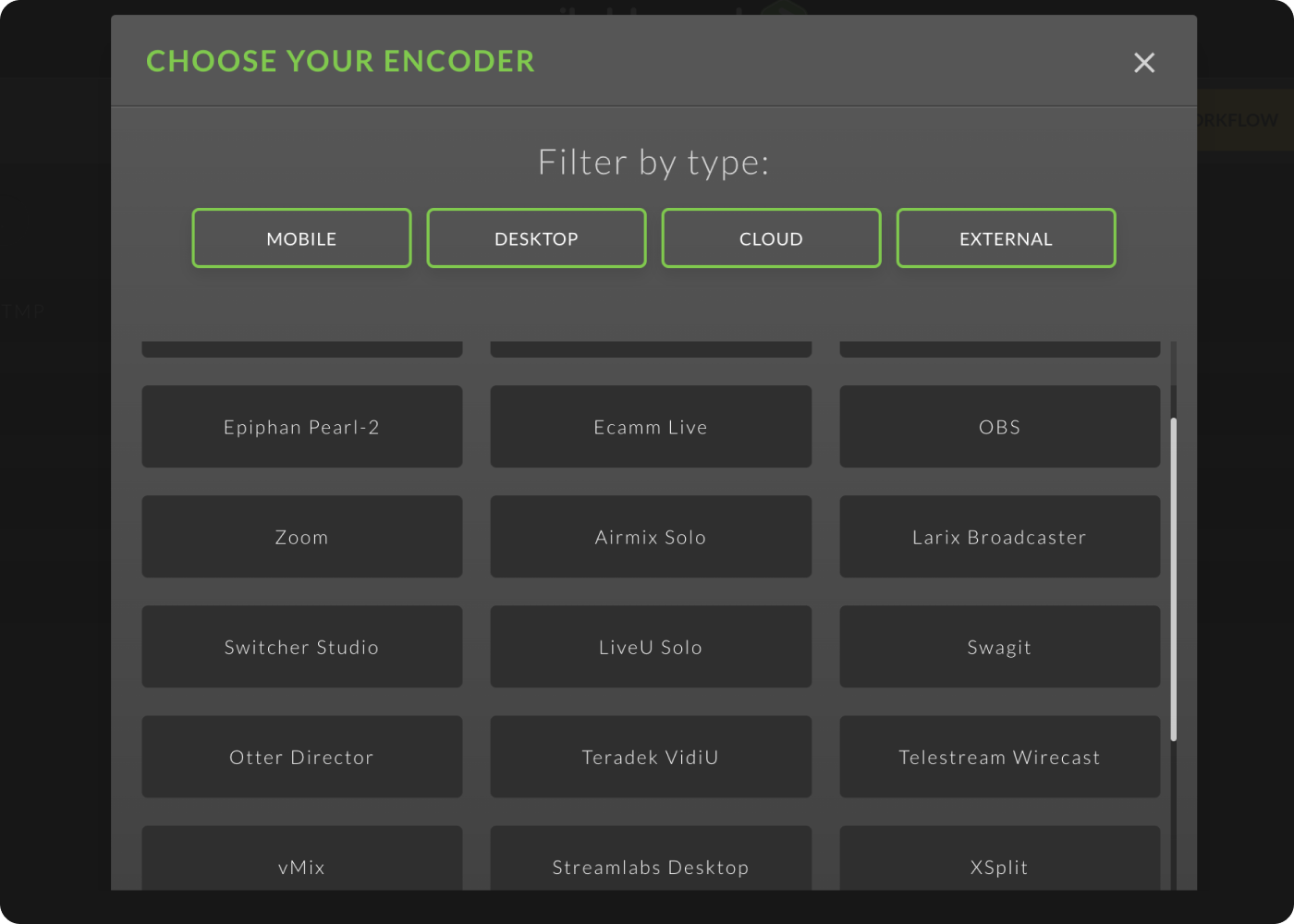
Step 2 | Choose Encoder
Choose the encoder type or filter the list by type.
Next, you'll switch between your live stream software and Switchboard as you copy and paste the Switchboard Stream key and Server URL into the appropriate fields.
Step 3 | Copy RTMP URL and Stream Key
Copy the Switchboard RTMP URL and paste it into your live stream software.
Copy the Switchboard Stream Key and paste it into your live stream software.
Step 4 | Test the Connection
Test the configuration between your live stream software and the newly created workflow in your Switchboard Account.
Click the Start Streaming button.
Indicators of a successful connection between your live stream software and Switchboard:
Video is displayed on the Confidence monitor.
Stream Status: "Receiving video" with a green dot.
Video Present with a checkmark on the workflow header.
The Go Live button is green, ready for multistreaming!
Congratulations! You've successfully added Encoder Workflow to your Switchboard Account.
Build up your Workflow with Social Channels
Step 5 | Create Destination Group
Click Create a group.
Give the group a name, and click next.
Step 6 | Add social channels to the group.
Add Existing Destinations
Click the toggle button next to the destination you want to add to the group.
Add New Destinations
Click 'connect more' to add new destinations to the stream group.
Choose platform
Follow the prompts.