Connect Larix Broadcaster to Switchboard Cloud
Last updated About 3 years ago
Access
In this article, you'll learn how to connect the Larix Broadcaster app to your Switchboard Cloud Encoder workflow.
Access
Larix Broadcaster is free through the App Store on both Apple and Android devices. Once downloaded, you may begin with the following tutorial (the steps are the same for both Apple and Android users).
Give Larix Broadcaster access to your Camera and Microphone.
On the main screen, select the Gear

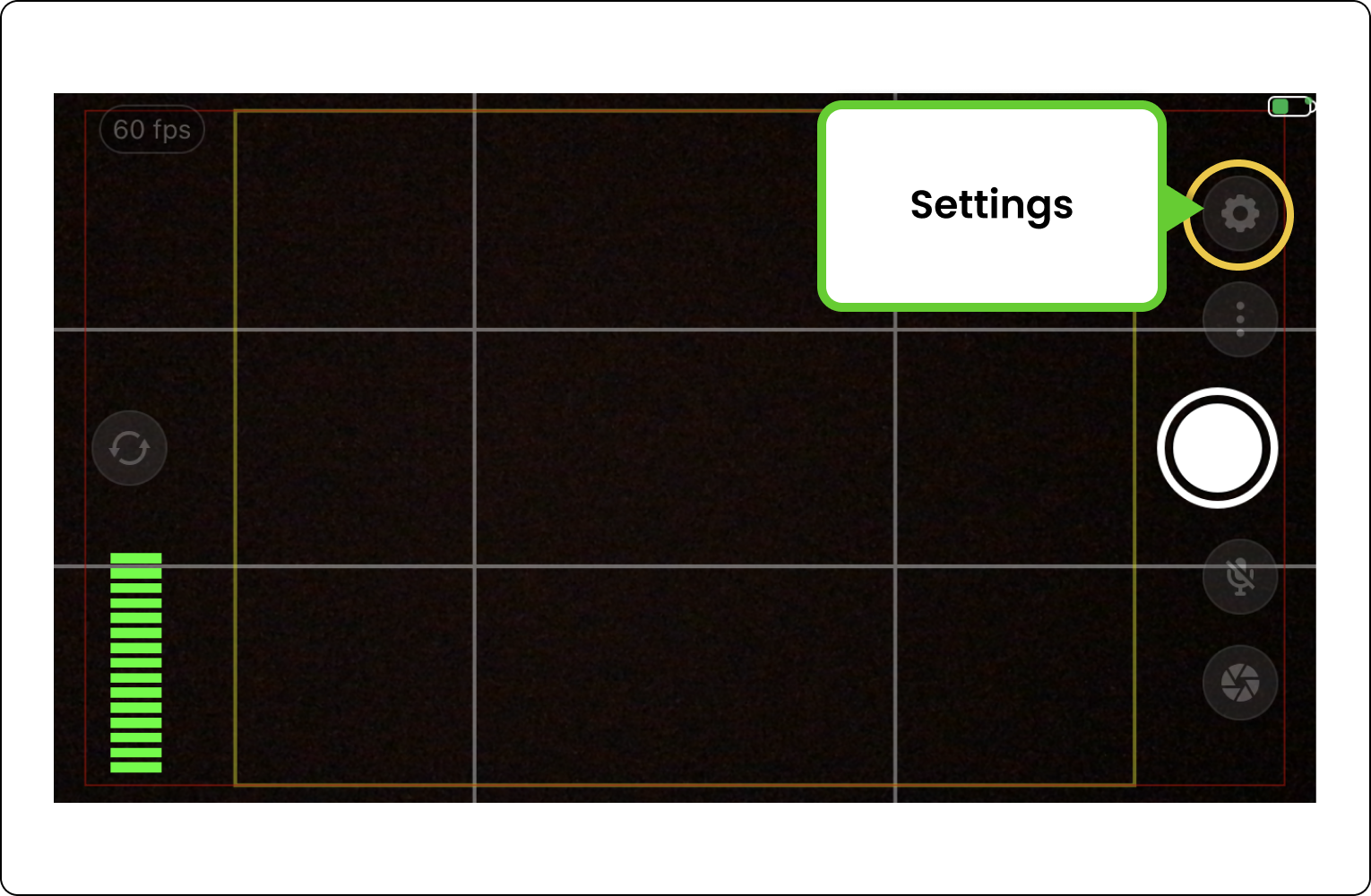
1. Select Connections and then tap the plus icon. Tap New Connection.


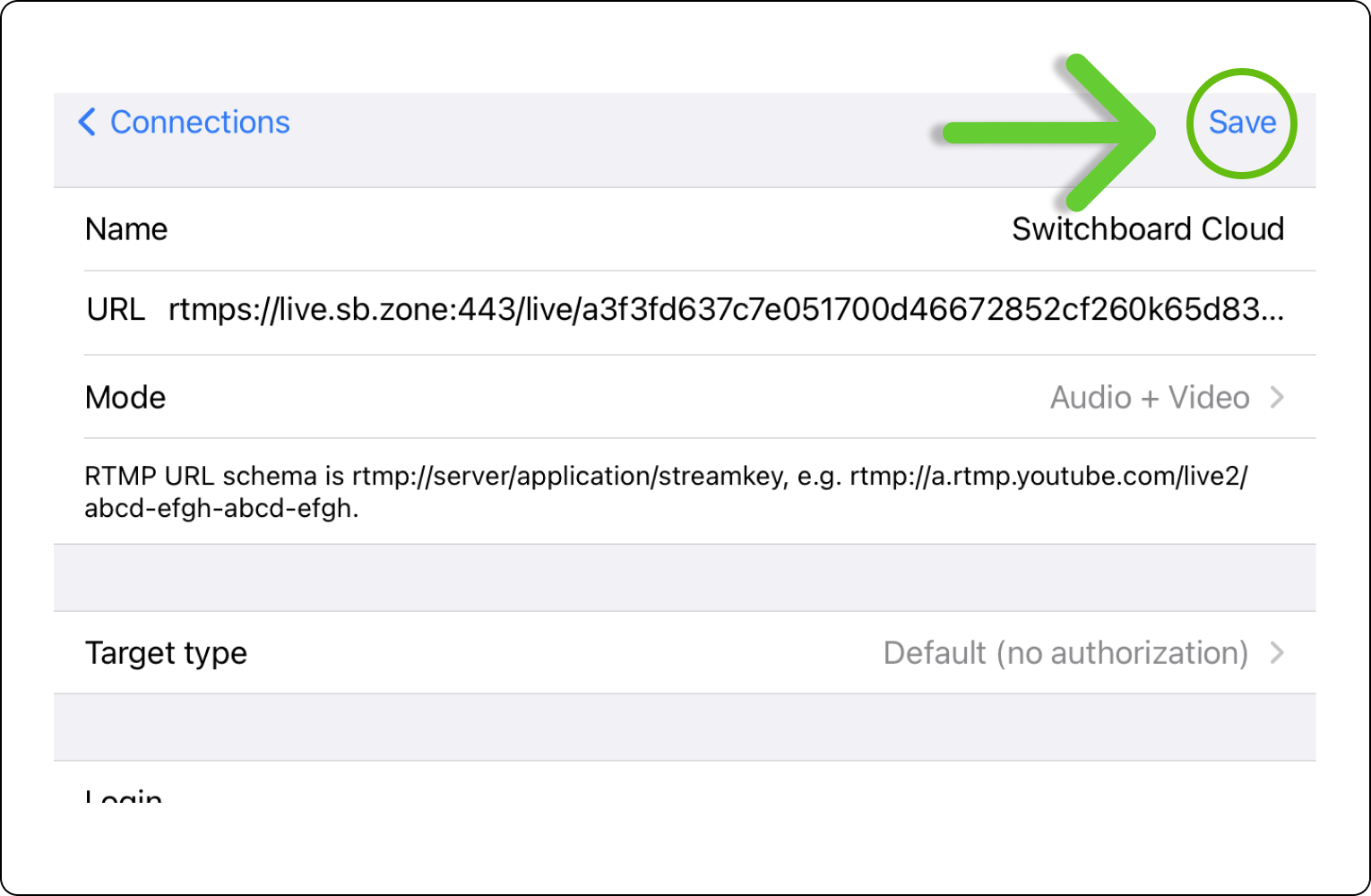
2. Give the connection a name - in our example, we labeled it "Switchboard Cloud"

3. You'll see the Connection URL on the Switchboard monitor.

4. Larix has one field to input the RTMP info.
- You'll need to copy and paste the server URL and Stream Key into Larix as one string of characters separated by a forward slash.
- We've made this step easy:Click the Copy button next to the "Connection URL" and paste it into the Larix URL field.

[Note] If you’re using a workflow with a separate RTMP URL and Stream Key Use this format: Server URL / Stream Key
- Copy and paste the Server URL
- Type a forward slash -There is NO space in between only "/"
- Copy and Paste the Stream Key
- It should look like this:

Leave the remaining forms empty or in their default settings; click Save.
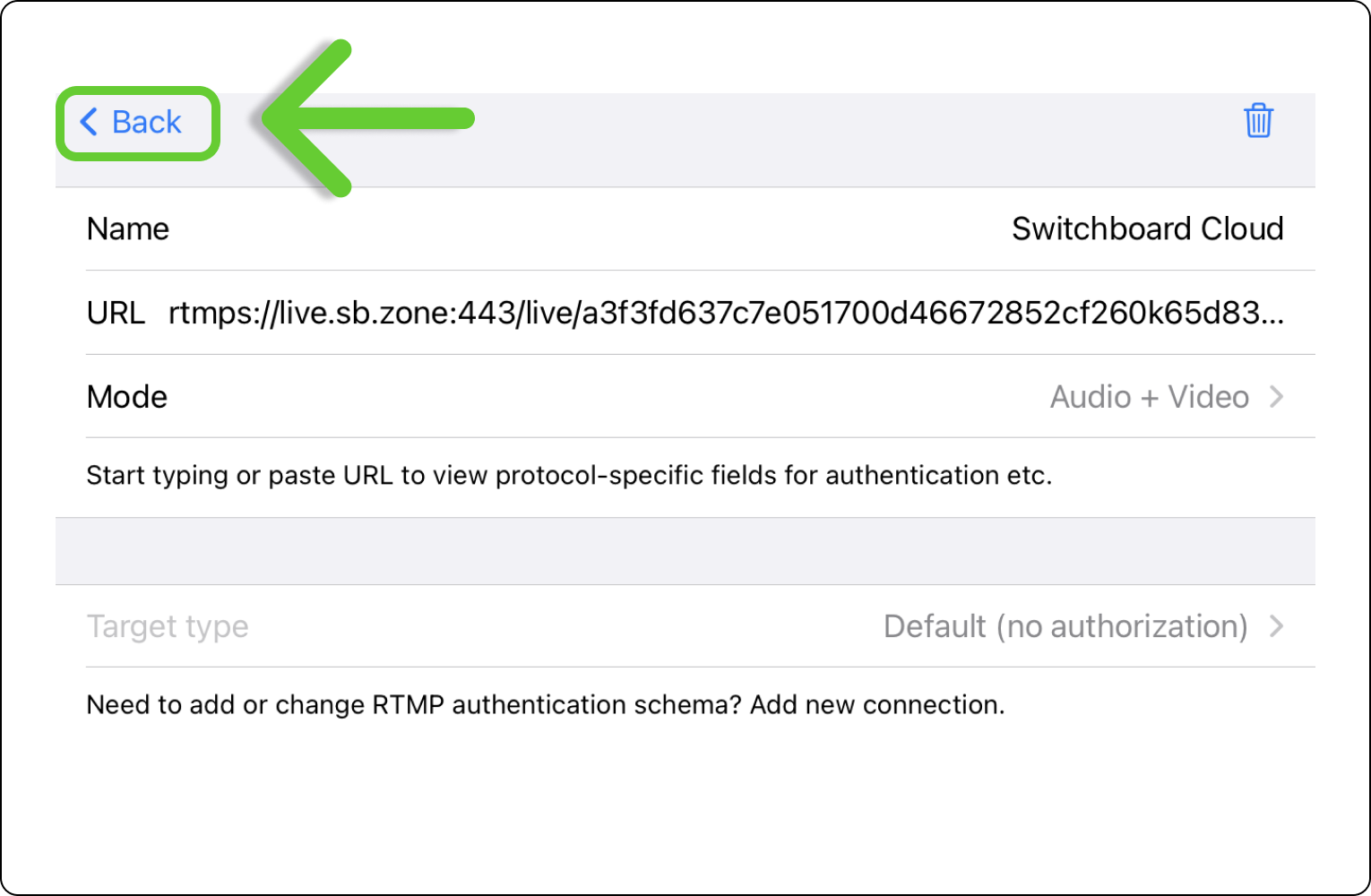
5. Press the back button to return to the Larix Broadcaster stream settings.
Configure Larix Broadcaster stream settings
1. On the main screen, select the Gear

2. Select Video, and set the Framerate to 60 fps.

3. Scroll down to the Encoding section.

4. Set the Keyframe frequency to 2 sec.


5. Tap Video to return to the Settings menu.

5. Tap back to return to the main menu to start live streaming.
Streaming video
Tap the large circle to Go Live and send the stream to your Switchboard workflow.


Multistream
1. The video will display on the Switchboard confidence monitor within a few seconds.
2. Click Go Live next to the desired destinations, or bulk select a destination group and go live.

Bulk Select.


Happy Multistreaming!