Connect Broadcast Pix with Switchboard Live
Last updated Over 1 year ago
You can follow the steps below to learn how to connect Broadcast Pix with your Switchboard Cloud Account.

PART 1: Create the Broadcast Pix workflow in your Switchboard Account.
Log into your Switchboard Cloud Account.
Click the Add Workflow button.
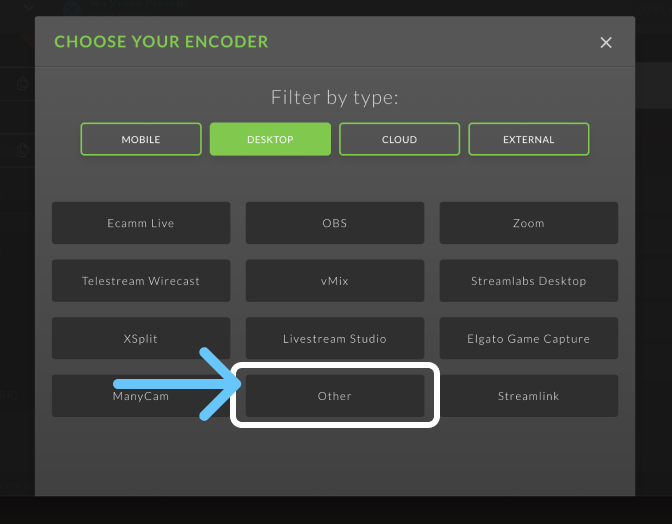
Choose OTHER from the list.
PART 2 : Connect Broadcast Pix with your Switchboard Account.
Step 1
Open Broadcast Pix.
Navigate to the Streamer Settings Menu.
Step 2 | Input relevant data into the appropriate fields.
Please take a look at the image below.

Encoder = Internal
Platform = Manual
⭐️You'll need to select Manual from the drop-down menu. 🚫 Do not select Switchboard Live.
Profile = Switchboard Live (720)
Copy and paste the Server URL and Stream from the Switchboard Workflow
Server URL = Copy from the Switchboard Workflow
Stream KEY = Copy from the Switchboard Workflow

User name
Password
Authentication = None
Step 3 | Test the connection between Broadcast Pix and Switchboard
Start sending a test stream from Broadcast Pix to Switchboard Workflow
Video will be displayed on the Switchboard Confidence Monitor.
Step 4 | Add social channels to the group
Click Add Destinations at the bottom of the stream group.
Click the toggle next to the destinations that have already been saved to your Switchboard account.
To add a new Social channel that hasn’t been added to your Switchoard account, click Connect more.
Select a social media platform from the list, and follow the prompts for authorization.
Click Save.