Connecting Instagram to Switchboard
Ready to take your Instagram Live broadcasts to the next level? This comprehensive guide walks you through connecting Instagram's Live Producer feature to Switchboard Cloud, enabling you to multistream professional-quality content directly to Instagram and other platforms simultaneously.
Last updated About 1 year ago
Instagram Live Producer Guide
Instagram recently updated its platform, allowing people to use third-party live streaming software to live stream on Instagram. Currently, access is limited, and it is being rolled out gradually. No worries; you can check if you can access the Instagram Live Producer on a desktop.
🎉 Update August 2025:
Read Instagram Live Streaming Requirements:
If you have a professional Instagram account, you can access live streaming via third-party live streaming apps.
“Only Instagram users who have a public account with 1,000 followers or more will be able to start a Live broadcast.”
Topics covered:
Checking Access to Instagram Live Producer
Grabbing the Instagram Stream URL and Key
Adding Instagram as a destination into Switchboard Cloud
Multistreaming from Switchboard Cloud to Instagram and other destinations
Ending the live stream
Instagram Live Producer recommendations and resources
Check if you have Access to Instagram Live Producer
To check if you have access, you'll need to log into your Instagram account on a desktop web browser.
Open instagram.com.
Click the "Create" button (plus the symbol inside a square).
If you see "Live" as an option, 🎉 it means you can access Instagram Live Producer.
Select "Live" from the dropdown menu.

A window will open, allowing you to create a stream title and select the audience.
Type the stream title in the field.

Public: Everyone can view the broadcast
Practice: For your eyes only, a great way to test how Instagram Live Producer works.
Click Next.

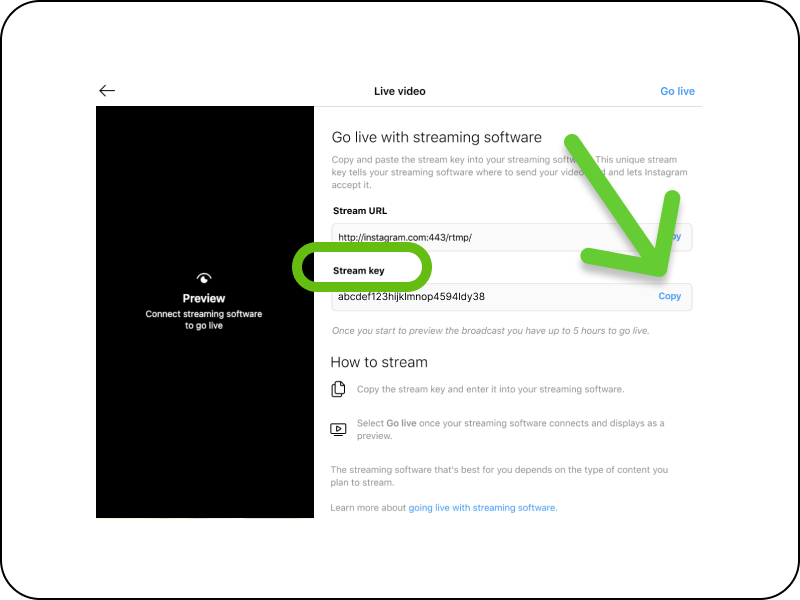
A new window will open with the streaming details for your Instagram.

Next, you'll switch between Instagram Live Producer and Switchboard as you copy and paste the Instagram both the Stream URL and Stream Key into Switchboard Cloud.
Add Instagram as a Destination in Switchboard Cloud.
Click the Add Destinations Button at the bottom of the Stream Group.
A new window will display.

Click Connect More
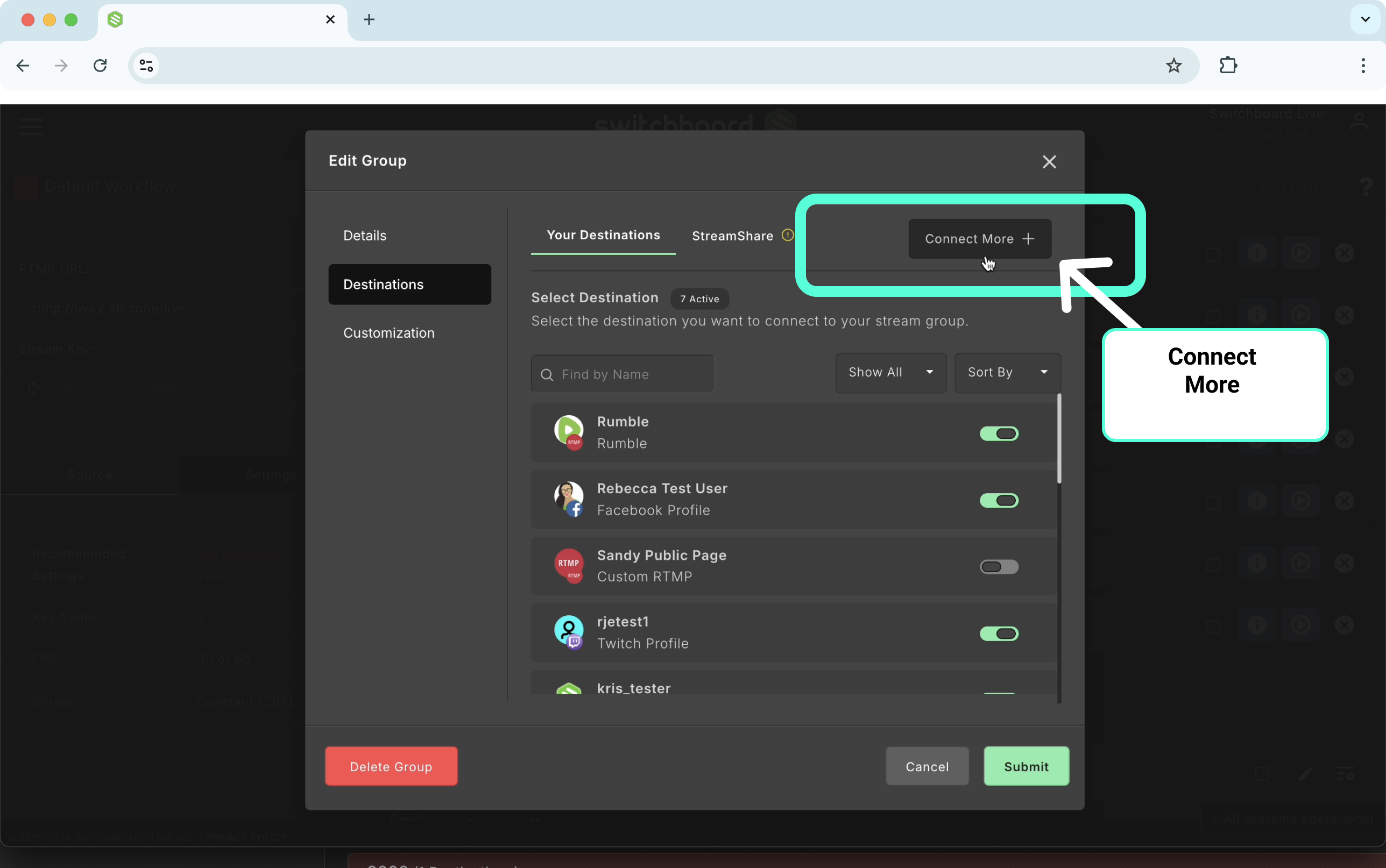
Select Instagram from the menu.

Copy the Instagram Stream URL and Key and paste it into the corresponding fields on Switchboard.

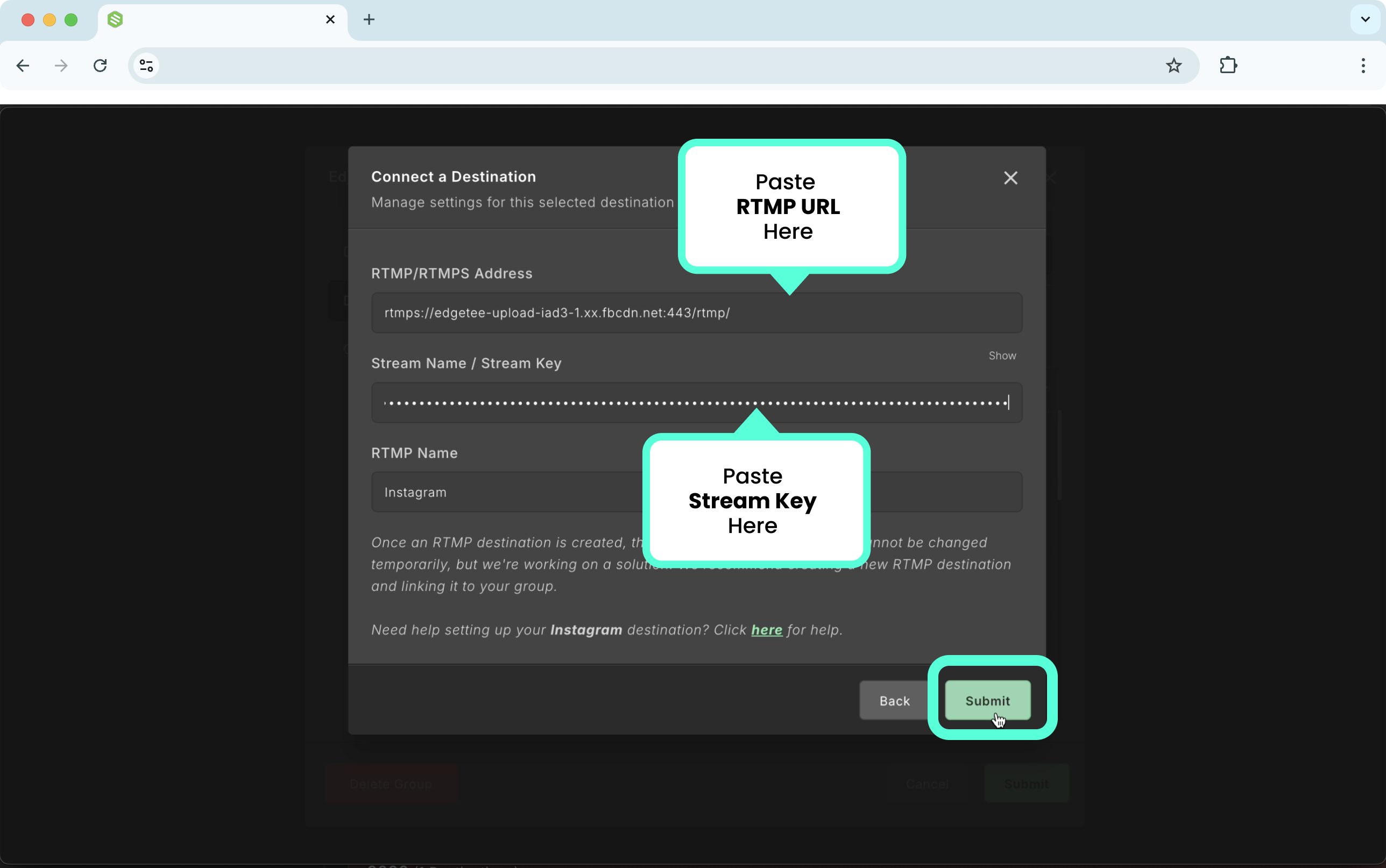
Click Submit.
The Instagram destination has been successfully connected to our Switchboard account and automatically activated to the current Stream Group.
🎉 We can see the Instagram destination has been successfully added to the group.

Live Streaming on Instagram
Set up the live streaming broadcast and send the video to your Switchboard Cloud account.
When the video shows on the Switchboard Confidence monitor, click the go live button next to Instagram and other destinations.
Verify the video looks good on the Instagram preview window, then click Go Live.

You'll be multistreaming to all of your destinations, including Instagram Live.
👉🏽 Keep the Instagram Live Browser open during the entire live broadcast; otherwise, the video may end on the Instagram Live producer.
Ending the Live Stream on Instagram
Instagram suggests ending the live stream on their platform first, then on the live streaming software.
Click the End Video button on Instagram, Switchboard Cloud, and finally, on your live streaming software.
Instagram will ask if you want to delete or keep the live video.
Simply close the web browser without selecting any options.
The next time you live stream to Instagram, you'll need to open Instagram Live Producer first to grab the new stream key.
Instagram Live Producer Tips
‼️ Keep the Browser open: Keep the Instagram Live Producer browser open during the live stream; closing it may end the live stream on Instagram.
🔑 Dynamic Instagram Steam Key: Each live broadcast creates a new, unique stream key. To get the new stream key, open Instagram Producer and follow the steps for creating a new live broadcast.
‼️ Then, before each broadcast, you'll need to add Instagram as a New Destination in your Switchboard Stream Group.
To do this, click the Add Destinations button -> Connect More -> Select Instagram -> Copy and paste the newly generated Stream URL and Stream Key -> Submit -> Submit.
Archive Live video: Instagram automatically deletes live videos at the end of the broadcast.
Update Instagram settings to archive the live video so you can access and download it in the future. Before the live broadcast, you must enable the archive live video feature from the Instagram mobile app.
To enable Archive Live video on Instagram:
Open the Instagram mobile app, click the Plus icon, choose Live, and click the cog icon on the top right.
Click Live, and toggle the archive button to blue.

Access to archived videos is available only on the Instagram mobile app.
Click the three horizontal buttons on the top right.

Select the Archive option.

Click on the top to open the archive menu.
Select Live video to view archived live video.

Recommended Settings for Instagram Live Producer
Video format:
9x16 aspect ratio (recommended but not required)
720p @ 30 fps (note: 30 fps is recommended, but Live Producer can also support 60 fps if desired. When using 60 fps, the Live Producer preview screen will still display 30 fps).
Resolution: 720 x 1280
Video bitrate range: 2,250–6,000 Kbps
Alternatives (supported but not recommended): 480p @ 30 fps, 360p
Audio format:—the settings below are the default for most streaming platforms, including OBS:
Sample rate: 44.1 KHz
Channel layout: Stereo
Bit rate: up to 256 Kbps
Check out the Instagram Blog to learn more about the Instagram Live Producer.
Good Luck!