How to create a Facebook Live event and Go Live with Switchboard
Looking for a reliable way to broadcast community updates, events, or critical announcements to Facebook? This guide provides a simple, step-by-step workflow to confidently schedule and stream a Facebook Live Event using Switchboard Live. Designed for teams of all technical skill levels, this tutorial will walk you through three easy phases: creating your Facebook Event, securely connecting it to Switchboard via Custom RTMP, and seamlessly going live without disruptions.
Last updated 7 months ago
This article will cover the steps from start to finish for creating a new Facebook Live Event, adding it to your Switchboard destination group, and going live with it.
Create Your Facebook Live Event
Choose Your Stream Key Type
Connect to Switchboard Live
Going Live (The Day Of)
Ending the Broadcast.
Log in to your Facebook account.
Open the Facebook Page.
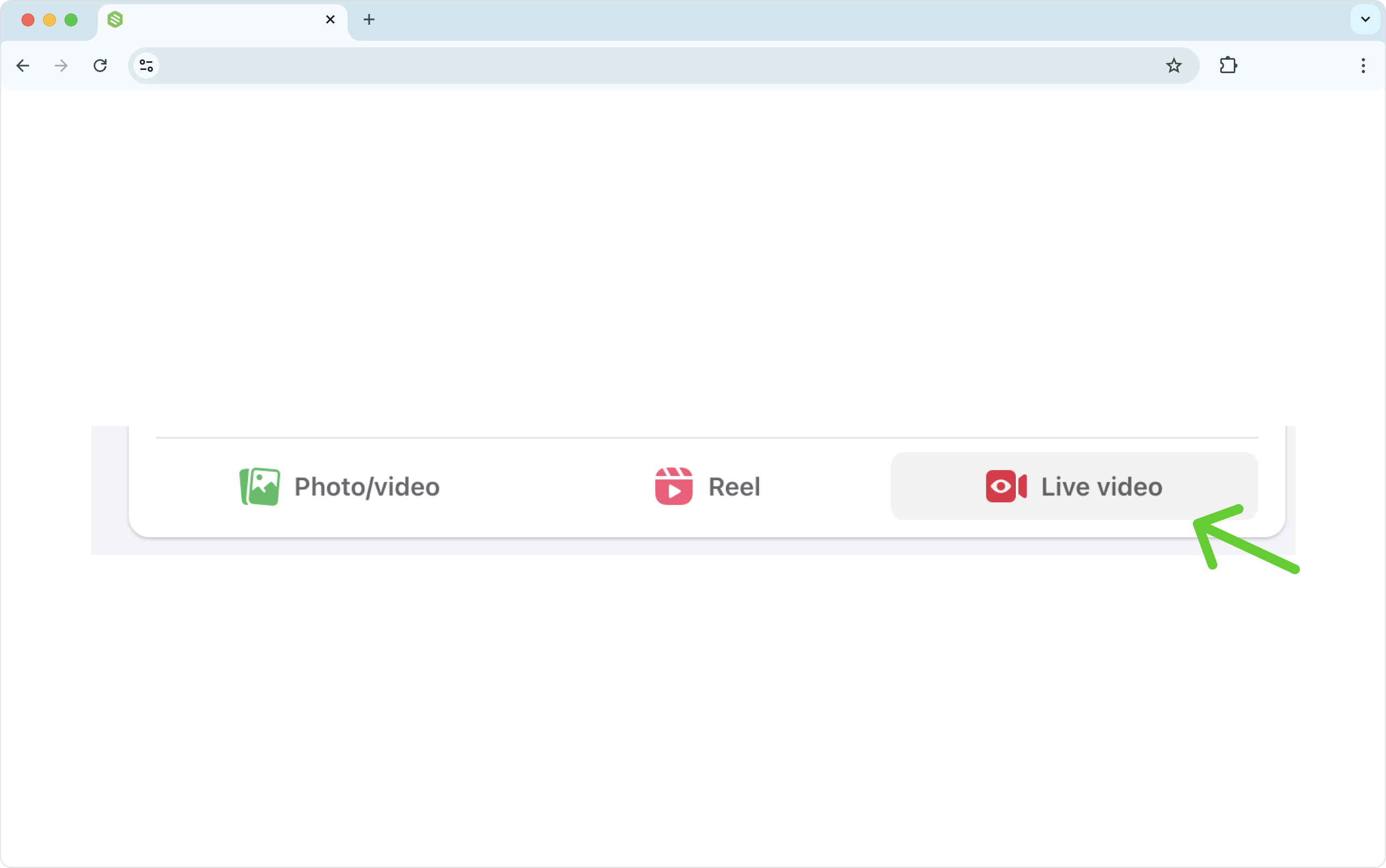
Click the Live video Icon.
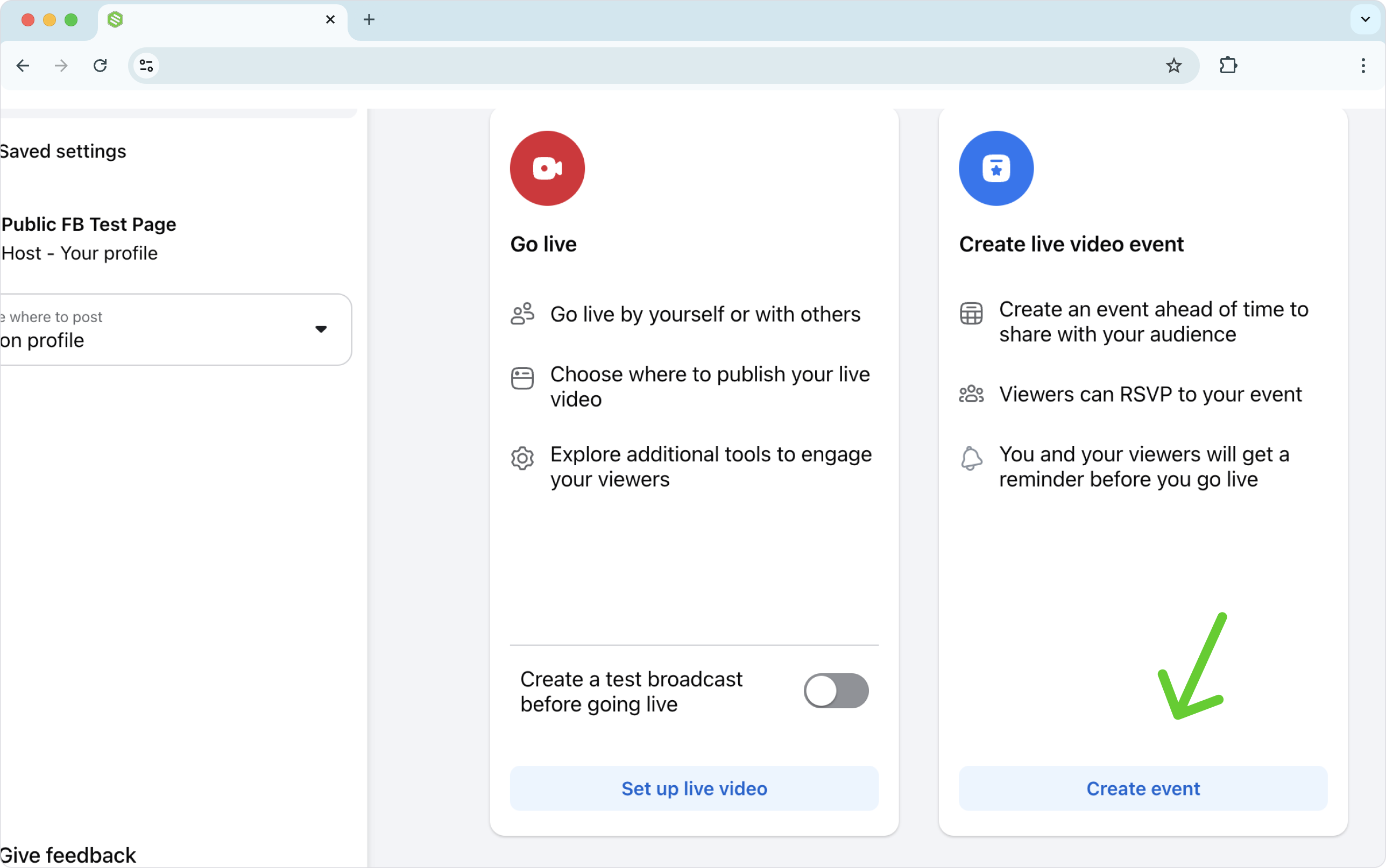
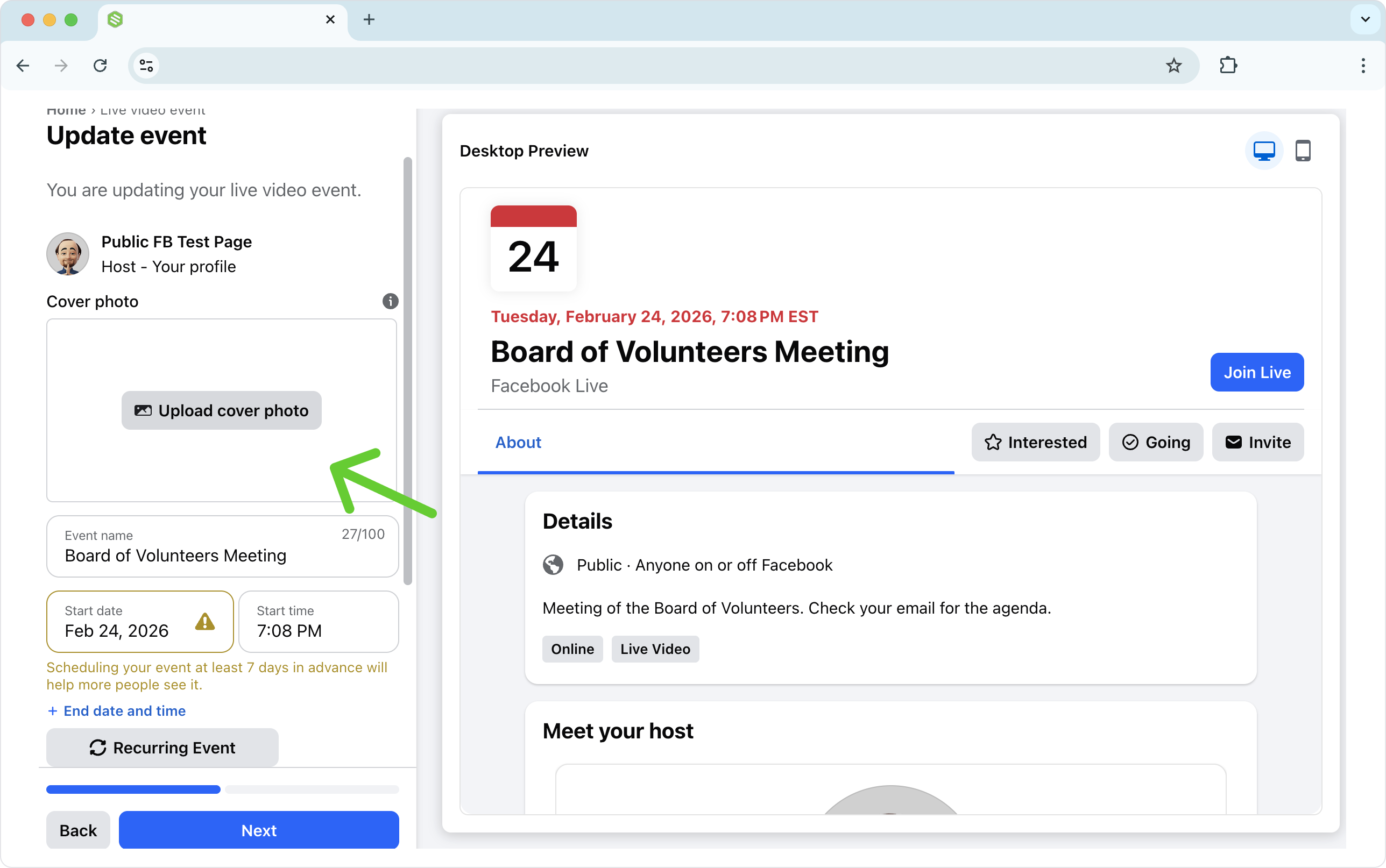
Begin creating the Facebook Event with details such as date, time, title, and a thumbnail.
Once you create the event, you'll be able to set up the live video portion.
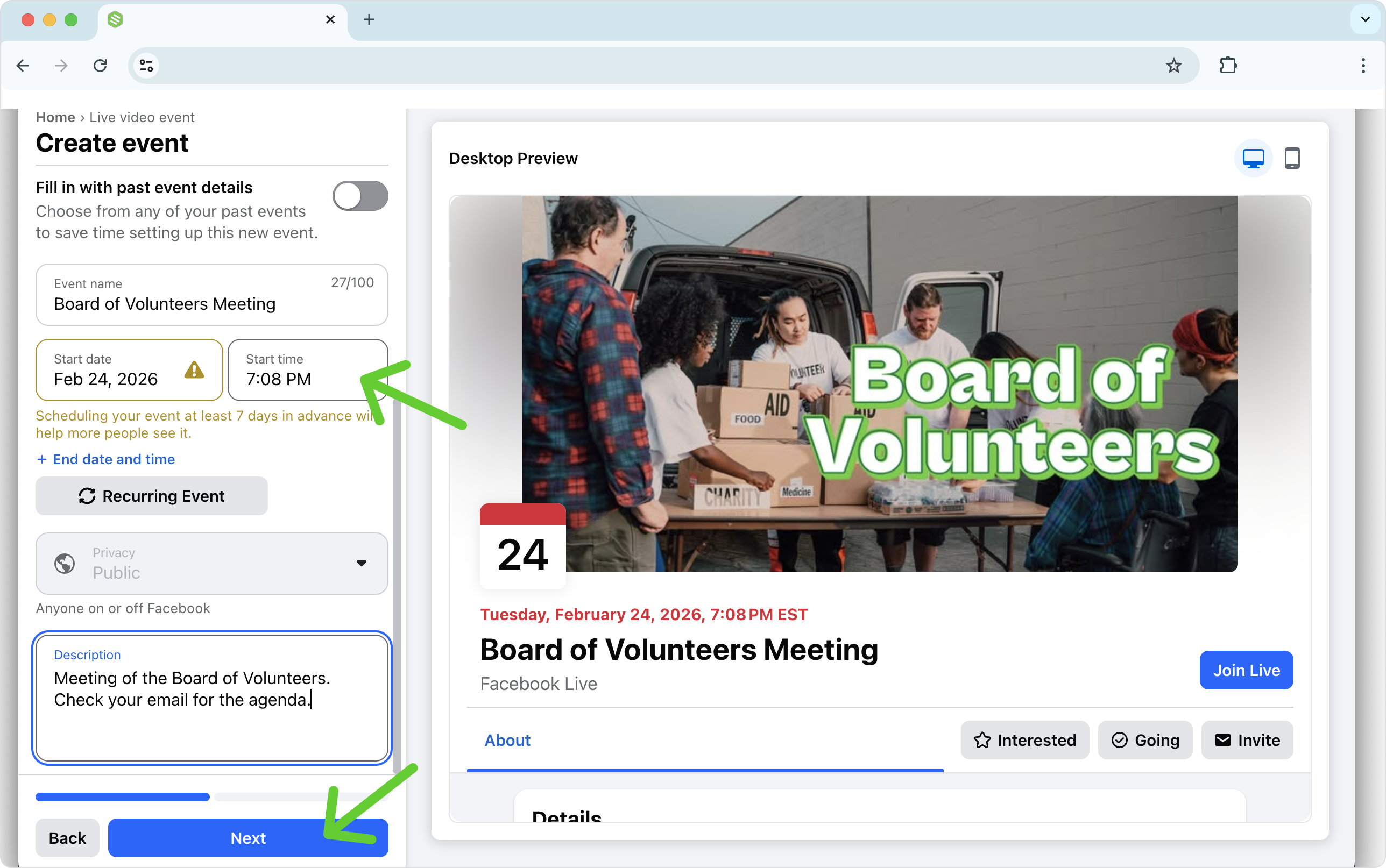
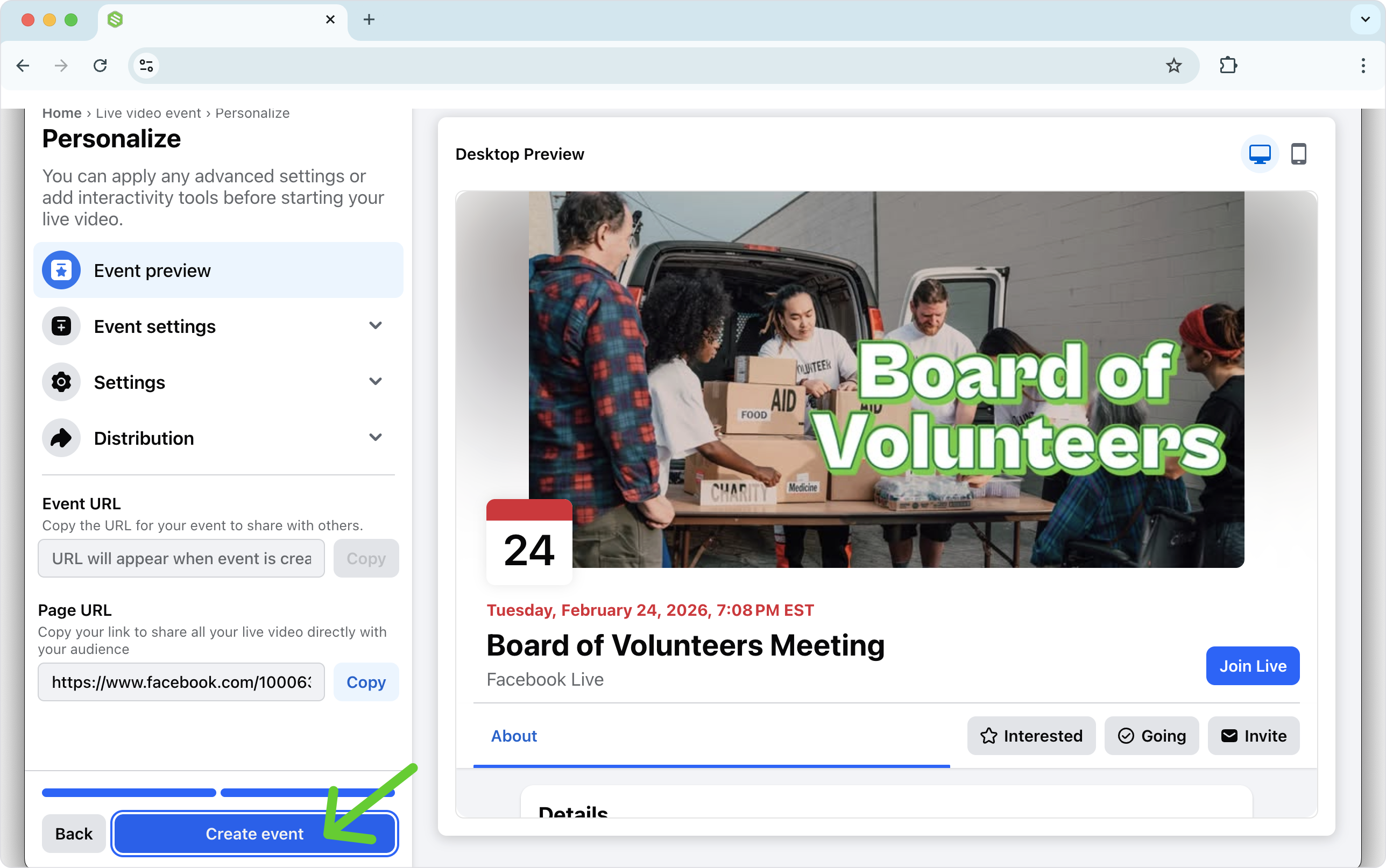
After the event is created, click Set up live video.

Set up live Video
🛑 Crucial Step: Choosing Your Stream Key Type
Inside the Facebook Streaming Software settings, you will see an option to toggle a Persistent Stream Key on or off.
Here is how to choose the right one for your broadcast:
When to use a Persistent Stream Key (Toggle ON):
Best for a Single, Recurring Show: If you have a dedicated daily or weekly show and you only ever stream one event at a time. By using this, the RTMP destination in Switchboard never has to be updated.
When to use a Unique Stream Key (Toggle OFF):
Best for Scheduled Events: This generates a one-time key specifically for this event.
Best for Concurrent Streams: If your team is broadcasting multiple events at the exact same time (e.g., two different district council meetings), you must use unique stream keys. You cannot broadcast more than one live video at a time using a persistent key.
Maximum Security: Unique keys ensure that a previous configuration doesn't
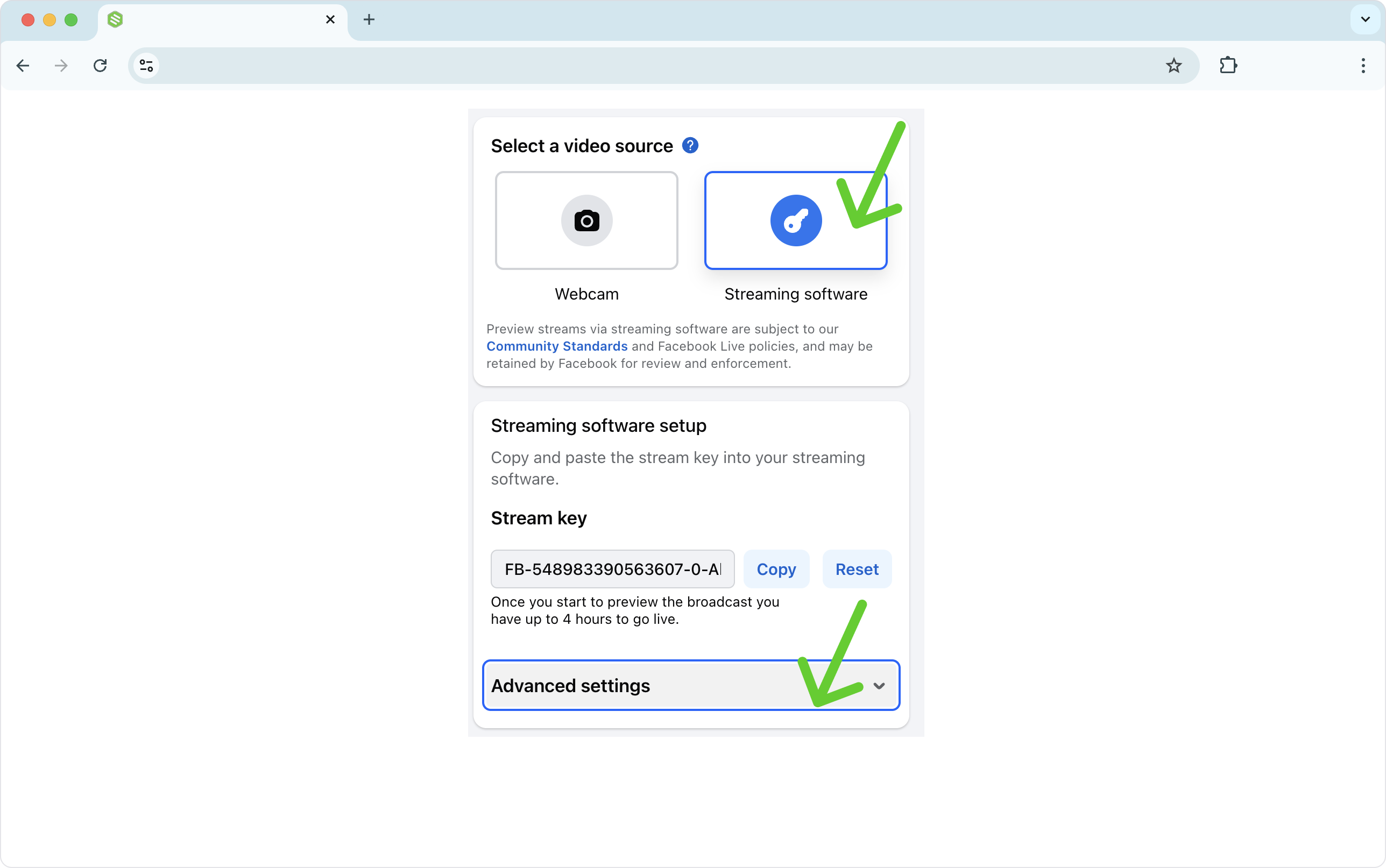
Under Video source, select Streaming software.
Scroll down to the Streaming Software Setup section and click Advanced Settings.
Connect the Facebook Live Event With Switchboard Live
Connect the Facebook Live Event with your Switchboard Account using the RTMP. Next, you’ll go back and forth between Facebook and your Switchboard Live account. The steps for connecting RTMP destinations can be found here (How to Connect RTMP Destinations)
‼️ Note: Ensure you copy and paste the Facebook RTMP info into the correct fields.
In a new tab, log in to your Switchboard account.
In Switchboard, go to Add Destinations → Connect More → Add Custom RTMP.
Go back to Facebook and click Copy next to the Stream key.
Return to Switchboard and paste the stream key into the Stream Key field (second field).
In Facebook’s Advanced Settings, scroll down and click Copy next to the Server URL.
Return to Switchboard and paste the server URL into the RTMP Address field (first field).
Give the destination a recognizable name (e.g., “Facebook Page – Community Updates”) and click Submit / Save.
Back on Facebook, click Save changes for the event setup.
On the Day of the Event
Start sending your video feed from your production software (OBS, vMix, TriCaster, etc.) into your Switchboard account.
In Switchboard, locate the Facebook RTMP destination you created for this event and click Start Streaming.
Optional but recommended: Go to your Facebook Event page to view the preview monitor. Seeing your video feed here guarantees your connection is solid!
At your scheduled start time, Facebook will automatically begin broadcasting your video to your audience. No additional clicks are required.
Ending the Live Video
When the Live Event is over Stop sending your video feed from your encoder/production software into your Switchboard account.
Facebook will automatically end the live video.
Facebook allows about 2 minutes for your encoder to reconnect if it drops temporarily.
Check out these references:
FAQ: Frequently Asked Questions
Q: What happens if our internet connection drops during the live broadcast?
A: If your encoder or internet temporarily disconnects, don't panic. Switchboard Live maintains a reliable connection to Facebook, and Facebook allows approximately a 2-minute buffer window for your encoder to reconnect before it permanently ends the live video. Once reconnected, the stream will automatically resume.
Q: How do I know if Switchboard is successfully sending video to my Facebook Event?
A: Before your scheduled start time, begin sending your video feed from your encoder to Switchboard, and click "Start Streaming" to your Facebook Custom RTMP destination. You can verify the connection by checking the Desktop Preview window on your Facebook Event setup page. If you see your video there, your connection is secure and ready to go live.
Q: Can we schedule multiple Facebook Live events to happen at the exact same time?
A: Yes, but you must ensure that the Persistent Stream Key is turned off for all of them. Each concurrent event must have its own unique Stream Key, which is copied and pasted into a separate Custom RTMP destination in Switchboard Live.
Q: Will Facebook automatically start my broadcast at the scheduled time?
A: Yes. If you are sending a video from Switchboard to the Facebook Event, Facebook will automatically transition the event from "Waiting" to "Live" at the exact scheduled start time.