How to Add X (Twitter) as a Custom RTMP Destination into your Switchboard Account
This support article will review the detailed steps for adding X(Twitter) as a Custom RTMP destination in the Switchboard account and Going Live.
Last updated 12 months ago
Topics covered:
Create a New X(Twitter) Source.
Add X(Twitter) as a Custom RTMP destination
Going Live to X(Twitter ) via Custom RTMP
Schedule a X(Twitter) Broadcast and Go Live
X(Twitter) Source Limit
How to Remove X(Twitter) Sources
Let's begin!
Create a New X(Twitter) Source
Log in to your X(Twitter) account from a desktop computer.
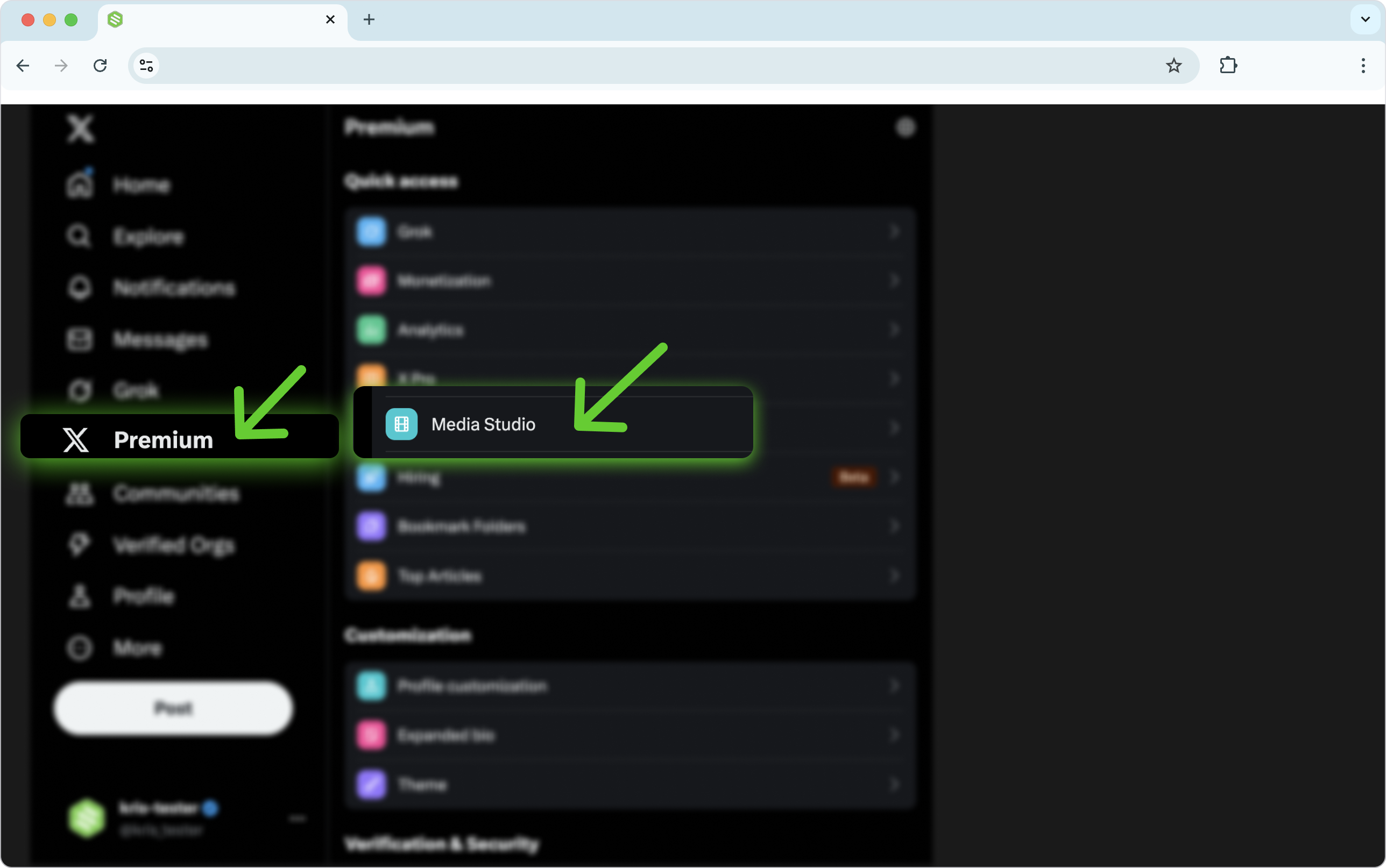
Select the "Premium" option on the left-hand menu, then select Media Studio.
Or you can use this direct link: https://studio.x.com/producer
Select Producer from the top navigation bar, then Create Source.
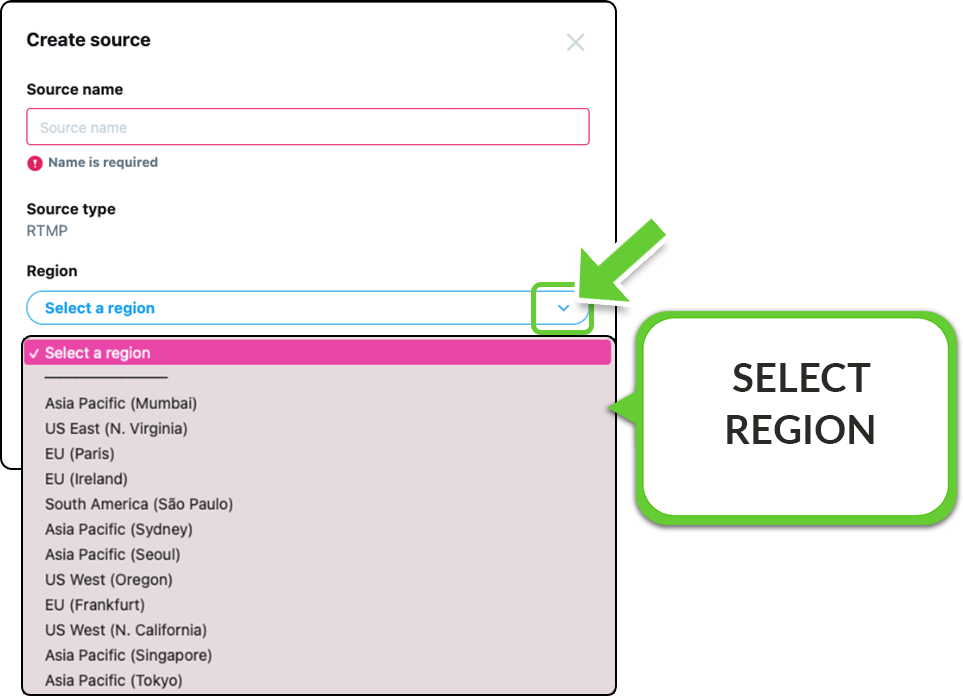
Fill out the information. Provide a source name so that you can easily identify it later. In our example, we have chosen to name the source "Switchboard OBS workflow"

Ensure that you choose a server region closest to your location. Press Create.
X (Twitter) will generate the streaming information.
This information will be used to add X(Twitter) as a custom RTMP destination to the Switchboard account.
Add X( Twitter ) as a Custom RTMP destination.
In the next steps, you'll go back and forth as you copy and paste the streaming information from X(Twitter) into your Switchboard Account.
Log into Switchboard Live.
Navigate to the appropriate workflow.
Press the Add Destinations button.
Choose Custom RTMP from the platform list.

Copy and paste the RTMP information from X(Twitter ) into Switchboard. Next, rename the Custom RTMP destination so that you can identify it as X(Twitter).

Great Job! You've added X(Twitter) as a custom RTMP destination to your Switchboard Account.
Ready to Go Live!
Going live on X(Twitter) via Custom RTMP.
Going live to an X (Twitter) destination using the custom RTMP method involves additional steps. Please allow yourself a few extra minutes before the event to set up the Twitter broadcast.
Select Producer from the top navigation bar.
Press the Create Broadcast button located at the top right.

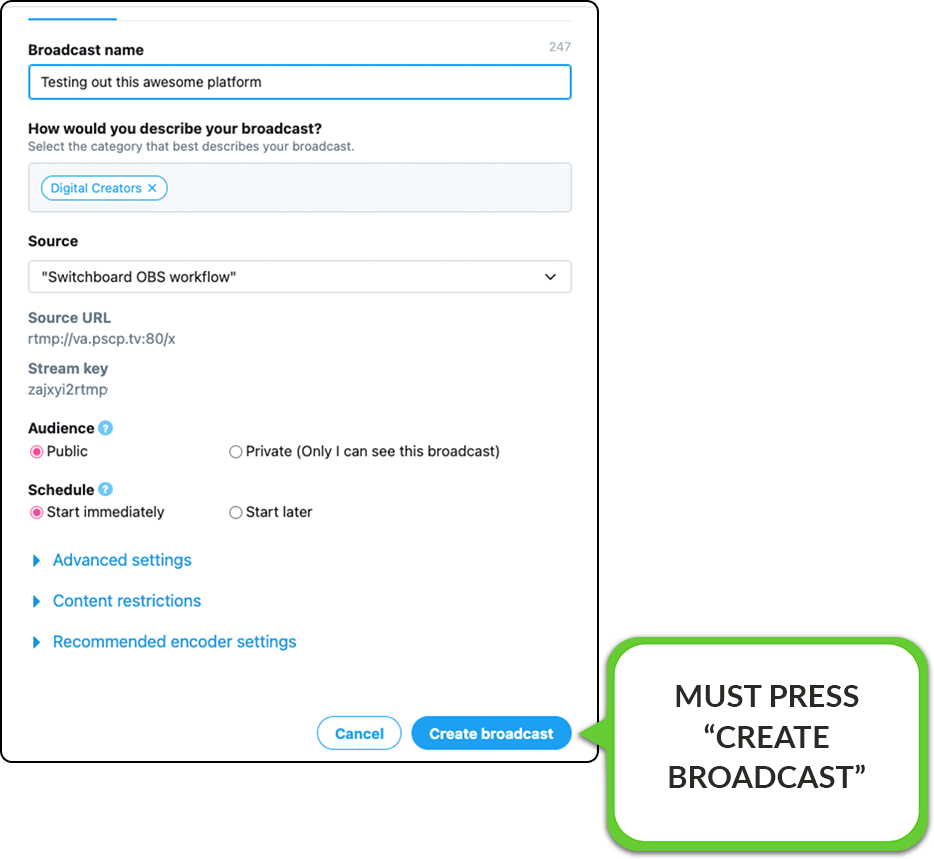
Fill out the required information, including the broadcast name (stream title), and choose a category.

Press the down arrow to select the appropriate source or create a new one.
We'll choose "Switchboard OBS workflow" because this is the source that we created earlier.
You can choose "Start immediately" or "Start later". For this example, we'll keep "Start immediately."
Start sending video from your encoder into the appropriate Switchboard workflow.
When the video is on the Switchboard confidence monitor, and the receiving indicator shows "green," you can press the Go Live button for your chosen destinations.
Switchboard PRO TIP: Remember, you can save yourself time and eliminate this extra "GO LIVE" step by enabling "autostart" ahead of time.
Within a few seconds, the video should begin to appear in the preview window inside X(Twitter) Media Studio.
IMPORTANT NOTE: You're not live-streaming on X yet.
You MUST PRESS the “create broadcast" button to GO LIVE on X.
If you've scheduled a broadcast, the video will automatically begin at the set time.


End the broadcast
At the end of the Broadcast, you'll need to press the red button X.
Create a scheduled broadcast in X Media Studio.
Log in to your X(Twitter) account from a desktop computer.
Select the "Premium" option on the left-hand menu, then select Media Studio.
Or you can use this direct link: https://studio.x.com/producer
Fill out the streaming information, such as the broadcast title and category.

Create a new source
We recommend creating a new source that you can use for scheduled broadcasts.

Give the Source a name.

Choose the region nearest the encoder ( live streaming software) providing the stream.
Once you see the Success Screen, click "DONE".


Continue Scheduling the Broadcast.
Choose Start Later.
Fill out the start/end dates, as well as the duration.
Upload the desired thumbnail ( poster image).

Finally, click the Create Broadcast button located at the bottom right.
Success! You've created a scheduled X(Twitter ) broadcast!
Ensure that you add the Scheduled Broadcast as a Custom RTMP destination, as explained above. Add X(Twitter) as a Custom RTMP destination
Once you've added the scheduled X broadcast to your Switchboard account, you'll be ready to go live along with the other social channels that you've added.
The live video will publish at the scheduled time, you won't need to start the stream via X studio.
Go Live to a Scheduled X(Twitter) Broadcast
Step 1
When you’re ready to go live, send a live video from your Switchboard Account to the X(Twitter) destination.
Important! Ensure you are going live to the scheduled broadcast as close to the start time; otherwise, it will change the status from "scheduled" to TIMED OUT. Explained.
What happens if I schedule a broadcast but am not streaming to the source at the start time? Scheduled RTMP broadcasts will immediately enter Twitter Timed Out State.
X(Twitter) Source Limit
X(Twitter) limits the number of sources in your Twitter channel to 100. Please read their reference here: Going live on X Twitter using RTMP - FAQs
If you experience an issue streaming to X (Twitter), please remove some of the sources within Twitter Studio.
How to Remove X(Twitter) Sources
Note: You'll need to have X(Twitter) Premium to remove sources.
Removing a source does not remove the archived video of a completed broadcast.
Press Stop streaming next to the Twitter destination that is experiencing issues.
Open X Media Studio using this direct link: X Studio Sources.
A complete list of all your sources will be displayed.

We recommend removing approximately 20 sources.
Click on a source to delete. Press Delete. Confirm delete.


Return to your Switchboard account and authorize the X(Twitter) destination.
Press the blue info button, select Authorize, and follow the prompts.
Then, try to go live on X (Twitter) again.