Connect to LinkedIn Live as a Custom RTMP
While we recommend using our direct integration for most cases, there are times when you need to connect to LinkedIn manually, especially when streaming to a LinkedIn Live Event. This guide will show you how to use the Custom RTMP feature in Switchboard to connect to LinkedIn. This method is the perfect solution if you've been invited as a speaker to an event or need to stream to a Destination without direct authorization.
Last updated 3 months ago

LinkedIn Live New Update: 2026:
👉 According to LinkedIn: “We’re evolving LinkedIn Live to make it simpler, more discoverable, and more impactful for our members. Starting June 22, 2026, all live events must be scheduled in advance. While the ability to go live spontaneously will no longer be available, you can still go live on short notice by scheduling your event just minutes in advance.” Read their announcement here: LinkedIn Live New Update 2026
Before You Begin: Which Method Is Right for You?
There are two ways to go live on LinkedIn through Switchboard: the Direct Integration method and the Custom RTMP method. The direct integration is the simpler option for anyone streaming regularly to their own LinkedIn Profile or Company Page. You connect once using your LinkedIn login, and your stream title and description are applied automatically from your Switchboard Stream Group. The Custom RTMP method is the right choice when you're streaming to a LinkedIn Live Event or have been invited as a speaker to someone else's event. It requires copying a Stream URL and Stream Key from LinkedIn before each broadcast, but gives you the flexibility to stream to destinations you don't directly own or manage. Use the table below to choose your path.
Important Prerequisite: Account Approval
Before you begin, your LinkedIn account must be approved for live streaming by LinkedIn. You can verify your access and apply using this link: Apply to Become a LinkedIn Live Broadcaster.
NOTE: You must be approved by LinkedIn before going live to your LinkedIn individual or company page.
Phase 1: Set up the LinkedIn Live Stream (Inside LinkedIn)
For this process, we recommend opening two browser tabs: one for LinkedIn and one for Switchboard Live.
As of June 2026, LinkedIn now uses a single scheduling flow for all live streams; the previous "Go Live Now" and "Schedule for Later" options have been removed. All streams are scheduled, even if your start time is just a few minutes away. Your Stream URL and Stream Key will become available within 60 minutes of your scheduled start time.
Log in to LinkedIn and navigate to LinkedIn Live Studio using this direct link: https://www.linkedin.com/video/golive/later/
Choose the LinkedIn Profile or Company Page you will be streaming to from the audience selector.
Fill out your stream details: Title, Date, and Time. 💡 Pro Tip: If you want to go live right away, simply set the time to a few minutes from now.
Write your post copy in the text field; this is what your audience will see in their feed alongside the stream.
Click the Schedule stream button in the top right corner.
Optionally, click Add an image to upload a thumbnail for your stream.
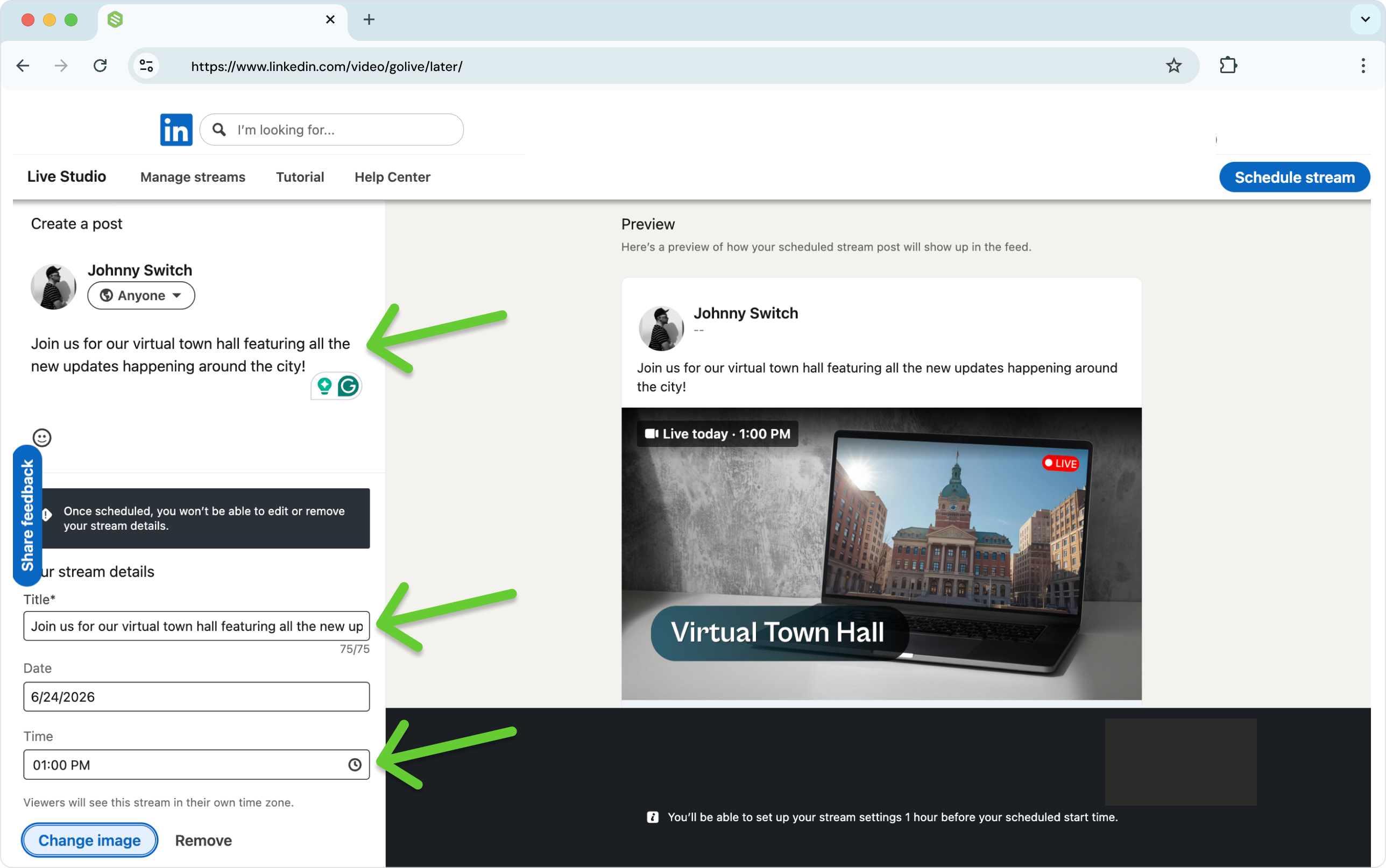
⚠️ Important: Double-check your title, date, and time before continuing. LinkedIn does not allow you to edit or remove your stream details after scheduling.
Click Schedule stream to publish your event. LinkedIn will post it to your profile or page so your audience can find it in advance.
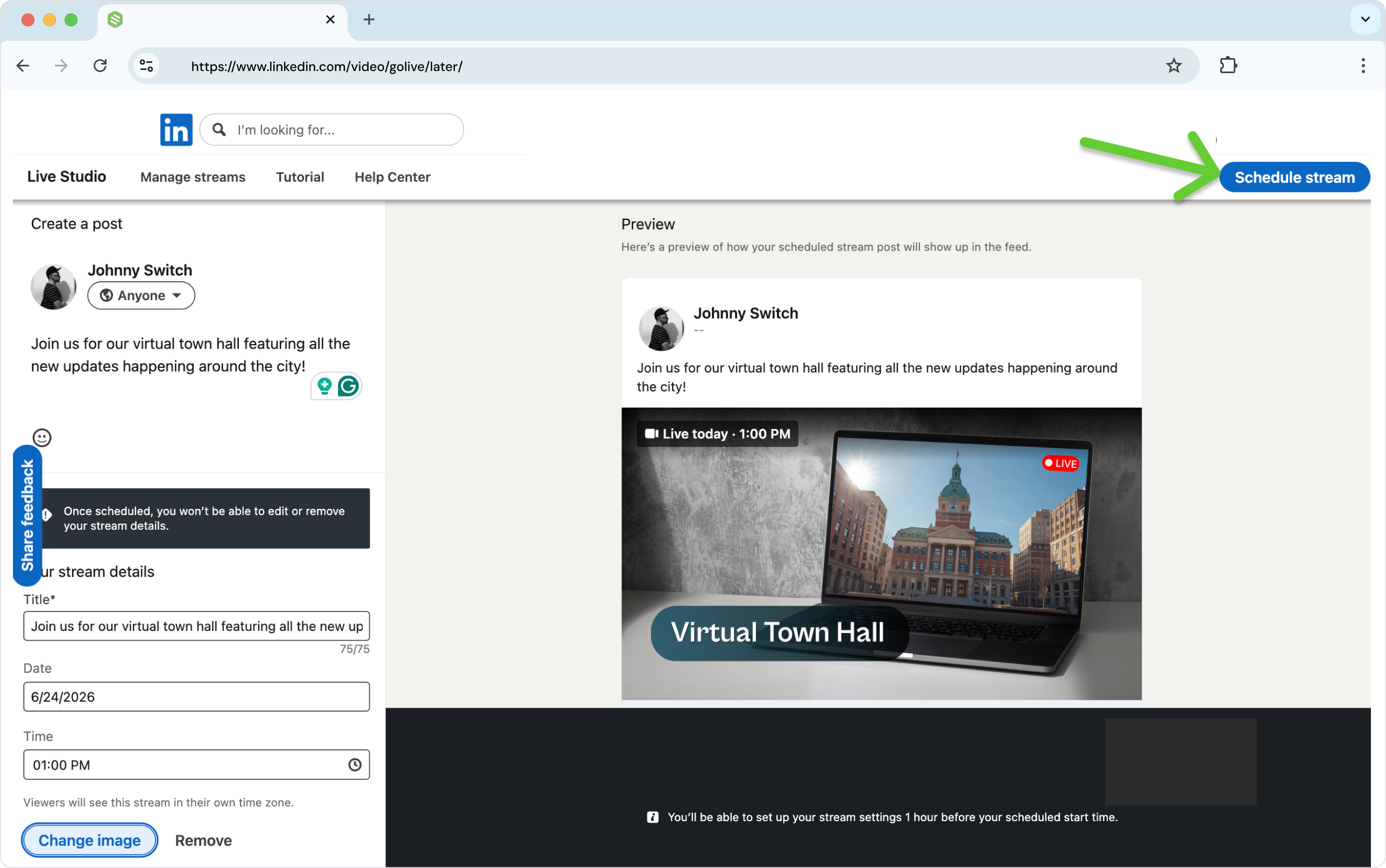
⏱️ Your Stream URL and Stream Key are not available yet. LinkedIn generates this information within 60 minutes of your scheduled start time. This is expected, not an error.

When you're within 60 minutes of your start time:
Return to LinkedIn Live Studio: https://www.linkedin.com/video/golive/later/
Find your scheduled stream and click Set up.

In the list of LinkedIn live events, click Prepare to go live.

Choose the server region closest to your encoder or streaming software, then click Get URL. LinkedIn will generate your Stream URL and Stream Key.

Keep this tab open, you'll need both values in Phase 2.
➡️ You're ready! Head to Phase 2.
Phase 2: Add LinkedIn to Switchboard (Inside Switchboard)
Once your Stream URL and Stream Key are visible in LinkedIn, it's time to connect the two platforms.
Log in to your Switchboard account and navigate to your Workflow page.
Find your desired Stream Group and click Add Destination > Connect More > Custom RTMP.

Copy the Stream URL from LinkedIn and paste it into the RTMP/RTMPS Address field in Switchboard.
Copy the Stream Key from LinkedIn and paste it into the Stream Key field in Switchboard.
Give the destination a clear, recognizable name. 💡 Pro Tip: Name it after the specific event so it's easy to identify later, for example, "Mayor's Office Town Hall – LinkedIn" or "Team Webinar June 26 – LinkedIn."
Click Save. Your Custom RTMP destination is now connected to your workflow.


Phase 3: The Go Live Sequence
Because you're using a Custom RTMP connection, going live is a two-step process. You start the stream in Switchboard first, then push it live inside LinkedIn. Here's the exact order:
Step 1 — Start your encoder
Begin sending your video feed from your live streaming software (OBS, vMix, Zoom, etc.) to Switchboard.
Step 2 — Start in Switchboard
Once you see your video playing in the Switchboard preview monitor, press the green Start button next to your LinkedIn Custom RTMP destination (or start all destinations in the Stream Group).
💡 Pro Tip: Skip this click by enabling Switchboard's Auto-Start feature — here's how to use the Auto-Start Feature.
Step 3 — Go Live on LinkedIn
Switch back to your LinkedIn tab. Within a few seconds, your Switchboard video feed will appear in the LinkedIn preview monitor. Click the blue Go Live button in the top right corner.
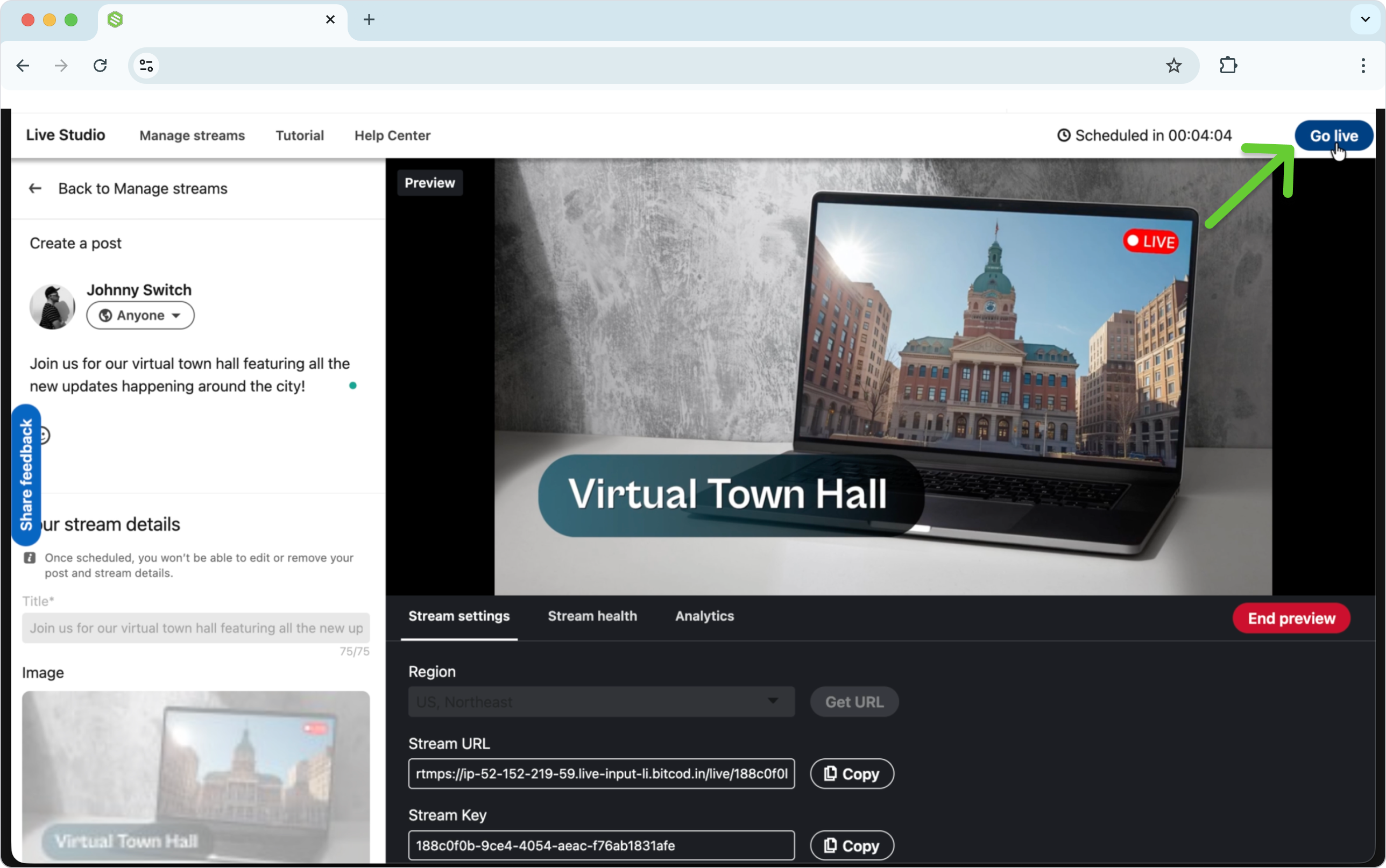
🎉 You're live on LinkedIn!
Why two steps? Switchboard's Start button delivers your video to LinkedIn's private preview monitor. You then press Go Live in LinkedIn to release it to your public audience. Both steps are required when using a Custom RTMP connection.
LinkedIn Live recommended video specifications:
These are the recommended settings for your encoder.
Resolution: 1280 x 720
Keyframe: 30 fps
Key interval: 2 seconds ( 60 frames)
Video bitrate: 3.5 Mbps
Audio bitrate: 128 kbps
Audio sample: 48 kHz
Encoding: H264 video. AAc audio
FAQ
Q: I scheduled my LinkedIn event for tomorrow, but I don't see a Stream Key. Where is it?
A: LinkedIn hides the Custom RTMP Stream Key until exactly 60 minutes before your scheduled start time. Simply return to the LinkedIn Live setup page within that 1-hour window, and your Stream URL and Stream Key will automatically populate for you to copy.
Q: Switchboard says it is streaming, but LinkedIn is still waiting for the video. What's wrong?
A: This is almost always caused by incorrect encoder settings. LinkedIn will block the video feed if it does not meet its strict parameters. Check your production software (OBS, vMix, etc.) and ensure your Keyframe Interval is exactly 2 seconds and your resolution is 720p.
Q: Do I have to press "Go Live" in both Switchboard and LinkedIn?
A: Yes. When using a Custom RTMP connection, Switchboard's "Start" button securely delivers the video to LinkedIn's private preview monitor. You must then press "Go Live" directly in the LinkedIn dashboard to broadcast to your public audience.
Q: My preview was working earlier, but now it's gone, and LinkedIn won't let me start. What happened?
A: Your Stream URL and Stream Key likely expired. LinkedIn's streaming credentials for scheduled events are time-sensitive; if they were generated too far in advance, they can expire before you go live. The fix is to return to LinkedIn Live Studio, regenerate both values, and update both fields in your Switchboard Custom RTMP Destination. See the "Understanding the LinkedIn Preview Window" for the full step-by-step instructions.
Understanding the LinkedIn Preview Window
When you set up a scheduled LinkedIn Live event, LinkedIn provides a Stream URL and Stream Key to enter into Switchboard. What's important to know is that these credentials are time-sensitive; they're intended to be used close to your event's start time, not generated hours in advance.
LinkedIn may make your credentials available before the event begins, and the preview window can appear to be working correctly well ahead of schedule. This can make it tempting to run an early connection test, and in many cases, customers do exactly that, confirming their video is reaching LinkedIn successfully. That's fine, but there's an important catch: credentials generated too early may expire before you're actually ready to go live. When that happens, the preview may disappear, fail to load, or LinkedIn may refuse to start the event even when everything looks correctly configured on the Switchboard side.
Best Practice
For the most reliable experience, generate your Stream URL and Stream Key shortly before going live, not hours in advance. If you do run an early test, be prepared to generate a fresh set of credentials again closer to your start time. Once your preview is working correctly and you're ready to broadcast, leave the LinkedIn Live Studio window open until you click Go Live.
How to Regenerate Your Credentials
If your preview disappears, never loads, or LinkedIn won't let you start your event, your Stream URL and Stream Key have likely expired. Here's how to fix it:
Return to LinkedIn Live Studio: https://www.linkedin.com/video/golive/later/
Find your scheduled event and click Prepare to Go Live.
Choose your server region and click Get URL to generate a new Stream URL and Stream Key.
In Switchboard, go to your Workflow page and open your LinkedIn Custom RTMP Destination. Click the three horizontal ellipses → Destination Details.
Replace both the RTMP/RTMPS Address and Stream Key fields with the new values.
Click Save.
⚠️ Remember: Any time LinkedIn generates new credentials for the same event, both values change. Always update both fields in Switchboard; updating only one will cause the stream to fail.
Additional Resources:
LinkedIn Live resources:
Bonus Information